Android ImageButton进阶实战:从基础到自定义状态与交互优化
news2026/4/4 17:35:40
1. ImageButton基础与核心属性解析第一次接触ImageButton时很多人会疑惑它和普通Button有什么区别。简单来说Button是文字按钮而ImageButton是用图片作为视觉元素的交互控件。在实际项目中我发现90%的图标点击场景都应该使用ImageButton而非ButtonImageView组合因为前者在内存占用和事件处理上都有明显优势。先看一个最基础的XML声明示例ImageButton android:idid/btn_settings android:layout_width48dp android:layout_height48dp android:scaleTypecenterInside android:background?attr/selectableItemBackgroundBorderless app:srcCompatdrawable/ic_settings /这里有几个关键属性需要特别注意scaleType这个属性决定了图片在按钮中的显示方式。我常用的是centerInside保持比例完整显示和fitCenter自适应填充实测在Material Design图标场景下前者显示效果更稳定background设置selectableItemBackgroundBorderless可以让按钮有点击涟漪效果这是符合Material Design规范的标准做法srcCompat一定要用这个替代旧的android:src属性否则在低版本Android上可能出现矢量图兼容问题在代码中动态创建ImageButton时有个坑需要注意val dynamicButton ImageButton(context).apply { layoutParams ViewGroup.LayoutParams( ViewGroup.LayoutParams.WRAP_CONTENT, ViewGroup.LayoutParams.WRAP_CONTENT ) setImageResource(R.drawable.ic_play) // 必须设置背景否则点击区域会异常 background ContextCompat.getDrawable(context, R.drawable.btn_circle_bg) }2. 多状态样式的高级实现方案很多开发者只给ImageButton设置一张静态图片这会让交互体验大打折扣。通过selector实现多状态样式切换才是专业应用的标准做法。我总结出三种进阶实现方式2.1 基础selector实现创建res/drawable/btn_states.xmlselector xmlns:androidhttp://schemas.android.com/apk/res/android !-- 按下状态 -- item android:state_pressedtrue android:drawabledrawable/btn_pressed/ !-- 禁用状态 -- item android:state_enabledfalse android:drawabledrawable/btn_disabled/ !-- 默认状态 -- item android:drawabledrawable/btn_normal/ /selector然后在布局中引用ImageButton android:srcdrawable/btn_states ... /2.2 带动画的矢量图切换对于支持矢量图的场景可以做得更精致animated-selector xmlns:androidhttp://schemas.android.com/apk/res/android item android:idid/normal android:drawabledrawable/ic_fav_normal android:state_pressedfalse/ item android:idid/pressed android:drawabledrawable/ic_fav_pressed/ transition android:fromIdid/normal android:toIdid/pressed android:drawabledrawable/fav_anim/ /animated-selector2.3 动态换肤方案在需要主题切换的场景可以这样动态改变状态图fun updateButtonState(button: ImageButton, isActive: Boolean) { val states StateListDrawable().apply { addState(intArrayOf(android.R.attr.state_activated), ContextCompat.getDrawable(context, R.drawable.active_state)) addState(intArrayOf(), ContextCompat.getDrawable(context, R.drawable.default_state)) } button.setImageDrawable(states) button.isActivated isActive }3. 交互优化的五个实战技巧3.1 精准点击区域控制ImageButton默认点击区域是View的整个矩形范围对于不规则图标需要特殊处理imageButton.setOnTouchListener { v, event - when (event.action) { MotionEvent.ACTION_DOWN - { // 检查触摸点是否在透明区域 val drawable (v as ImageButton).drawable if (!isPointInDrawable(event.x, event.y, drawable)) { returnsetOnTouchListener false } // 处理有效点击 true } else - false } } private fun isPointInDrawable(x: Float, y: Float, drawable: Drawable): Boolean { val bounds drawable.copyBounds() return x bounds.left x bounds.right y bounds.top y bounds.bottom }3.2 双击检测实现通过扩展函数实现优雅的双击检测fun ImageButton.setOnDoubleClickListener(listener: () - Unit) { var lastClickTime 0L setOnClickListener { val currentTime System.currentTimeMillis() if (currentTime - lastClickTime 300) { listener() } lastClickTime currentTime } } // 使用示例 imageButton.setOnDoubleClickListener { showToast(双击事件触发) }3.3 按压动画效果结合属性动画实现专业级反馈fun setupPressAnimation(button: ImageButton) { val scaleDown PropertyValuesHolder.ofFloat( View.SCALE_X, 0.95f) val scaleUp PropertyValuesHolder.ofFloat( View.SCALE_X, 1f) button.setOnTouchListener { v, event - when (event.action) { MotionEvent.ACTION_DOWN - { ObjectAnimator.ofPropertyValuesHolder(v, scaleDown) .setDuration(100).start() true } MotionEvent.ACTION_UP - { ObjectAnimator.ofPropertyValuesHolder(v, scaleUp) .setDuration(150).start() false } else - false } } }4. Material Design适配实践4.1 涟漪效果定制创建res/drawable/ripple_background.xmlripple xmlns:androidhttp://schemas.android.com/apk/res/android android:color?attr/colorControlHighlight item android:idandroid:id/mask shape android:shapeoval solid android:colorandroid:color/white/ /shape /item /ripple然后在ImageButton中应用ImageButton android:backgrounddrawable/ripple_background ... /4.2 动态海拔效果通过状态列表实现按压时的海拔变化fun setupElevation(button: ImageButton) { val states StateListDrawable().apply { addState(intArrayOf(android.R.attr.state_pressed), createElevationDrawable(8f)) addState(intArrayOf(), createElevationDrawable(2f)) } button.background states } private fun createElevationDrawable(elevation: Float): Drawable { return GradientDrawable().apply { shape GradientDrawable.OVAL setColor(Color.WHITE) // 实际项目中应该使用兼容方案 if (Build.VERSION.SDK_INT Build.VERSION_CODES.LOLLIPOP) { this.elevation elevation } } }5. 性能优化与常见问题5.1 内存优化方案对于需要显示大量ImageButton的场景如相册选择器建议使用统一的Drawable缓存对回收的View及时清理引用使用以下优化代码object ImageButtonCache { private val drawableCache LruCacheString, Drawable(10) fun loadDrawable(context: Context, resId: Int): Drawable { val key ${resId}_${context.theme.hashCode()} return drawableCache.get(key) ?: run { val drawable AppCompatResources.getDrawable(context, resId)!! drawableCache.put(key, drawable) drawable } } } // 使用方式 imageButton.setImageDrawable( ImageButtonCache.loadDrawable(context, R.drawable.ic_photo))5.2 点击延迟问题解决在RecyclerView等滚动容器中可以这样优化imageButton.setOnTouchListener { v, event - when (event.action) { MotionEvent.ACTION_DOWN - { v.parent.requestDisallowInterceptTouchEvent(true) false } MotionEvent.ACTION_UP - { v.performClick() true } else - false } }5.3 矢量图兼容方案创建res/drawable-v24/和res/drawable/两套资源!-- v24版本使用原生矢量图 -- vector xmlns:androidhttp://schemas.android.com/apk/res/android android:width24dp android:height24dp android:viewportWidth24 android:viewportHeight24 path android:fillColor#FF0000 android:pathDataM12,2L4,5v6c0,5.5 3.8,10.7 9,12 5.2-1.3 9-6.5 9-12V5L12,2z/ /vector !-- 普通版本使用PNG备用 -- bitmap xmlns:androidhttp://schemas.android.com/apk/res/android android:srcdrawable/ic_warning_png android:gravitycenter/
本文来自互联网用户投稿,该文观点仅代表作者本人,不代表本站立场。本站仅提供信息存储空间服务,不拥有所有权,不承担相关法律责任。如若转载,请注明出处:http://www.coloradmin.cn/o/2482956.html
如若内容造成侵权/违法违规/事实不符,请联系多彩编程网进行投诉反馈,一经查实,立即删除!相关文章
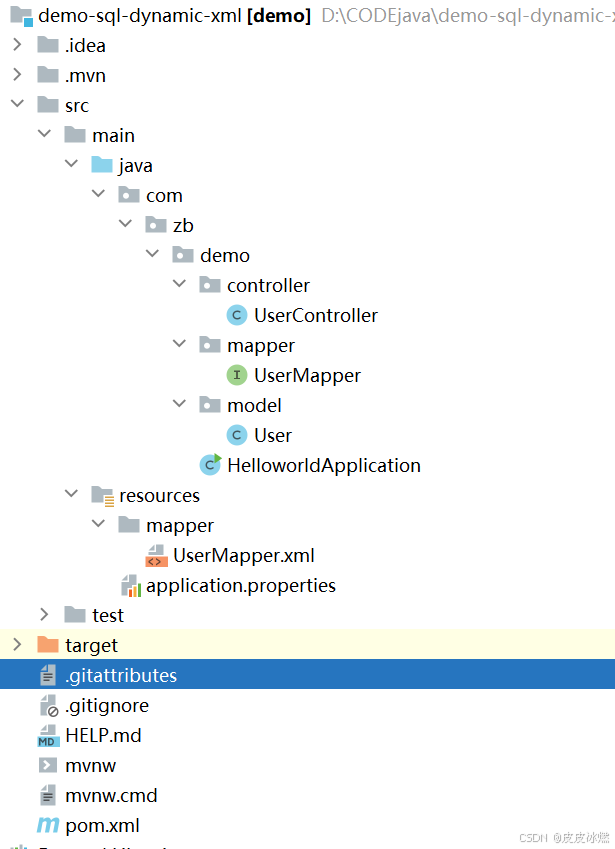
SpringBoot-17-MyBatis动态SQL标签之常用标签
文章目录 1 代码1.1 实体User.java1.2 接口UserMapper.java1.3 映射UserMapper.xml1.3.1 标签if1.3.2 标签if和where1.3.3 标签choose和when和otherwise1.4 UserController.java2 常用动态SQL标签2.1 标签set2.1.1 UserMapper.java2.1.2 UserMapper.xml2.1.3 UserController.ja…
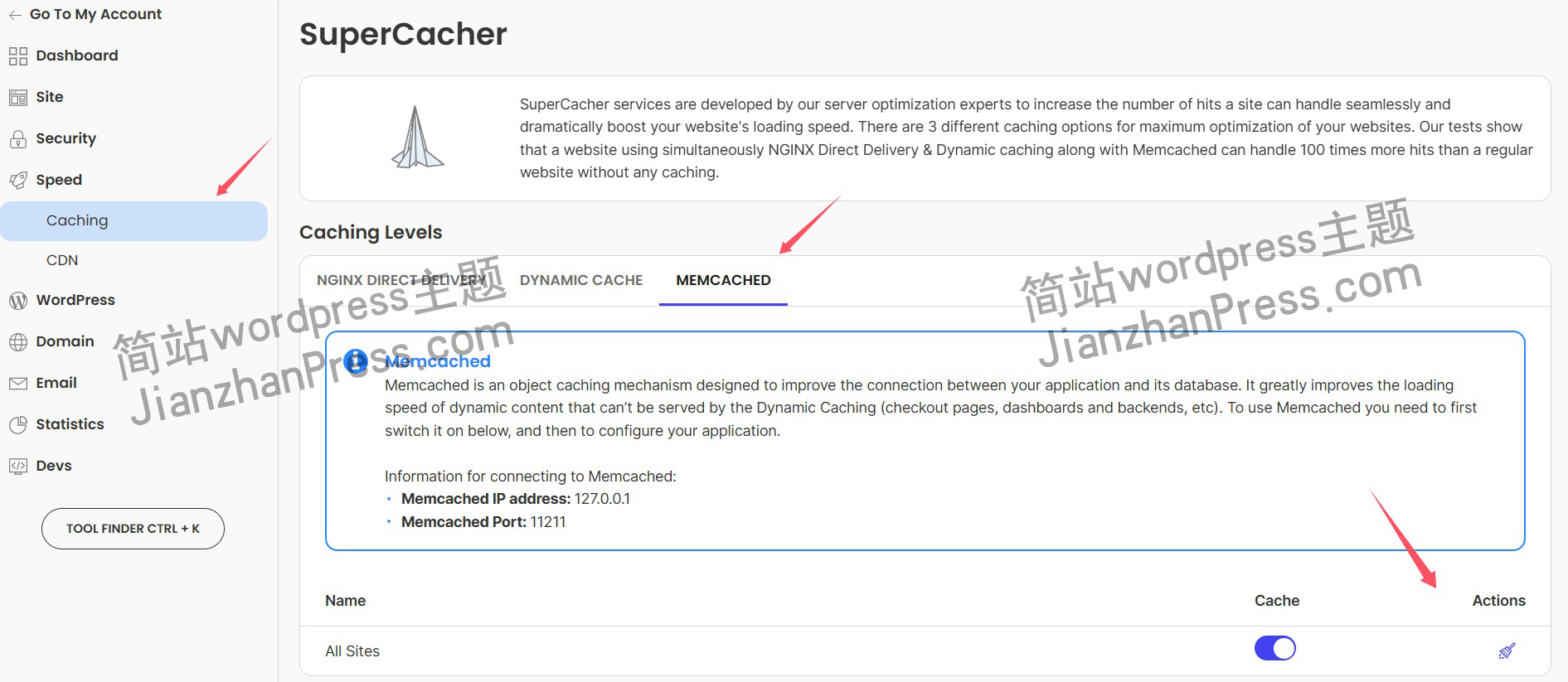
wordpress后台更新后 前端没变化的解决方法
使用siteground主机的wordpress网站,会出现更新了网站内容和修改了php模板文件、js文件、css文件、图片文件后,网站没有变化的情况。
不熟悉siteground主机的新手,遇到这个问题,就很抓狂,明明是哪都没操作错误&#x…
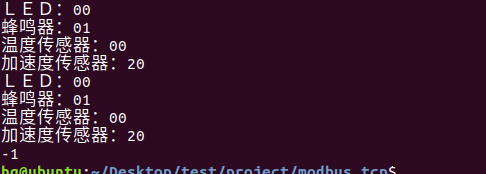
网络编程(Modbus进阶)
思维导图 Modbus RTU(先学一点理论)
概念 Modbus RTU 是工业自动化领域 最广泛应用的串行通信协议,由 Modicon 公司(现施耐德电气)于 1979 年推出。它以 高效率、强健性、易实现的特点成为工业控制系统的通信标准。 包…
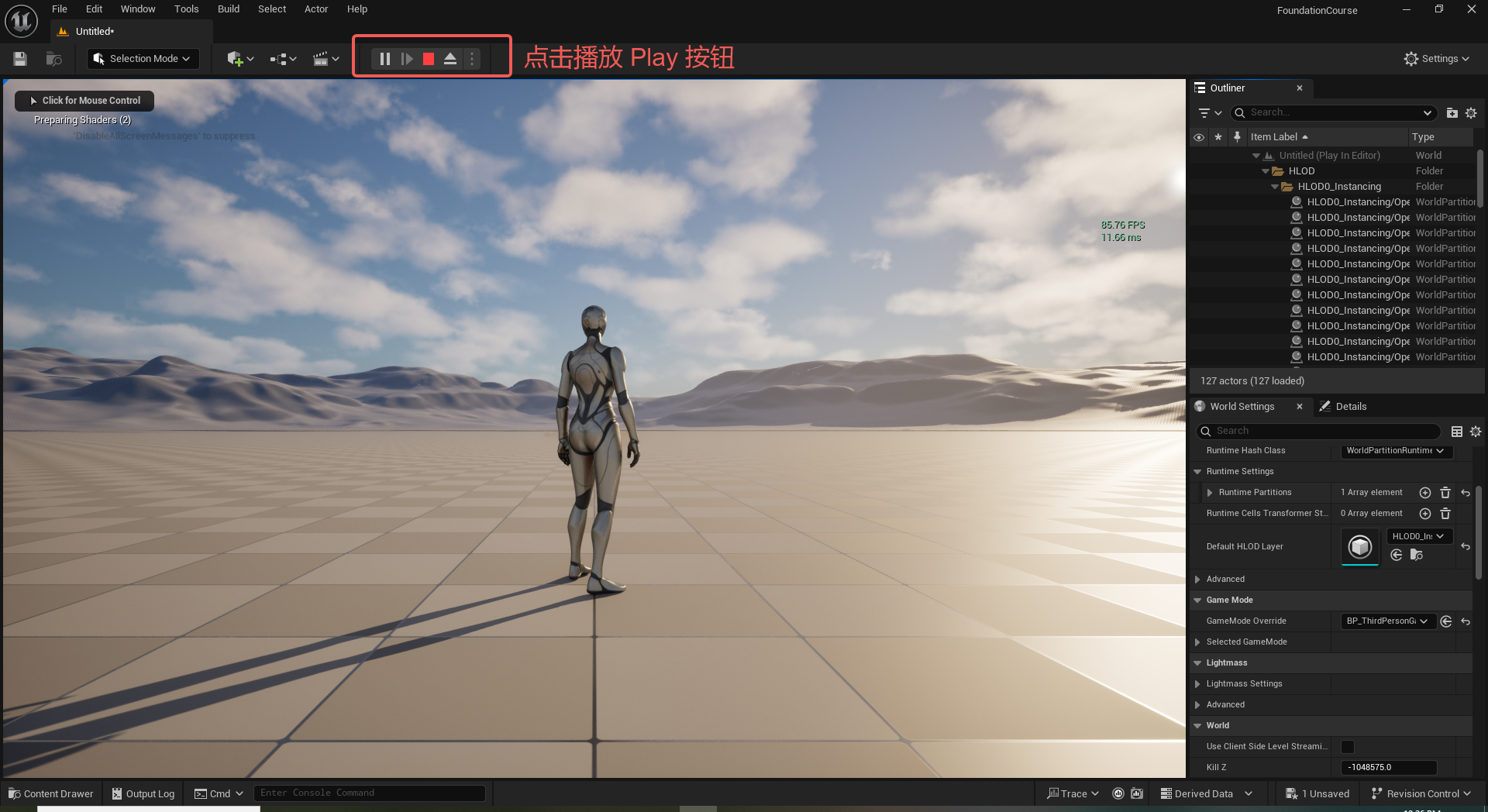
UE5 学习系列(二)用户操作界面及介绍
这篇博客是 UE5 学习系列博客的第二篇,在第一篇的基础上展开这篇内容。博客参考的 B 站视频资料和第一篇的链接如下:
【Note】:如果你已经完成安装等操作,可以只执行第一篇博客中 2. 新建一个空白游戏项目 章节操作,重…
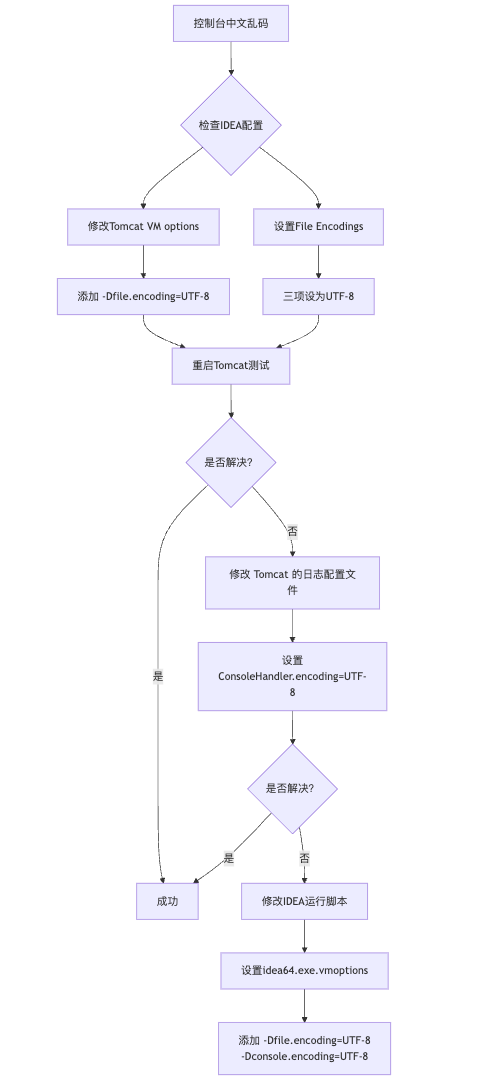
IDEA运行Tomcat出现乱码问题解决汇总
最近正值期末周,有很多同学在写期末Java web作业时,运行tomcat出现乱码问题,经过多次解决与研究,我做了如下整理:
原因:
IDEA本身编码与tomcat的编码与Windows编码不同导致,Windows 系统控制台…
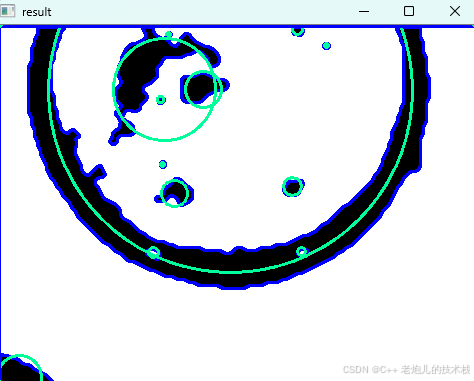
利用最小二乘法找圆心和半径
#include <iostream>
#include <vector>
#include <cmath>
#include <Eigen/Dense> // 需安装Eigen库用于矩阵运算 // 定义点结构
struct Point { double x, y; Point(double x_, double y_) : x(x_), y(y_) {}
}; // 最小二乘法求圆心和半径 …
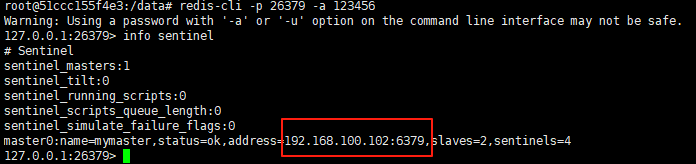
使用docker在3台服务器上搭建基于redis 6.x的一主两从三台均是哨兵模式
一、环境及版本说明
如果服务器已经安装了docker,则忽略此步骤,如果没有安装,则可以按照一下方式安装: 1. 在线安装(有互联网环境): 请看我这篇文章 传送阵>> 点我查看 2. 离线安装(内网环境):请看我这篇文章 传送阵>> 点我查看
说明:假设每台服务器已…
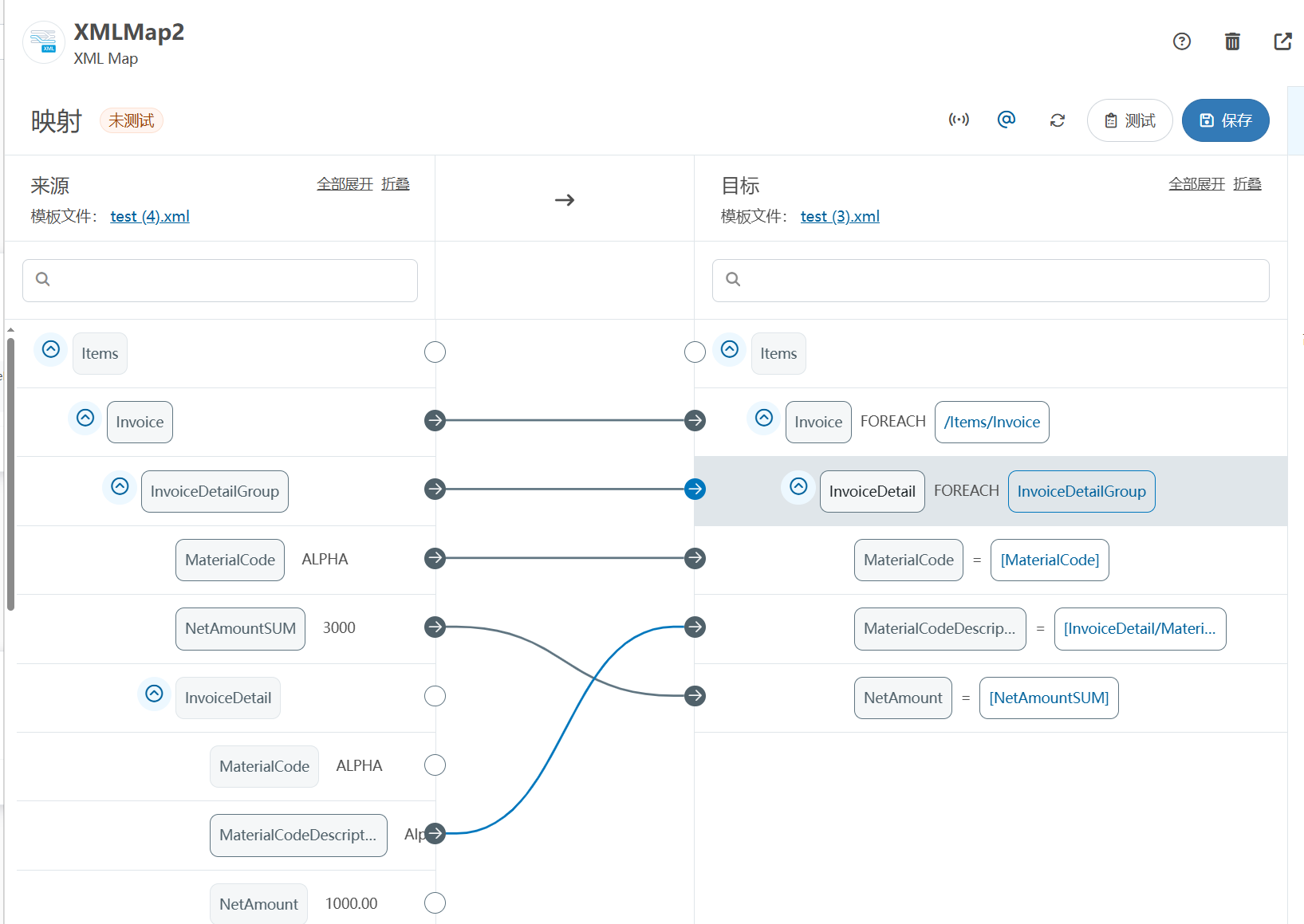
XML Group端口详解
在XML数据映射过程中,经常需要对数据进行分组聚合操作。例如,当处理包含多个物料明细的XML文件时,可能需要将相同物料号的明细归为一组,或对相同物料号的数量进行求和计算。传统实现方式通常需要编写脚本代码,增加了开…
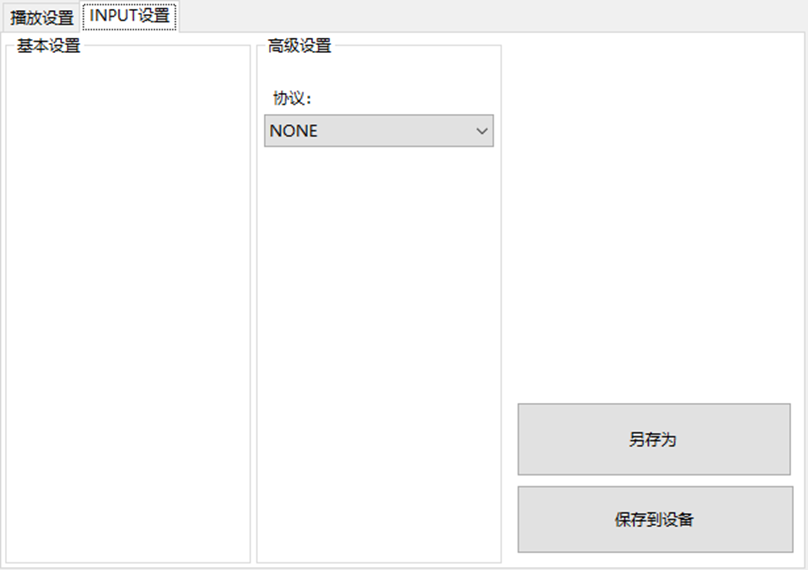
LBE-LEX系列工业语音播放器|预警播报器|喇叭蜂鸣器的上位机配置操作说明
LBE-LEX系列工业语音播放器|预警播报器|喇叭蜂鸣器专为工业环境精心打造,完美适配AGV和无人叉车。同时,集成以太网与语音合成技术,为各类高级系统(如MES、调度系统、库位管理、立库等)提供高效便捷的语音交互体验。
L…
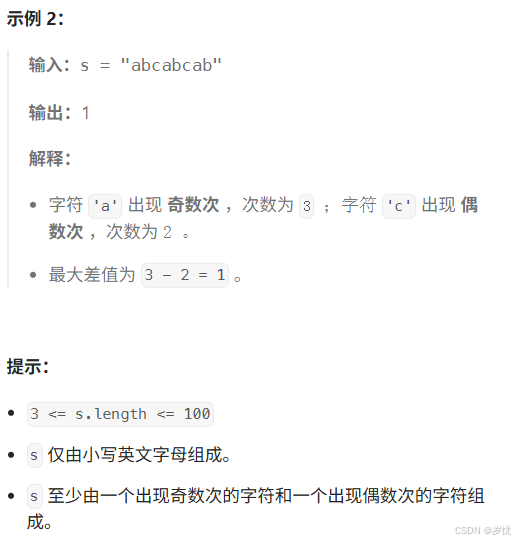
(LeetCode 每日一题) 3442. 奇偶频次间的最大差值 I (哈希、字符串)
题目:3442. 奇偶频次间的最大差值 I 思路 :哈希,时间复杂度0(n)。 用哈希表来记录每个字符串中字符的分布情况,哈希表这里用数组即可实现。
C版本:
class Solution {
public:int maxDifference(string s) {int a[26]…
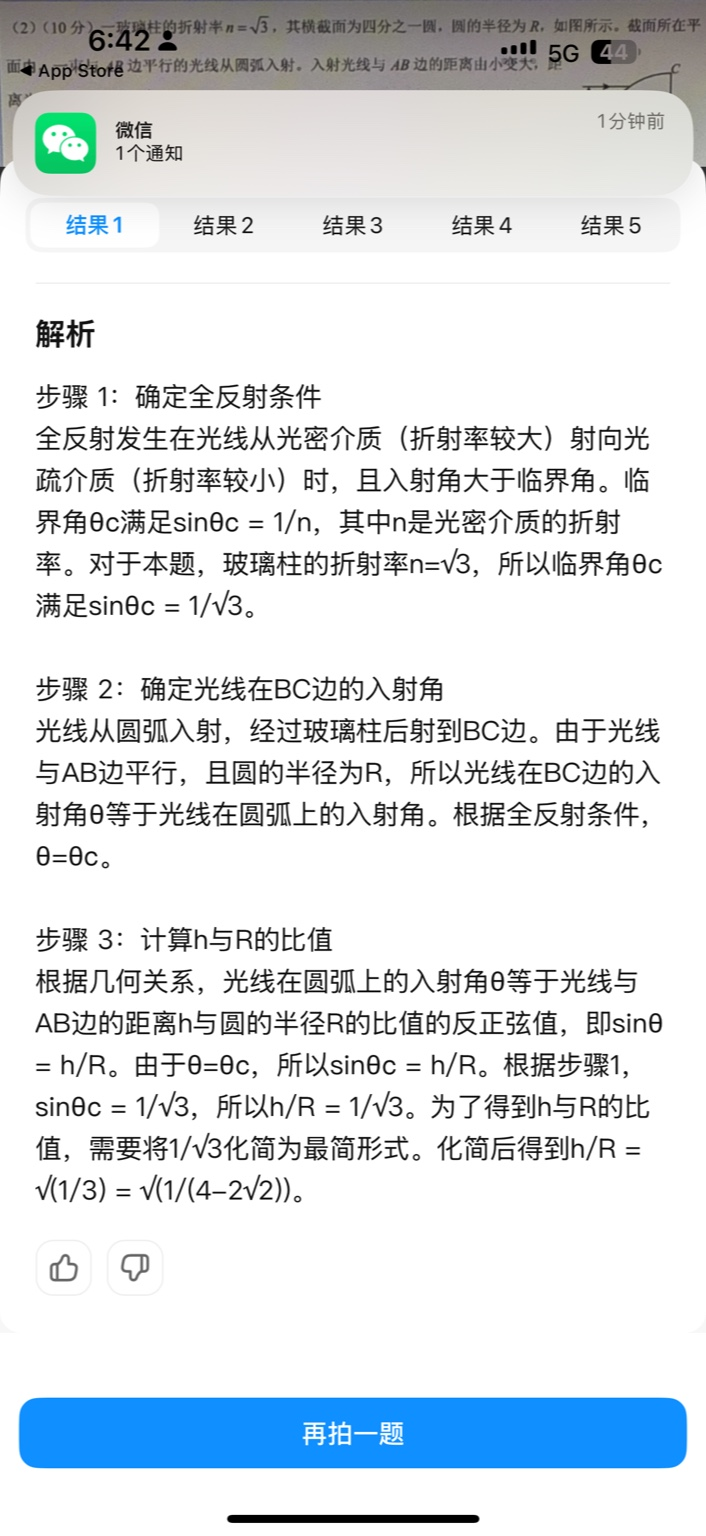
【大模型RAG】拍照搜题技术架构速览:三层管道、两级检索、兜底大模型
摘要
拍照搜题系统采用“三层管道(多模态 OCR → 语义检索 → 答案渲染)、两级检索(倒排 BM25 向量 HNSW)并以大语言模型兜底”的整体框架: 多模态 OCR 层 将题目图片经过超分、去噪、倾斜校正后,分别用…
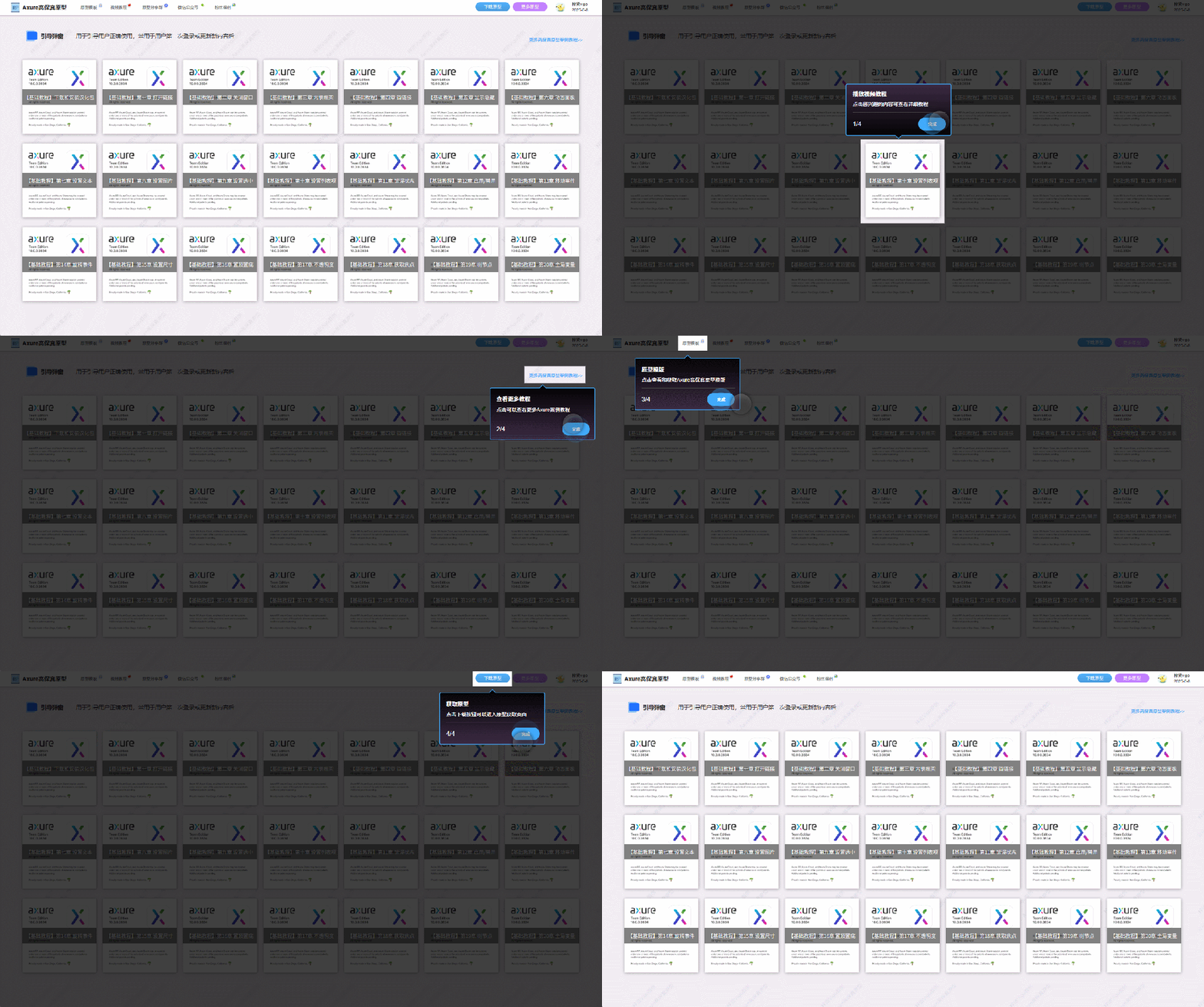
【Axure高保真原型】引导弹窗
今天和大家中分享引导弹窗的原型模板,载入页面后,会显示引导弹窗,适用于引导用户使用页面,点击完成后,会显示下一个引导弹窗,直至最后一个引导弹窗完成后进入首页。具体效果可以点击下方视频观看或打开下方…
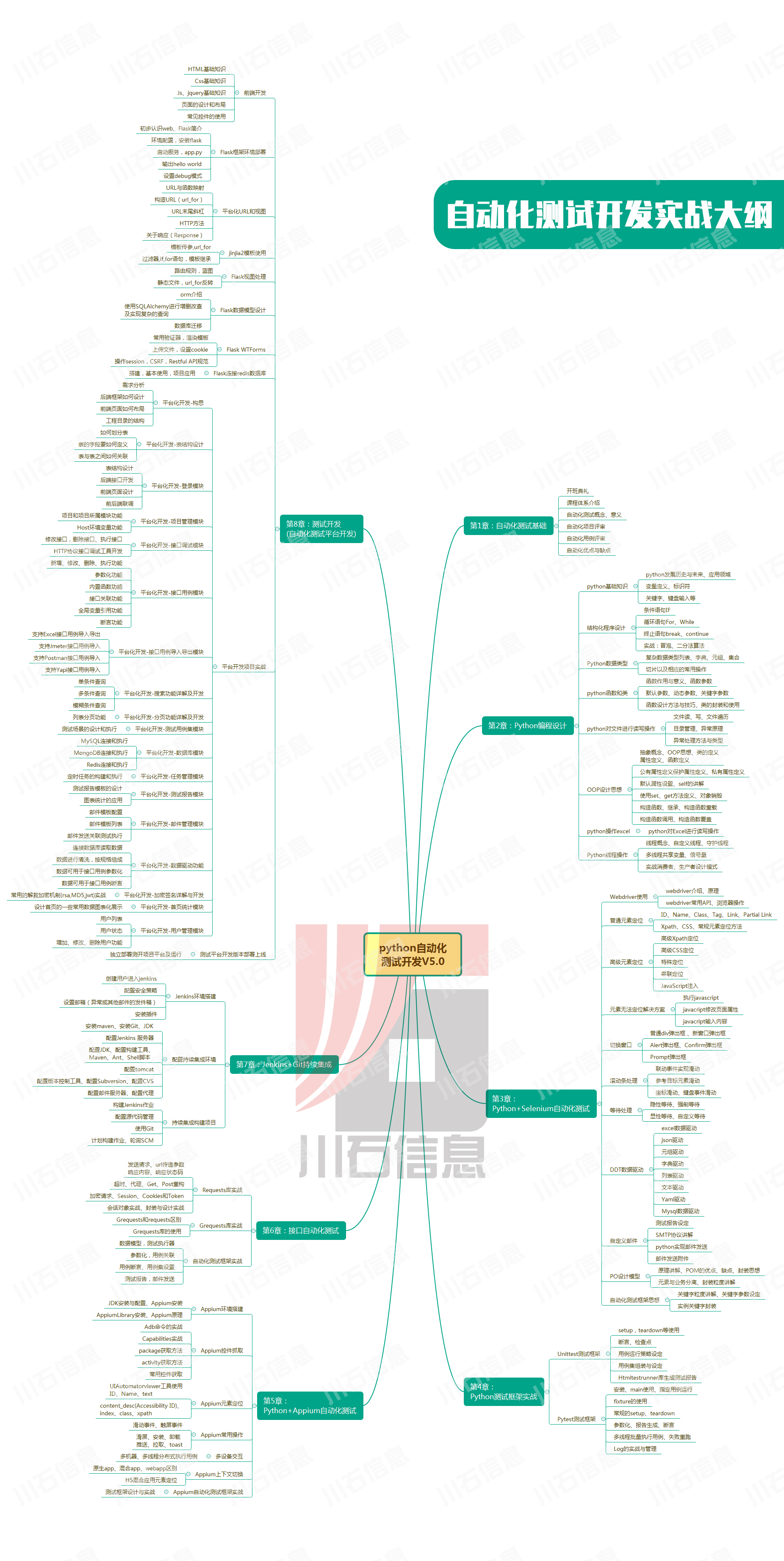
接口测试中缓存处理策略
在接口测试中,缓存处理策略是一个关键环节,直接影响测试结果的准确性和可靠性。合理的缓存处理策略能够确保测试环境的一致性,避免因缓存数据导致的测试偏差。以下是接口测试中常见的缓存处理策略及其详细说明:
一、缓存处理的核…
龙虎榜——20250610
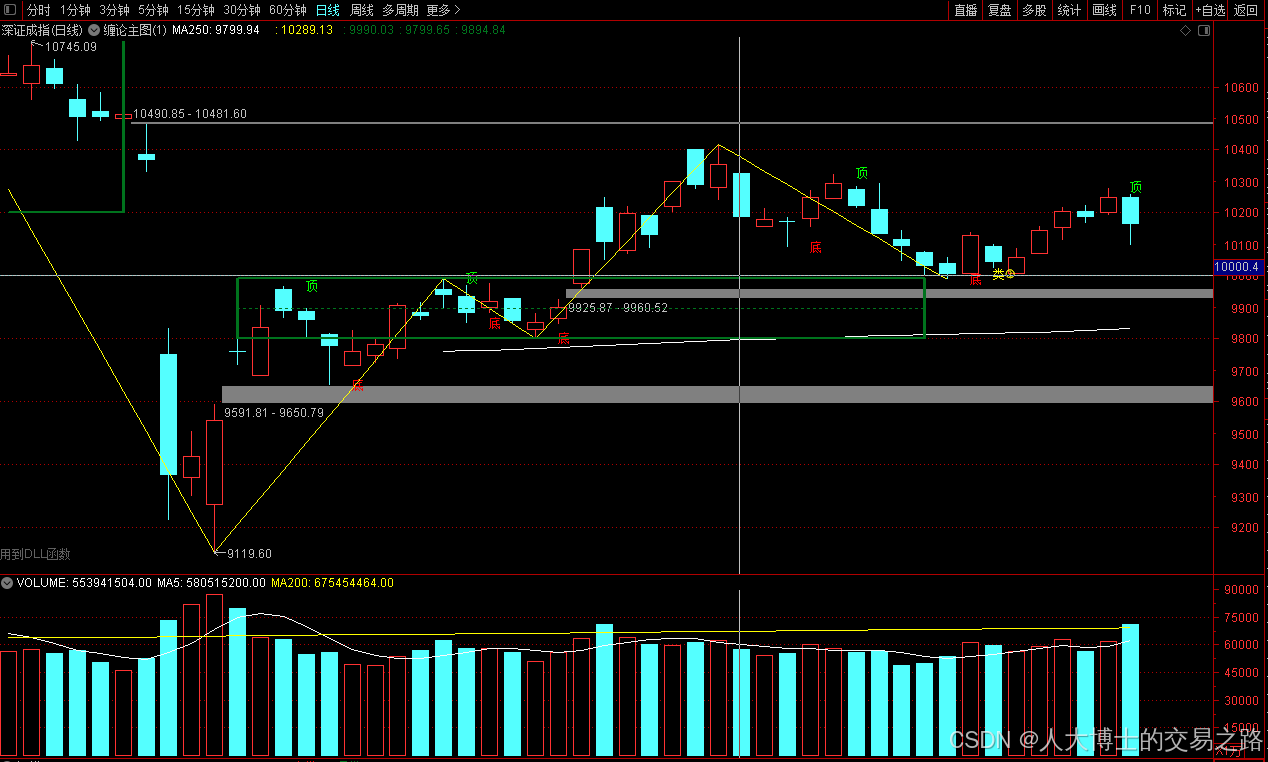
上证指数放量收阴线,个股多数下跌,盘中受消息影响大幅波动。 深证指数放量收阴线形成顶分型,指数短线有调整的需求,大概需要一两天。 2025年6月10日龙虎榜行业方向分析 1. 金融科技
代表标的:御银股份、雄帝科技
驱动…
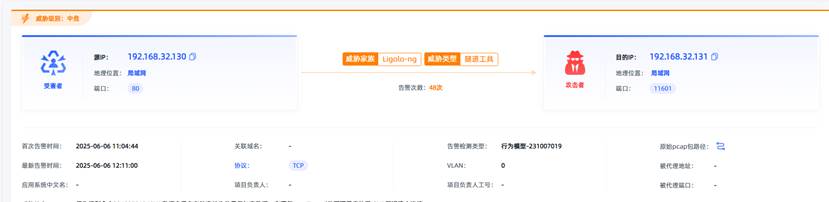
观成科技:隐蔽隧道工具Ligolo-ng加密流量分析
1.工具介绍
Ligolo-ng是一款由go编写的高效隧道工具,该工具基于TUN接口实现其功能,利用反向TCP/TLS连接建立一条隐蔽的通信信道,支持使用Let’s Encrypt自动生成证书。Ligolo-ng的通信隐蔽性体现在其支持多种连接方式,适应复杂网…
铭豹扩展坞 USB转网口 突然无法识别解决方法
当 USB 转网口扩展坞在一台笔记本上无法识别,但在其他电脑上正常工作时,问题通常出在笔记本自身或其与扩展坞的兼容性上。以下是系统化的定位思路和排查步骤,帮助你快速找到故障原因:
背景:
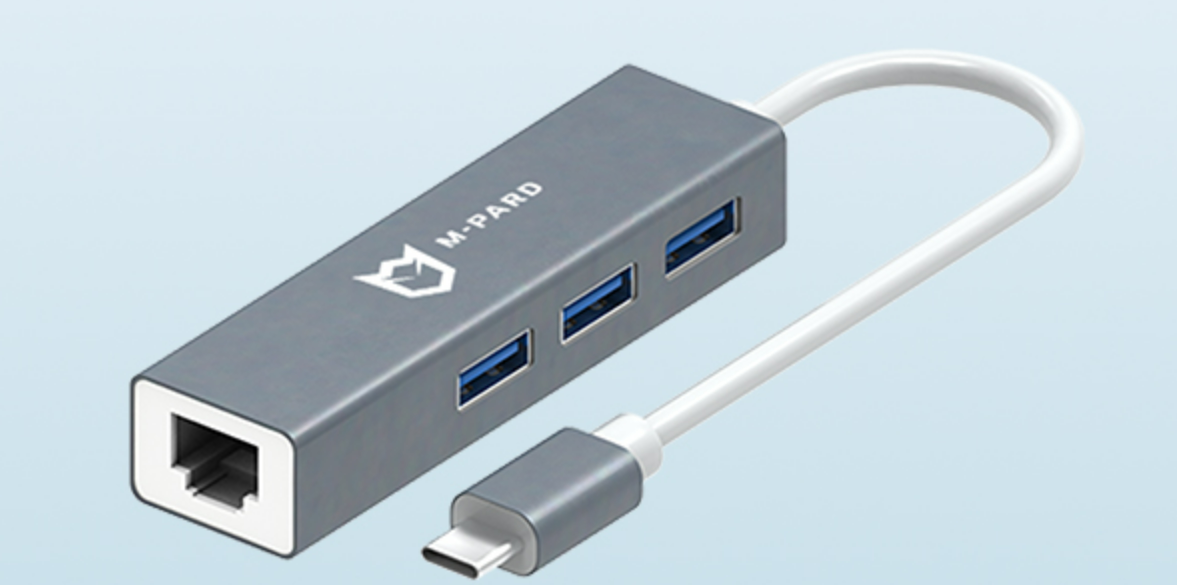
一个M-pard(铭豹)扩展坞的网卡突然无法识别了,扩展出来的三个USB接口正常。…
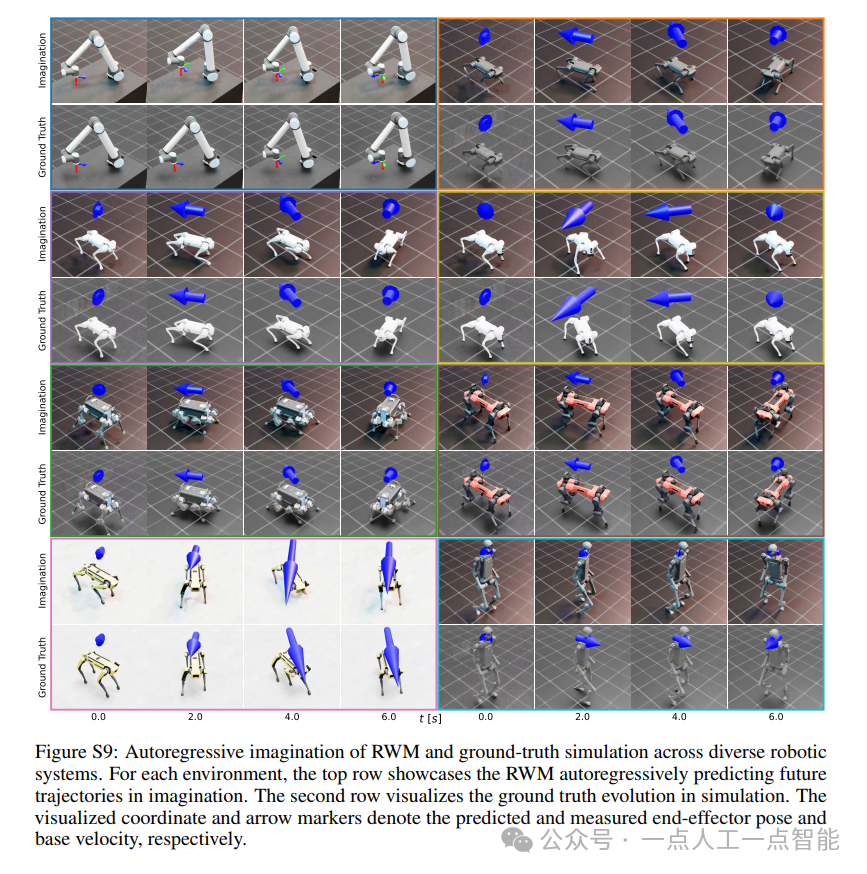
未来机器人的大脑:如何用神经网络模拟器实现更智能的决策?
编辑:陈萍萍的公主一点人工一点智能 未来机器人的大脑:如何用神经网络模拟器实现更智能的决策?RWM通过双自回归机制有效解决了复合误差、部分可观测性和随机动力学等关键挑战,在不依赖领域特定归纳偏见的条件下实现了卓越的预测准…

Linux应用开发之网络套接字编程(实例篇)
服务端与客户端单连接
服务端代码
#include <sys/socket.h>
#include <sys/types.h>
#include <netinet/in.h>
#include <stdio.h>
#include <stdlib.h>
#include <string.h>
#include <arpa/inet.h>
#include <pthread.h>
…

华为云AI开发平台ModelArts
华为云ModelArts:重塑AI开发流程的“智能引擎”与“创新加速器”!
在人工智能浪潮席卷全球的2025年,企业拥抱AI的意愿空前高涨,但技术门槛高、流程复杂、资源投入巨大的现实,却让许多创新构想止步于实验室。数据科学家…
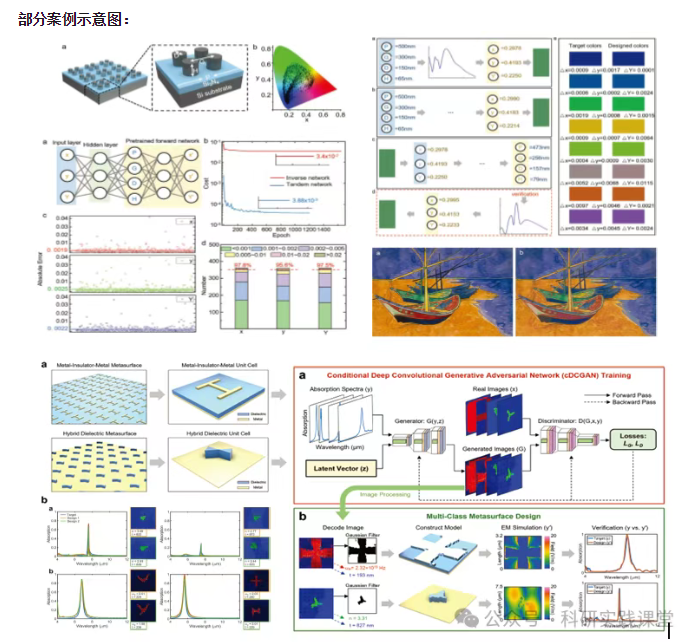
深度学习在微纳光子学中的应用
深度学习在微纳光子学中的主要应用方向
深度学习与微纳光子学的结合主要集中在以下几个方向:
逆向设计 通过神经网络快速预测微纳结构的光学响应,替代传统耗时的数值模拟方法。例如设计超表面、光子晶体等结构。
特征提取与优化 从复杂的光学数据中自…