Qwen-Image-Lightning前端集成:JavaScript实现实时图像预览
news2026/3/24 22:39:41
Qwen-Image-Lightning前端集成JavaScript实现实时图像预览想象一下你正在开发一个创意工具网站用户输入一段文字描述几秒钟后就能看到对应的图片慢慢“画”出来整个过程流畅自然还能看到生成进度。这种实时预览体验能让你的应用瞬间变得生动有趣。今天我们就来聊聊怎么用JavaScript把Qwen-Image-Lightning这个快速的图像生成模型集成到你的前端项目里实现真正的实时图像预览功能。我会带你一步步搭建一个完整的交互界面从输入文字到看到图片生成的全过程。1. 为什么需要前端实时预览在传统的AI图像生成流程里用户通常需要输入描述 → 点击生成 → 等待几十秒 → 看到结果。如果效果不满意再重复这个过程。这种体验就像在黑暗中摸索用户完全不知道生成进行到哪一步了。实时预览改变了这一切。它让用户能够看到图像从模糊到清晰的演变过程实时了解生成进度减少等待焦虑在生成过程中随时调整参数获得更沉浸式的创作体验Qwen-Image-Lightning特别适合做实时预览因为它本身就很快——只需要4步或8步就能生成高质量图片。这意味着我们可以在前端展示每一步的中间结果让用户看到图像是如何一步步“画”出来的。2. 搭建基础前端界面我们先从最简单的界面开始。你需要一个输入框让用户写描述一个按钮来触发生成还有一个区域来展示图片。!DOCTYPE html html langzh-CN head meta charsetUTF-8 meta nameviewport contentwidthdevice-width, initial-scale1.0 titleQwen-Image-Lightning 实时预览/title style * { margin: 0; padding: 0; box-sizing: border-box; } body { font-family: -apple-system, BlinkMacSystemFont, Segoe UI, Roboto, sans-serif; background: linear-gradient(135deg, #667eea 0%, #764ba2 100%); min-height: 100vh; padding: 20px; } .container { max-width: 1200px; margin: 0 auto; background: white; border-radius: 20px; box-shadow: 0 20px 60px rgba(0,0,0,0.3); overflow: hidden; } .header { background: #f8f9fa; padding: 30px; border-bottom: 1px solid #e9ecef; } h1 { color: #333; margin-bottom: 10px; font-size: 2.5rem; } .subtitle { color: #666; font-size: 1.1rem; } .main-content { display: grid; grid-template-columns: 1fr 1fr; gap: 30px; padding: 30px; } media (max-width: 768px) { .main-content { grid-template-columns: 1fr; } } .input-section { display: flex; flex-direction: column; gap: 20px; } .prompt-input { width: 100%; min-height: 150px; padding: 15px; border: 2px solid #e9ecef; border-radius: 10px; font-size: 16px; resize: vertical; transition: border-color 0.3s; } .prompt-input:focus { outline: none; border-color: #667eea; } .params { display: grid; grid-template-columns: repeat(2, 1fr); gap: 15px; } .param-group { display: flex; flex-direction: column; gap: 5px; } label { font-weight: 600; color: #555; } select, input[typenumber] { padding: 10px; border: 1px solid #ddd; border-radius: 5px; font-size: 14px; } .generate-btn { background: linear-gradient(135deg, #667eea 0%, #764ba2 100%); color: white; border: none; padding: 15px 30px; border-radius: 10px; font-size: 16px; font-weight: 600; cursor: pointer; transition: transform 0.2s, box-shadow 0.2s; } .generate-btn:hover { transform: translateY(-2px); box-shadow: 0 10px 20px rgba(102, 126, 234, 0.3); } .generate-btn:disabled { opacity: 0.6; cursor: not-allowed; transform: none; } .output-section { display: flex; flex-direction: column; gap: 20px; } .preview-container { background: #f8f9fa; border-radius: 10px; padding: 20px; min-height: 400px; display: flex; align-items: center; justify-content: center; position: relative; } .preview-placeholder { color: #999; text-align: center; } .preview-image { max-width: 100%; max-height: 400px; border-radius: 5px; box-shadow: 0 5px 15px rgba(0,0,0,0.1); } .progress-container { background: #f8f9fa; border-radius: 10px; padding: 20px; } .progress-header { display: flex; justify-content: space-between; margin-bottom: 10px; } .progress-bar { height: 8px; background: #e9ecef; border-radius: 4px; overflow: hidden; } .progress-fill { height: 100%; background: linear-gradient(90deg, #667eea, #764ba2); width: 0%; transition: width 0.3s ease; } .status-text { color: #666; font-size: 14px; margin-top: 10px; } .step-images { display: grid; grid-template-columns: repeat(4, 1fr); gap: 10px; margin-top: 20px; } .step-image { width: 100%; aspect-ratio: 1; object-fit: cover; border-radius: 5px; border: 2px solid transparent; transition: border-color 0.3s; } .step-image.active { border-color: #667eea; } .footer { text-align: center; padding: 20px; color: #666; font-size: 14px; border-top: 1px solid #e9ecef; } /style /head body div classcontainer div classheader h1Qwen-Image-Lightning 实时预览/h1 p classsubtitle输入文字描述实时观看AI一步步生成图片/p /div div classmain-content div classinput-section textarea classprompt-input placeholder请输入图片描述例如一只戴着眼镜的猫在图书馆看书阳光透过窗户... /textarea div classparams div classparam-group label forsteps生成步数/label select idsteps option value44步最快/option option value8 selected8步平衡/option /select /div div classparam-group label forsize图片尺寸/label select idsize option value512x512512×512/option option value768x768 selected768×768/option option value1024x10241024×1024/option /select /div /div button classgenerate-btn idgenerateBtn开始生成/button /div div classoutput-section div classpreview-container div classpreview-placeholder idpreviewPlaceholder 图片将在这里实时显示... /div img classpreview-image idpreviewImage styledisplay: none; /div div classprogress-container div classprogress-header span生成进度/span span idprogressText0%/span /div div classprogress-bar div classprogress-fill idprogressFill/div /div div classstatus-text idstatusText等待开始.../div div classstep-images idstepImagesContainer !-- 中间步骤图片会动态添加到这里 -- /div /div /div /div div classfooter p基于 Qwen-Image-Lightning 模型 | 实时预览功能演示/p /div /div script // 我们将在下一步添加JavaScript代码 /script /body /html这个界面包含了所有必要的元素输入区域、参数设置、生成按钮还有预览区域和进度显示。界面设计得比较现代有渐变背景和阴影效果看起来挺专业的。3. 建立WebSocket连接实时预览的核心是WebSocket连接。WebSocket允许服务器主动向前端推送数据这样我们就能实时收到每一步的生成结果。class ImageGenerator { constructor() { this.ws null; this.isGenerating false; this.currentSteps 8; this.stepImages []; // 绑定DOM元素 this.promptInput document.querySelector(.prompt-input); this.stepsSelect document.getElementById(steps); this.sizeSelect document.getElementById(size); this.generateBtn document.getElementById(generateBtn); this.previewPlaceholder document.getElementById(previewPlaceholder); this.previewImage document.getElementById(previewImage); this.progressFill document.getElementById(progressFill); this.progressText document.getElementById(progressText); this.statusText document.getElementById(statusText); this.stepImagesContainer document.getElementById(stepImagesContainer); // 绑定事件 this.generateBtn.addEventListener(click, () this.startGeneration()); // 模拟WebSocket服务器地址 - 实际使用时替换为你的服务器地址 this.wsUrl ws://localhost:8000/ws/generate; } async startGeneration() { if (this.isGenerating) { return; } const prompt this.promptInput.value.trim(); if (!prompt) { alert(请输入图片描述); return; } this.isGenerating true; this.generateBtn.disabled true; this.generateBtn.textContent 生成中...; // 重置UI状态 this.resetUI(); // 获取参数 this.currentSteps parseInt(this.stepsSelect.value); const size this.sizeSelect.value; try { await this.connectWebSocket(prompt, size); } catch (error) { console.error(连接失败:, error); this.updateStatus(连接失败请重试); this.isGenerating false; this.generateBtn.disabled false; this.generateBtn.textContent 开始生成; } } async connectWebSocket(prompt, size) { return new Promise((resolve, reject) { // 在实际项目中这里应该是真实的WebSocket服务器地址 // this.ws new WebSocket(this.wsUrl); // 为了演示我们使用模拟数据 this.simulateGeneration(prompt, size); resolve(); // 真实WebSocket连接的代码示例 /* this.ws new WebSocket(this.wsUrl); this.ws.onopen () { console.log(WebSocket连接已建立); // 发送生成请求 const request { type: generate, prompt: prompt, steps: this.currentSteps, size: size, guidance_scale: 1.0 }; this.ws.send(JSON.stringify(request)); this.updateStatus(已连接到服务器开始生成...); resolve(); }; this.ws.onmessage (event) { this.handleWebSocketMessage(event.data); }; this.ws.onerror (error) { console.error(WebSocket错误:, error); this.updateStatus(连接错误); reject(error); }; this.ws.onclose () { console.log(WebSocket连接已关闭); this.isGenerating false; this.generateBtn.disabled false; this.generateBtn.textContent 开始生成; }; */ }); } handleWebSocketMessage(data) { try { const message JSON.parse(data); switch (message.type) { case progress: this.updateProgress(message.step, message.total_steps, message.progress); break; case intermediate: this.updateIntermediateImage(message.step, message.image_data); break; case complete: this.updateFinalImage(message.image_data); this.completeGeneration(); break; case error: this.handleError(message.message); break; } } catch (error) { console.error(解析消息失败:, error); } } // 模拟生成过程 - 实际项目中不需要这个 simulateGeneration(prompt, size) { this.updateStatus(模拟生成中...); // 模拟进度更新 let currentStep 0; const totalSteps this.currentSteps; const interval setInterval(() { currentStep; // 更新进度 const progress (currentStep / totalSteps) * 100; this.updateProgress(currentStep, totalSteps, progress); // 模拟中间结果 if (currentStep totalSteps) { this.updateIntermediateImage(currentStep, this.getMockImageData(currentStep)); } // 完成 if (currentStep totalSteps) { clearInterval(interval); // 模拟最终结果 setTimeout(() { this.updateFinalImage(this.getMockImageData(final)); this.completeGeneration(); }, 500); } }, 800); // 每步800毫秒 } getMockImageData(step) { // 在实际项目中这里应该是从服务器接收的base64图片数据 // 为了演示我们生成一个简单的SVG来模拟图片 const colors [#667eea, #764ba2, #f56565, #ed8936, #ecc94b]; const color colors[step % colors.length]; const svg svg width512 height512 xmlnshttp://www.w3.org/2000/svg rect width512 height512 fill#f8f9fa/ circle cx256 cy256 r150 fill${color} opacity0.7/ text x256 y256 font-familyArial font-size24 fill#333 text-anchormiddle dy.3em 步骤 ${step} /text text x256 y300 font-familyArial font-size16 fill#666 text-anchormiddle 模拟图像数据 /text /svg ; return data:image/svgxml;base64, btoa(svg); } updateProgress(step, totalSteps, progress) { // 更新进度条 this.progressFill.style.width ${progress}%; this.progressText.textContent ${Math.round(progress)}%; // 更新状态文本 this.updateStatus(正在生成... 第 ${step}/${totalSteps} 步); } updateIntermediateImage(step, imageData) { // 创建或更新步骤图片 let stepImg this.stepImages[step - 1]; if (!stepImg) { stepImg document.createElement(img); stepImg.className step-image; stepImg.alt 步骤 ${step}; this.stepImagesContainer.appendChild(stepImg); this.stepImages[step - 1] stepImg; } // 更新图片源 stepImg.src imageData; stepImg.classList.add(active); // 移除其他步骤的active状态 this.stepImages.forEach((img, index) { if (index ! step - 1) { img.classList.remove(active); } }); // 更新主预览图 this.updatePreviewImage(imageData); } updateFinalImage(imageData) { this.updatePreviewImage(imageData); // 所有步骤图片都标记为完成 this.stepImages.forEach(img { img.classList.remove(active); img.classList.add(completed); }); } updatePreviewImage(imageData) { this.previewPlaceholder.style.display none; this.previewImage.style.display block; this.previewImage.src imageData; } updateStatus(text) { this.statusText.textContent text; } completeGeneration() { this.updateStatus(生成完成); this.isGenerating false; this.generateBtn.disabled false; this.generateBtn.textContent 开始生成; } handleError(errorMessage) { this.updateStatus(错误: ${errorMessage}); this.isGenerating false; this.generateBtn.disabled false; this.generateBtn.textContent 开始生成; } resetUI() { this.progressFill.style.width 0%; this.progressText.textContent 0%; this.previewPlaceholder.style.display block; this.previewImage.style.display none; this.stepImagesContainer.innerHTML ; this.stepImages []; } } // 页面加载完成后初始化 document.addEventListener(DOMContentLoaded, () { window.imageGenerator new ImageGenerator(); });这段代码创建了一个完整的图像生成器类。它处理WebSocket连接、进度更新、图片显示等所有功能。虽然我用了模拟数据来演示但真实的WebSocket连接代码我也注释在旁边了你只需要取消注释并配置正确的服务器地址就能用。4. 与后端API集成前端准备好了我们还需要一个后端服务来处理图像生成请求。这里我用Node.js和Express写一个简单的示例// server.js - 后端服务器示例 const express require(express); const WebSocket require(ws); const { spawn } require(child_process); const path require(path); const app express(); const port 8000; // 静态文件服务 app.use(express.static(public)); // WebSocket服务器 const wss new WebSocket.Server({ port: 8080 }); wss.on(connection, (ws) { console.log(新的WebSocket连接); ws.on(message, async (message) { try { const request JSON.parse(message); if (request.type generate) { await handleGenerationRequest(ws, request); } } catch (error) { console.error(处理消息失败:, error); ws.send(JSON.stringify({ type: error, message: 处理请求失败 })); } }); ws.on(close, () { console.log(WebSocket连接关闭); }); }); async function handleGenerationRequest(ws, request) { const { prompt, steps 8, size 768x768 } request; // 发送开始消息 ws.send(JSON.stringify({ type: progress, step: 0, total_steps: steps, progress: 0 })); // 这里应该是调用Qwen-Image-Lightning模型的代码 // 由于模型调用需要Python环境这里展示一个概念性的实现 /* // 实际调用示例需要安装Python依赖 const pythonProcess spawn(python, [ generate_image.py, --prompt, prompt, --steps, steps.toString(), --size, size, --ws_url, ws://localhost:8080 // 用于回传进度 ]); pythonProcess.stdout.on(data, (data) { console.log(Python输出: ${data}); }); pythonProcess.stderr.on(data, (data) { console.error(Python错误: ${data}); }); pythonProcess.on(close, (code) { console.log(Python进程退出代码: ${code}); }); */ // 模拟生成过程 simulateGeneration(ws, prompt, steps); } function simulateGeneration(ws, prompt, totalSteps) { let currentStep 0; const interval setInterval(() { currentStep; // 发送进度更新 const progress (currentStep / totalSteps) * 100; ws.send(JSON.stringify({ type: progress, step: currentStep, total_steps: totalSteps, progress: progress })); // 模拟发送中间结果实际应该是模型生成的图片 if (currentStep totalSteps) { ws.send(JSON.stringify({ type: intermediate, step: currentStep, image_data: generateMockImage(currentStep) })); } // 完成 if (currentStep totalSteps) { clearInterval(interval); setTimeout(() { ws.send(JSON.stringify({ type: complete, image_data: generateMockImage(final) })); }, 1000); } }, 1000); } function generateMockImage(step) { // 生成模拟的base64图片数据 // 实际项目中应该是模型生成的图片 const svg svg width512 height512 xmlnshttp://www.w3.org/2000/svg rect width512 height512 fill#f0f0f0/ text x256 y256 font-familyArial font-size24 fill#333 text-anchormiddle 步骤 ${step} /text /svg; return data:image/svgxml;base64, Buffer.from(svg).toString(base64); } app.listen(port, () { console.log(HTTP服务器运行在 http://localhost:${port}); console.log(WebSocket服务器运行在 ws://localhost:8080); });这个后端服务器做了几件事提供静态文件服务托管前端页面建立WebSocket服务器接收生成请求处理生成请求并实时推送进度模拟了图像生成过程实际项目中需要调用真正的模型5. 优化用户体验基本的实时预览功能已经实现了但我们还可以做得更好。下面是一些优化建议5.1 添加加载状态指示器// 在ImageGenerator类中添加 showLoadingIndicator() { const loadingHtml div classloading-overlay div classloading-spinner/div div classloading-text正在连接服务器.../div /div ; document.body.insertAdjacentHTML(beforeend, loadingHtml); } hideLoadingIndicator() { const overlay document.querySelector(.loading-overlay); if (overlay) { overlay.remove(); } } // 在CSS中添加样式 .loading-overlay { position: fixed; top: 0; left: 0; right: 0; bottom: 0; background: rgba(255, 255, 255, 0.9); display: flex; flex-direction: column; align-items: center; justify-content: center; z-index: 1000; } .loading-spinner { width: 50px; height: 50px; border: 5px solid #f3f3f3; border-top: 5px solid #667eea; border-radius: 50%; animation: spin 1s linear infinite; } keyframes spin { 0% { transform: rotate(0deg); } 100% { transform: rotate(360deg); } } .loading-text { margin-top: 20px; color: #666; font-size: 16px; }5.2 实现断线重连class WebSocketManager { constructor(url, options {}) { this.url url; this.ws null; this.reconnectAttempts 0; this.maxReconnectAttempts options.maxReconnectAttempts || 5; this.reconnectDelay options.reconnectDelay || 1000; this.onMessage options.onMessage || (() {}); this.onOpen options.onOpen || (() {}); this.onClose options.onClose || (() {}); this.onError options.onError || (() {}); } connect() { this.ws new WebSocket(this.url); this.ws.onopen () { console.log(WebSocket连接成功); this.reconnectAttempts 0; this.onOpen(); }; this.ws.onmessage (event) { this.onMessage(event.data); }; this.ws.onclose (event) { console.log(WebSocket连接关闭, event.code, event.reason); this.onClose(); // 尝试重连 if (this.reconnectAttempts this.maxReconnectAttempts) { setTimeout(() { this.reconnectAttempts; console.log(尝试重连 (${this.reconnectAttempts}/${this.maxReconnectAttempts})); this.connect(); }, this.reconnectDelay * Math.pow(2, this.reconnectAttempts)); } }; this.ws.onerror (error) { console.error(WebSocket错误:, error); this.onError(error); }; } send(data) { if (this.ws this.ws.readyState WebSocket.OPEN) { this.ws.send(data); return true; } return false; } close() { if (this.ws) { this.ws.close(); } } }5.3 添加历史记录功能class GenerationHistory { constructor() { this.history JSON.parse(localStorage.getItem(generationHistory) || []); this.maxHistory 20; } addRecord(prompt, imageData, params) { const record { id: Date.now(), prompt: prompt, imageData: imageData, params: params, timestamp: new Date().toISOString() }; this.history.unshift(record); // 限制历史记录数量 if (this.history.length this.maxHistory) { this.history this.history.slice(0, this.maxHistory); } this.save(); this.updateUI(); } save() { localStorage.setItem(generationHistory, JSON.stringify(this.history)); } updateUI() { const historyContainer document.getElementById(historyContainer); if (!historyContainer) return; historyContainer.innerHTML this.history.map(record div classhistory-item img src${record.imageData} alt${record.prompt} div classhistory-info p classhistory-prompt${record.prompt.substring(0, 50)}${record.prompt.length 50 ? ... : }/p p classhistory-time${new Date(record.timestamp).toLocaleString()}/p /div /div ).join(); } }6. 实际部署注意事项当你准备把项目部署到生产环境时需要考虑以下几点6.1 安全性考虑// 1. 验证用户输入 function validatePrompt(prompt) { if (!prompt || prompt.trim().length 0) { throw new Error(描述不能为空); } if (prompt.length 1000) { throw new Error(描述过长); } // 过滤敏感内容 const bannedWords [暴力, 色情, 仇恨]; // 根据需求添加 for (const word of bannedWords) { if (prompt.includes(word)) { throw new Error(描述包含不允许的内容); } } return prompt.trim(); } // 2. 限制请求频率 const rateLimit require(express-rate-limit); const limiter rateLimit({ windowMs: 15 * 60 * 1000, // 15分钟 max: 100, // 每个IP最多100次请求 message: 请求过于频繁请稍后再试 }); app.use(/api/generate, limiter);6.2 性能优化// 1. 图片压缩和缓存 function optimizeImage(imageData) { // 根据显示尺寸压缩图片 const maxSize 1024; // 最大边长 const quality 0.8; // JPEG质量 return new Promise((resolve) { const img new Image(); img.onload () { const canvas document.createElement(canvas); const ctx canvas.getContext(2d); // 计算缩放比例 let width img.width; let height img.height; if (width maxSize || height maxSize) { if (width height) { height (height * maxSize) / width; width maxSize; } else { width (width * maxSize) / height; height maxSize; } } canvas.width width; canvas.height height; ctx.drawImage(img, 0, 0, width, height); // 转换为base64 const optimizedData canvas.toDataURL(image/jpeg, quality); resolve(optimizedData); }; img.src imageData; }); } // 2. WebSocket连接池管理 class ConnectionPool { constructor(maxConnections 10) { this.maxConnections maxConnections; this.activeConnections 0; this.queue []; } async acquire() { if (this.activeConnections this.maxConnections) { this.activeConnections; return new WebSocketConnection(); } return new Promise((resolve) { this.queue.push(resolve); }); } release() { this.activeConnections--; if (this.queue.length 0) { const next this.queue.shift(); this.activeConnections; next(new WebSocketConnection()); } } }6.3 错误处理和监控// 1. 全面的错误处理 class ErrorHandler { static handleGenerationError(error, ws) { console.error(生成错误:, error); // 分类处理错误 if (error.message.includes(内存)) { ws.send(JSON.stringify({ type: error, message: 显存不足请尝试减小图片尺寸或步数, code: OUT_OF_MEMORY })); } else if (error.message.includes(超时)) { ws.send(JSON.stringify({ type: error, message: 生成超时请重试, code: TIMEOUT })); } else { ws.send(JSON.stringify({ type: error, message: 生成失败请稍后重试, code: GENERATION_FAILED })); } // 记录错误到监控系统 this.logError(error); } static logError(error) { // 发送到错误监控服务 fetch(/api/log-error, { method: POST, headers: { Content-Type: application/json }, body: JSON.stringify({ error: error.message, stack: error.stack, timestamp: new Date().toISOString(), userAgent: navigator.userAgent }) }); } } // 2. 性能监控 class PerformanceMonitor { constructor() { this.metrics { generationTime: [], imageSize: [], successRate: 0 }; } recordGeneration(startTime, endTime, imageSize, success) { const duration endTime - startTime; this.metrics.generationTime.push(duration); this.metrics.imageSize.push(imageSize); // 计算成功率 const total this.metrics.generationTime.length; const successes this.metrics.generationTime.filter((_, i) success).length; this.metrics.successRate successes / total; // 定期上报 if (total % 10 0) { this.reportMetrics(); } } reportMetrics() { const avgTime this.metrics.generationTime.reduce((a, b) a b, 0) / this.metrics.generationTime.length; const avgSize this.metrics.imageSize.reduce((a, b) a b, 0) / this.metrics.imageSize.length; console.log(性能指标:, { 平均生成时间: ${avgTime.toFixed(2)}ms, 平均图片大小: ${(avgSize / 1024).toFixed(2)}KB, 成功率: ${(this.metrics.successRate * 100).toFixed(2)}% }); } }7. 总结通过这篇文章我们完成了一个完整的Qwen-Image-Lightning前端实时预览系统。从基础界面搭建到WebSocket通信再到用户体验优化我们一步步实现了让用户能够实时看到图像生成过程的功能。实际用下来这种实时预览的方式确实能让用户体验提升不少。用户不再需要干等着而是能看到图片一步步变得清晰这种参与感很强。对于创意类应用来说这种即时反馈特别重要。如果你准备在实际项目中使用记得把模拟数据换成真实的模型调用。后端部分需要部署Qwen-Image-Lightning模型并建立WebSocket服务来推送生成进度。前端部分基本可以直接用只需要调整一下WebSocket连接地址。整个项目最有趣的部分是看着图片从模糊到清晰的过程这背后是AI模型一步步优化的结果。对于前端开发者来说把这种复杂的技术用简单直观的方式呈现给用户本身就是一件很有成就感的事情。获取更多AI镜像想探索更多AI镜像和应用场景访问 CSDN星图镜像广场提供丰富的预置镜像覆盖大模型推理、图像生成、视频生成、模型微调等多个领域支持一键部署。
本文来自互联网用户投稿,该文观点仅代表作者本人,不代表本站立场。本站仅提供信息存储空间服务,不拥有所有权,不承担相关法律责任。如若转载,请注明出处:http://www.coloradmin.cn/o/2445375.html
如若内容造成侵权/违法违规/事实不符,请联系多彩编程网进行投诉反馈,一经查实,立即删除!相关文章
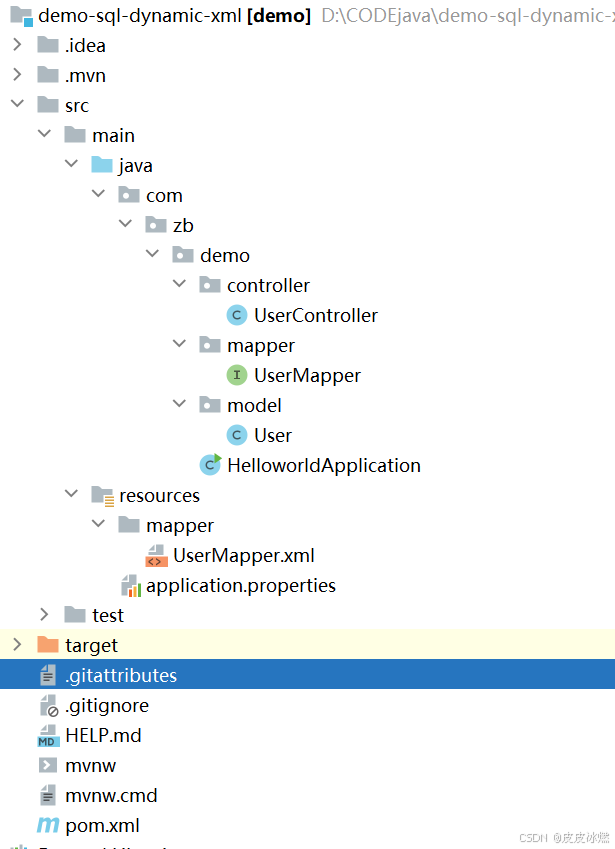
SpringBoot-17-MyBatis动态SQL标签之常用标签
文章目录 1 代码1.1 实体User.java1.2 接口UserMapper.java1.3 映射UserMapper.xml1.3.1 标签if1.3.2 标签if和where1.3.3 标签choose和when和otherwise1.4 UserController.java2 常用动态SQL标签2.1 标签set2.1.1 UserMapper.java2.1.2 UserMapper.xml2.1.3 UserController.ja…
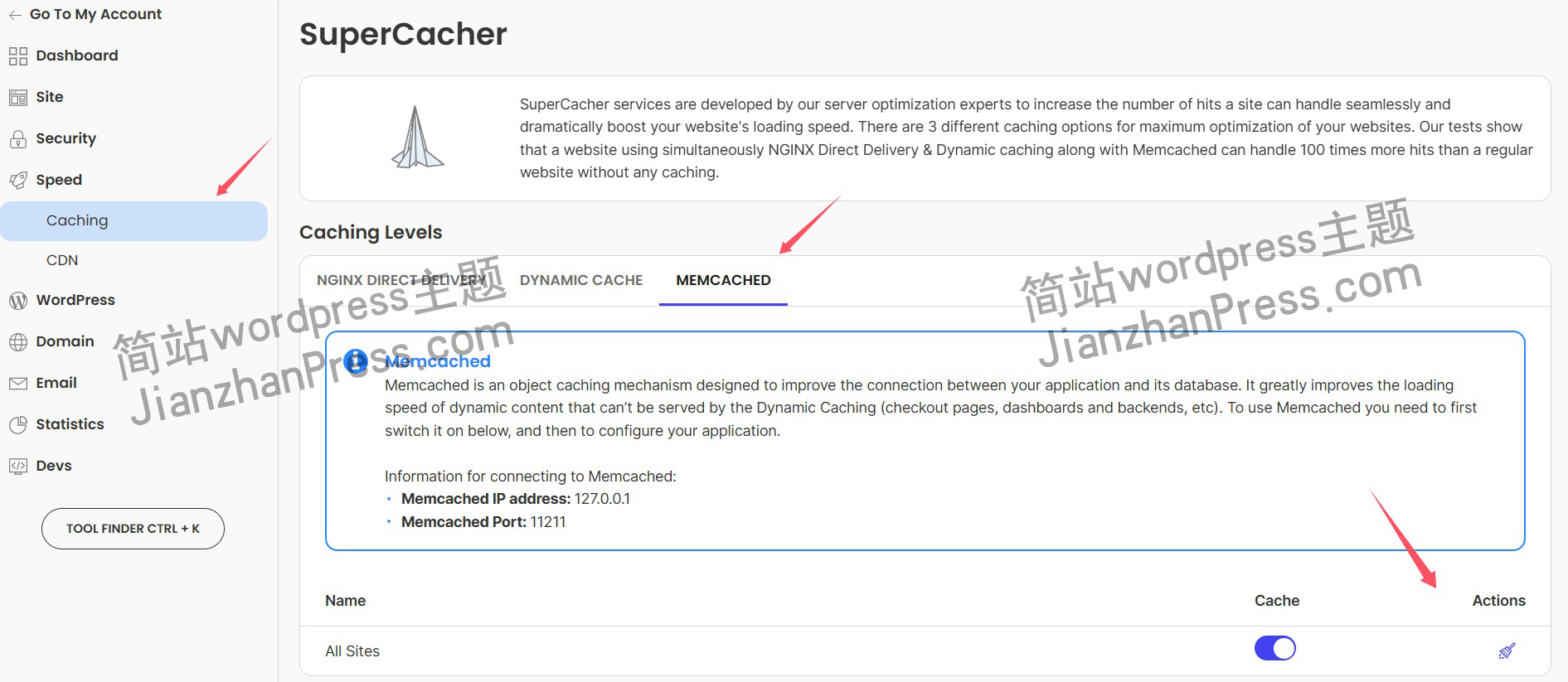
wordpress后台更新后 前端没变化的解决方法
使用siteground主机的wordpress网站,会出现更新了网站内容和修改了php模板文件、js文件、css文件、图片文件后,网站没有变化的情况。
不熟悉siteground主机的新手,遇到这个问题,就很抓狂,明明是哪都没操作错误&#x…
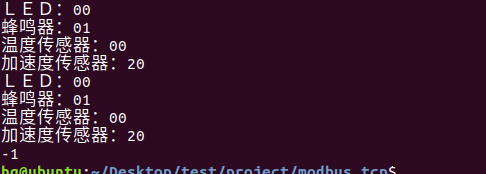
网络编程(Modbus进阶)
思维导图 Modbus RTU(先学一点理论)
概念 Modbus RTU 是工业自动化领域 最广泛应用的串行通信协议,由 Modicon 公司(现施耐德电气)于 1979 年推出。它以 高效率、强健性、易实现的特点成为工业控制系统的通信标准。 包…
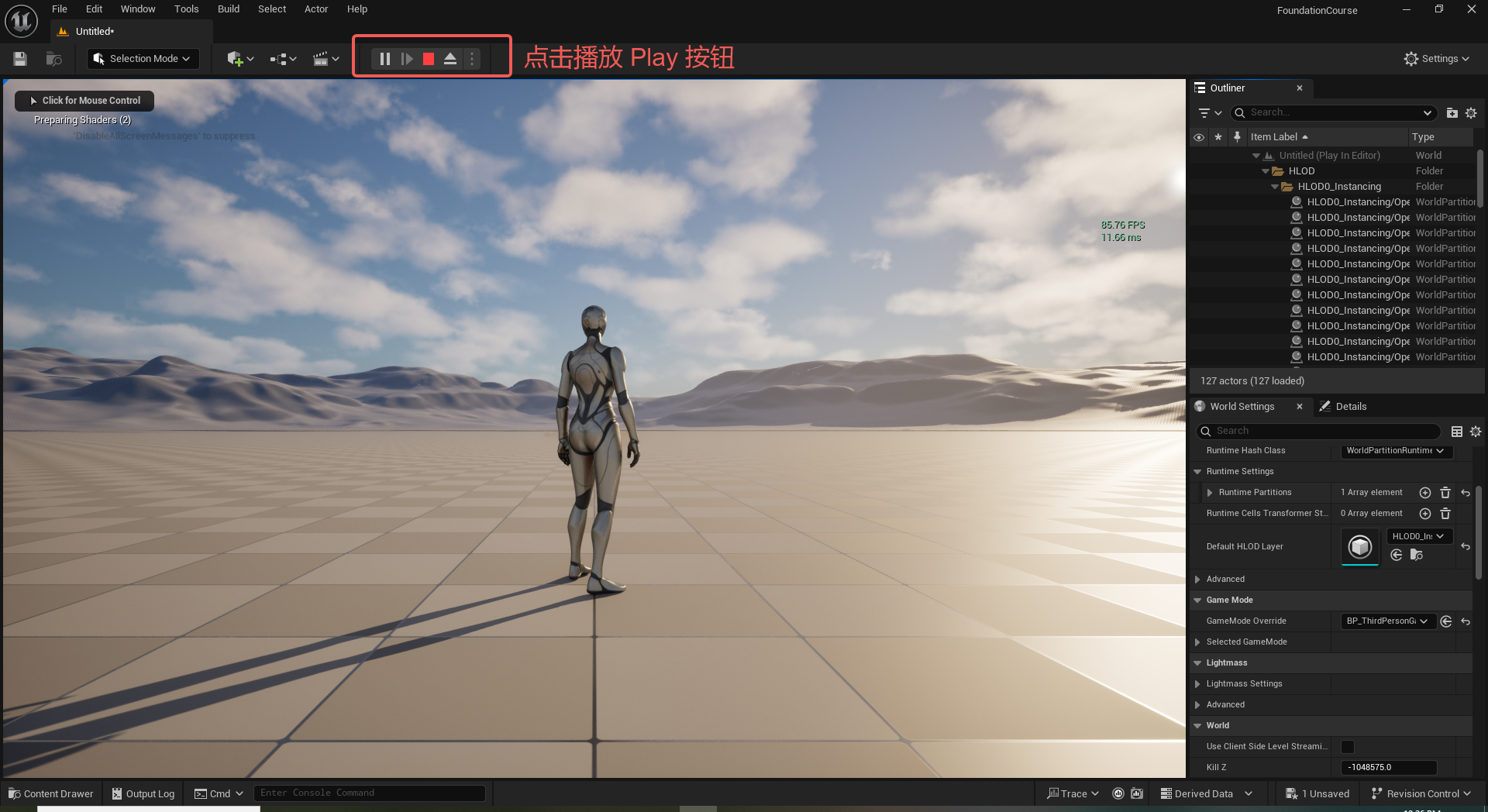
UE5 学习系列(二)用户操作界面及介绍
这篇博客是 UE5 学习系列博客的第二篇,在第一篇的基础上展开这篇内容。博客参考的 B 站视频资料和第一篇的链接如下:
【Note】:如果你已经完成安装等操作,可以只执行第一篇博客中 2. 新建一个空白游戏项目 章节操作,重…
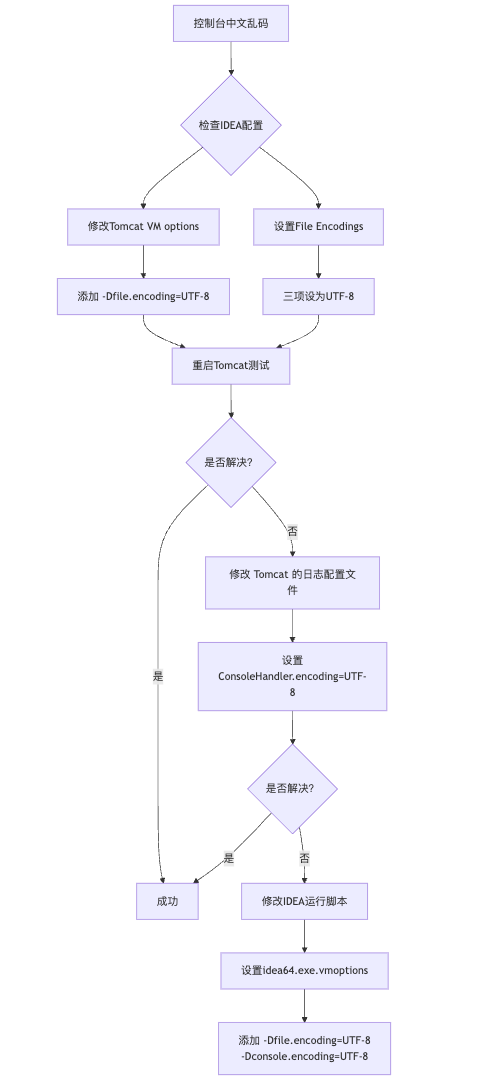
IDEA运行Tomcat出现乱码问题解决汇总
最近正值期末周,有很多同学在写期末Java web作业时,运行tomcat出现乱码问题,经过多次解决与研究,我做了如下整理:
原因:
IDEA本身编码与tomcat的编码与Windows编码不同导致,Windows 系统控制台…
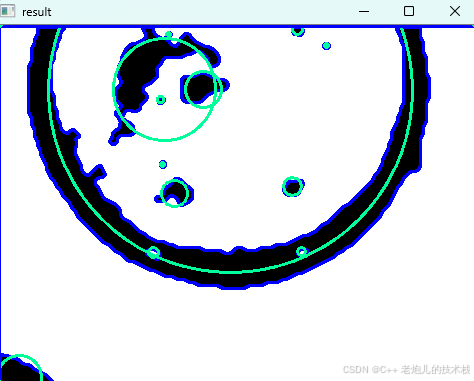
利用最小二乘法找圆心和半径
#include <iostream>
#include <vector>
#include <cmath>
#include <Eigen/Dense> // 需安装Eigen库用于矩阵运算 // 定义点结构
struct Point { double x, y; Point(double x_, double y_) : x(x_), y(y_) {}
}; // 最小二乘法求圆心和半径 …
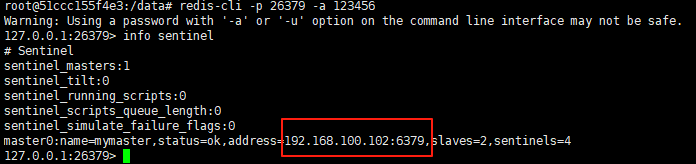
使用docker在3台服务器上搭建基于redis 6.x的一主两从三台均是哨兵模式
一、环境及版本说明
如果服务器已经安装了docker,则忽略此步骤,如果没有安装,则可以按照一下方式安装: 1. 在线安装(有互联网环境): 请看我这篇文章 传送阵>> 点我查看 2. 离线安装(内网环境):请看我这篇文章 传送阵>> 点我查看
说明:假设每台服务器已…
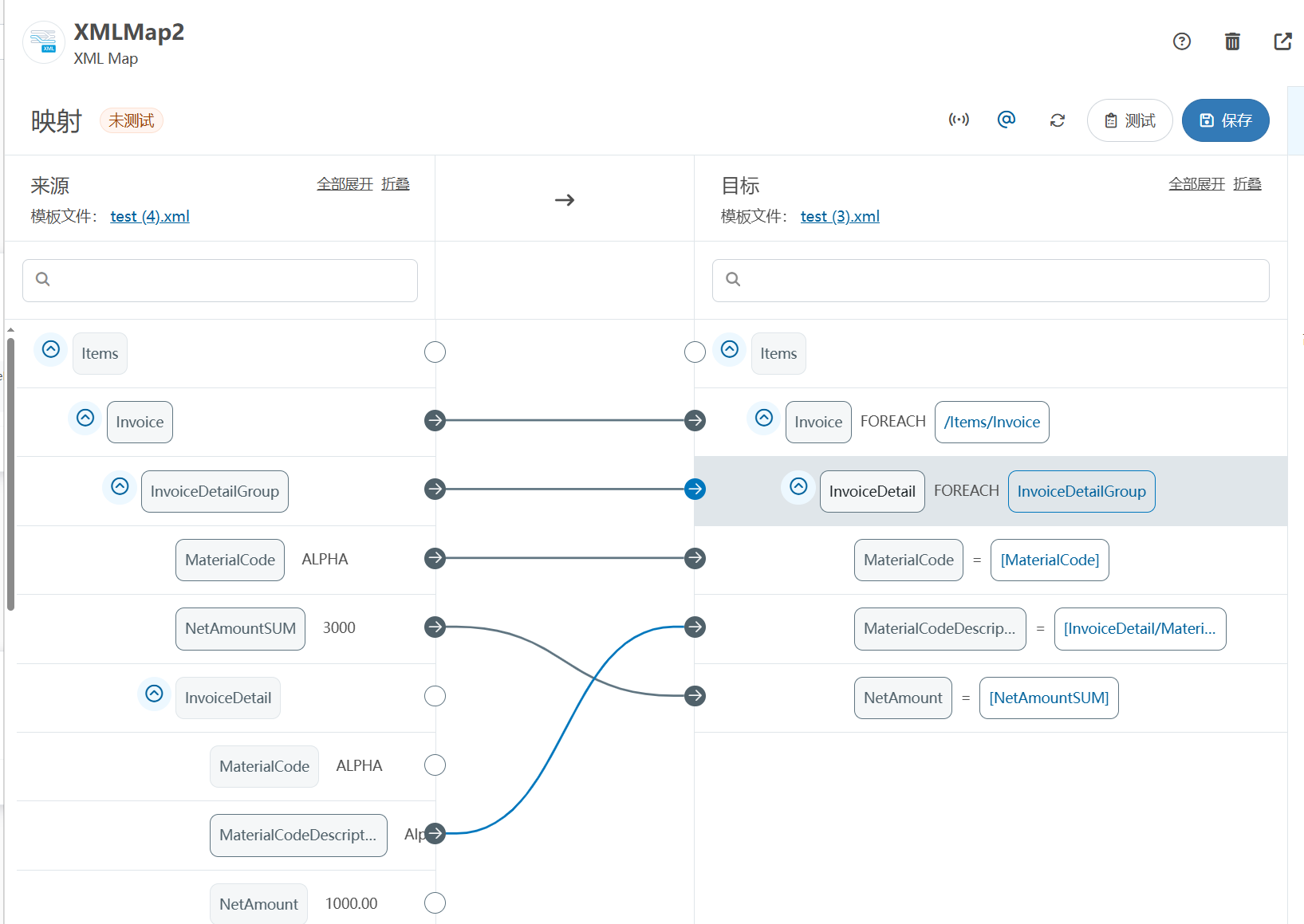
XML Group端口详解
在XML数据映射过程中,经常需要对数据进行分组聚合操作。例如,当处理包含多个物料明细的XML文件时,可能需要将相同物料号的明细归为一组,或对相同物料号的数量进行求和计算。传统实现方式通常需要编写脚本代码,增加了开…
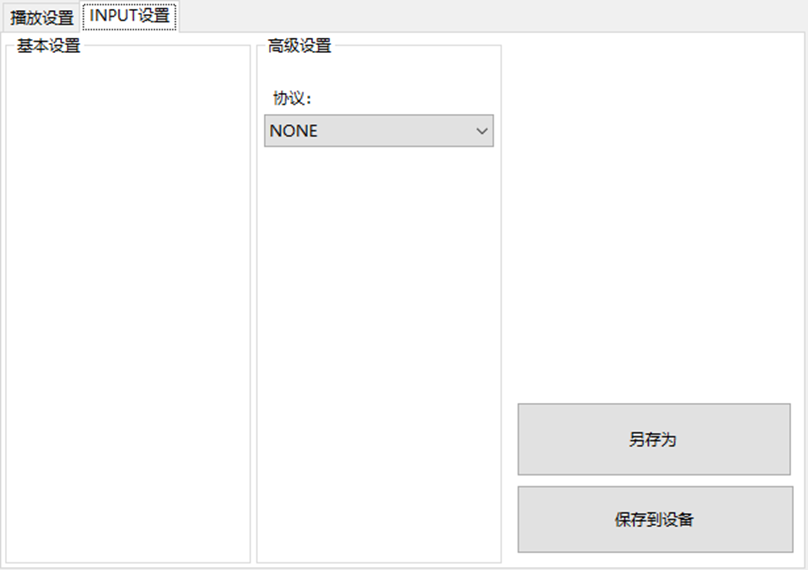
LBE-LEX系列工业语音播放器|预警播报器|喇叭蜂鸣器的上位机配置操作说明
LBE-LEX系列工业语音播放器|预警播报器|喇叭蜂鸣器专为工业环境精心打造,完美适配AGV和无人叉车。同时,集成以太网与语音合成技术,为各类高级系统(如MES、调度系统、库位管理、立库等)提供高效便捷的语音交互体验。
L…
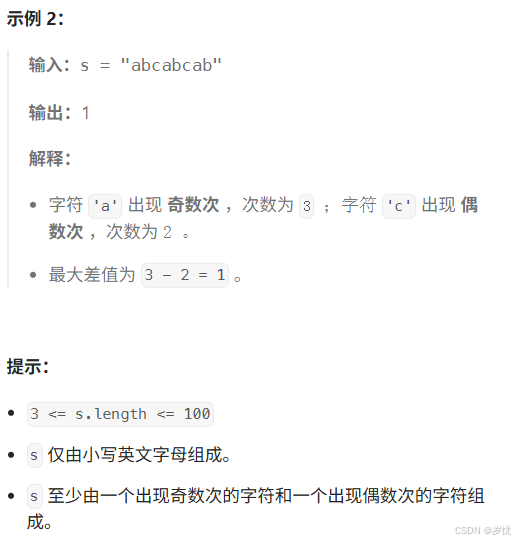
(LeetCode 每日一题) 3442. 奇偶频次间的最大差值 I (哈希、字符串)
题目:3442. 奇偶频次间的最大差值 I 思路 :哈希,时间复杂度0(n)。 用哈希表来记录每个字符串中字符的分布情况,哈希表这里用数组即可实现。
C版本:
class Solution {
public:int maxDifference(string s) {int a[26]…
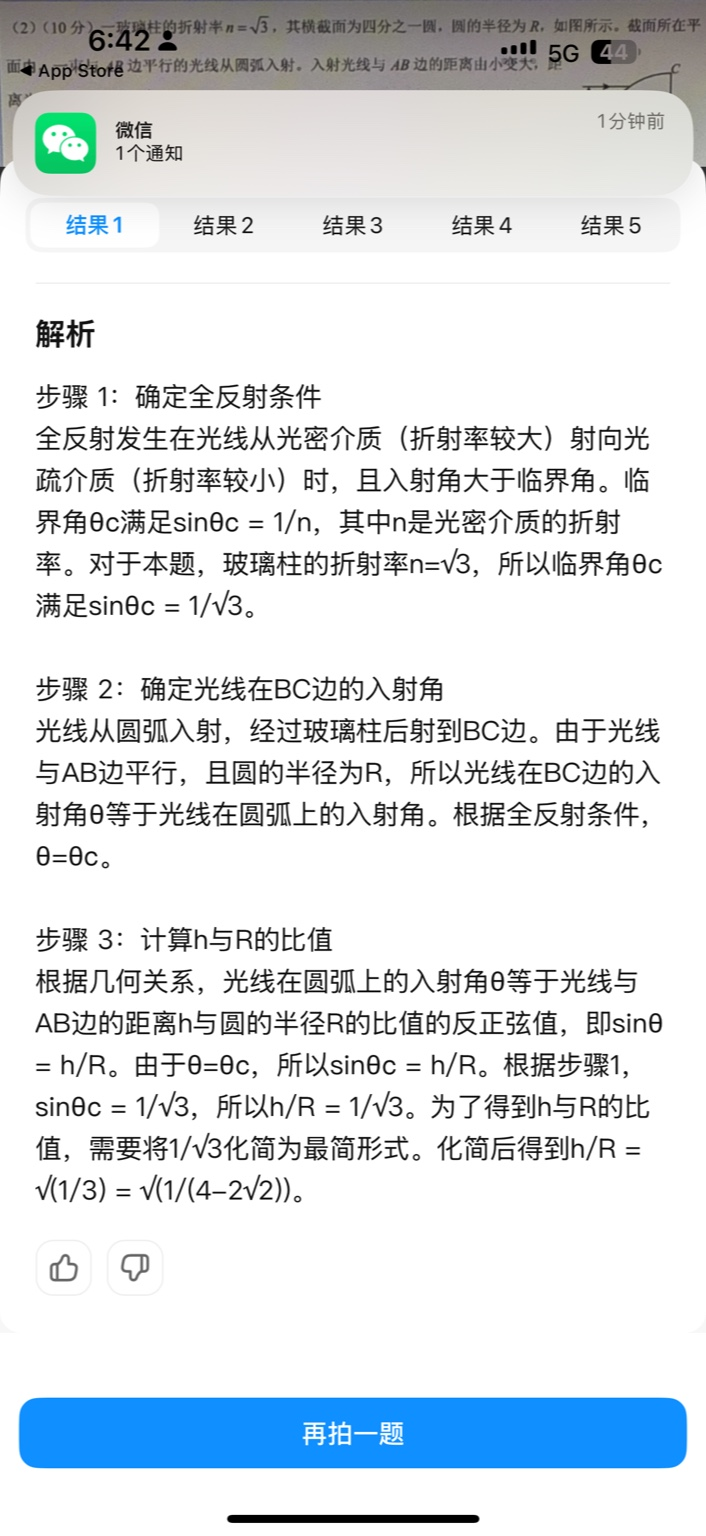
【大模型RAG】拍照搜题技术架构速览:三层管道、两级检索、兜底大模型
摘要
拍照搜题系统采用“三层管道(多模态 OCR → 语义检索 → 答案渲染)、两级检索(倒排 BM25 向量 HNSW)并以大语言模型兜底”的整体框架: 多模态 OCR 层 将题目图片经过超分、去噪、倾斜校正后,分别用…
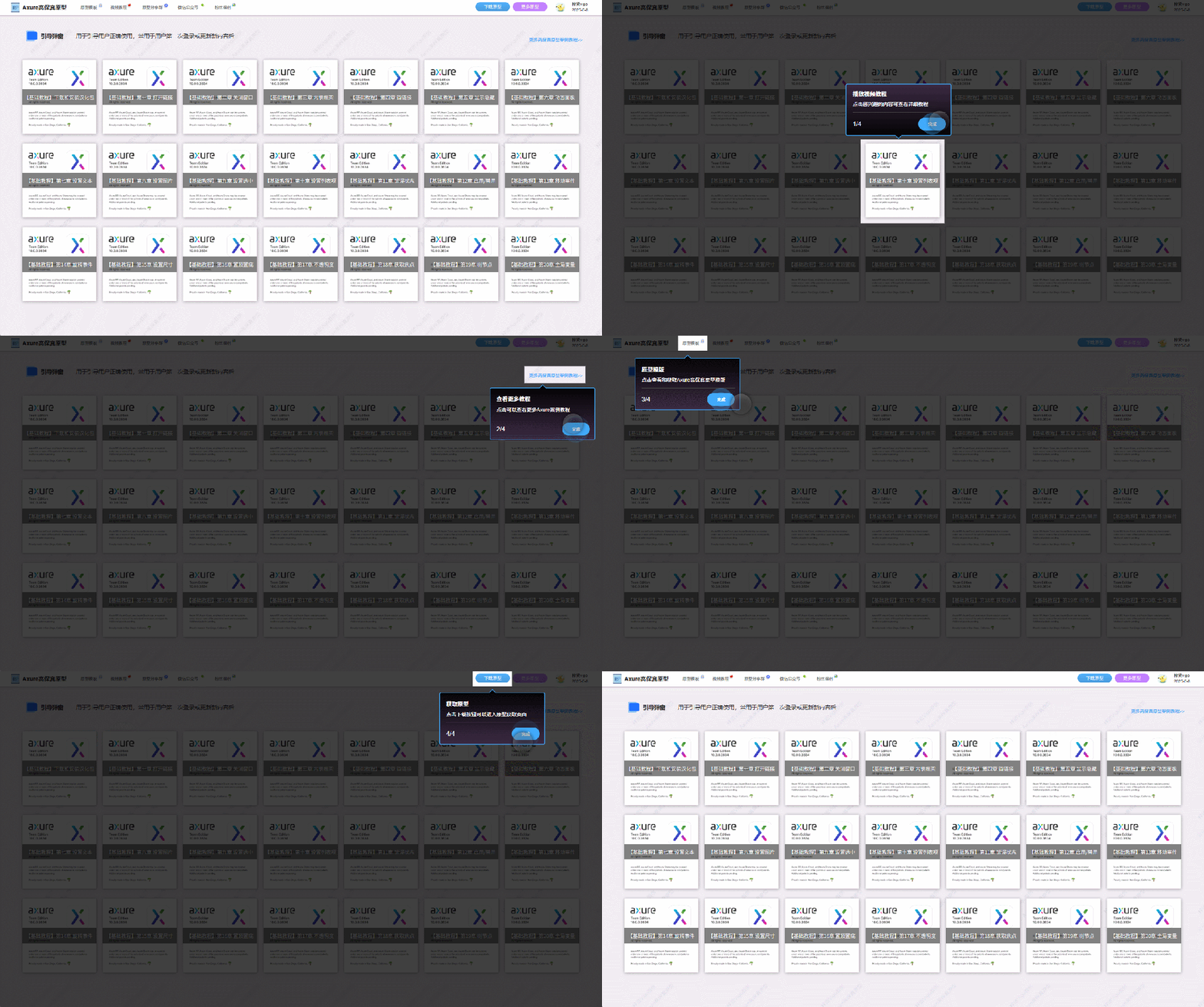
【Axure高保真原型】引导弹窗
今天和大家中分享引导弹窗的原型模板,载入页面后,会显示引导弹窗,适用于引导用户使用页面,点击完成后,会显示下一个引导弹窗,直至最后一个引导弹窗完成后进入首页。具体效果可以点击下方视频观看或打开下方…
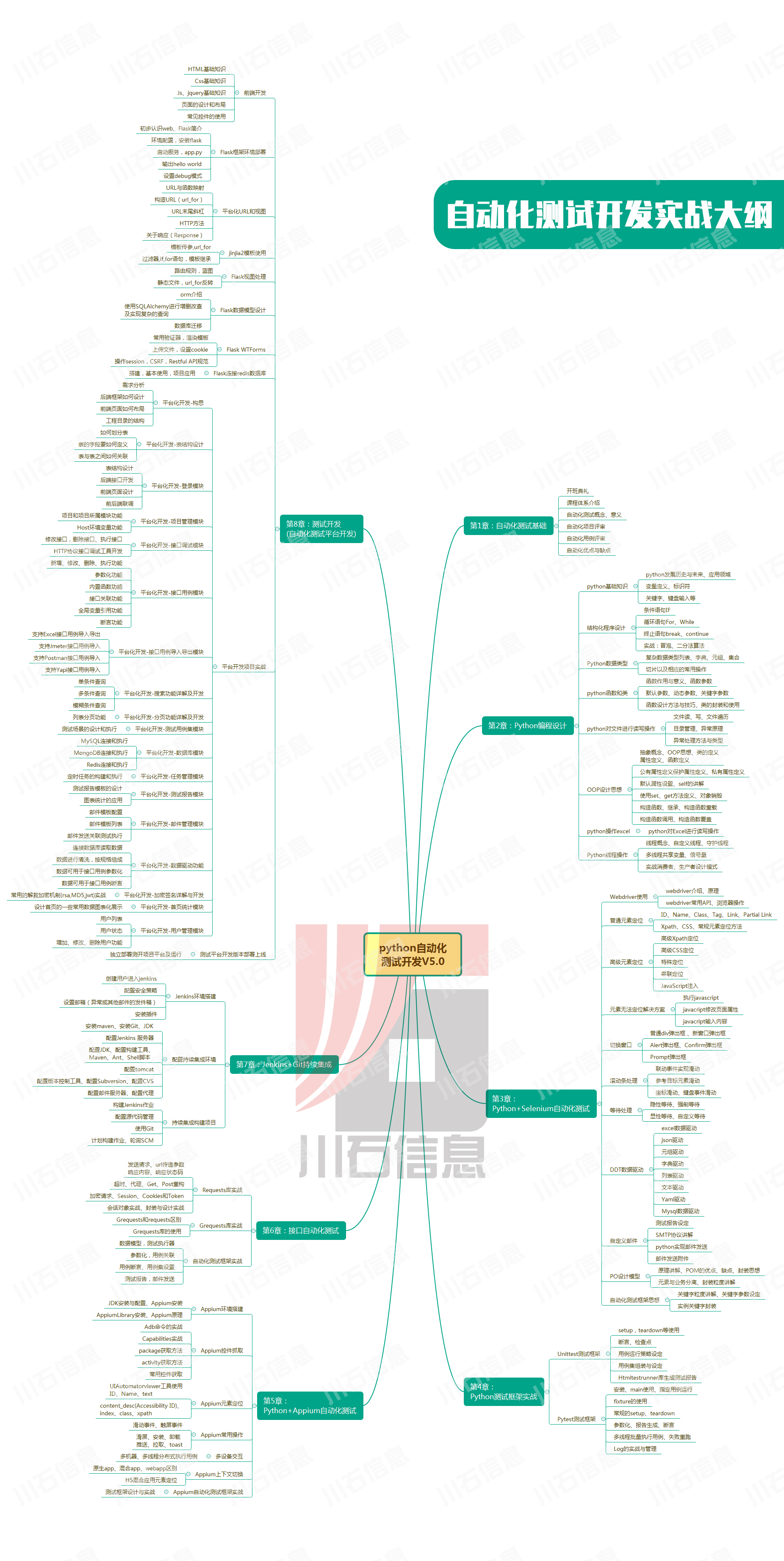
接口测试中缓存处理策略
在接口测试中,缓存处理策略是一个关键环节,直接影响测试结果的准确性和可靠性。合理的缓存处理策略能够确保测试环境的一致性,避免因缓存数据导致的测试偏差。以下是接口测试中常见的缓存处理策略及其详细说明:
一、缓存处理的核…
龙虎榜——20250610
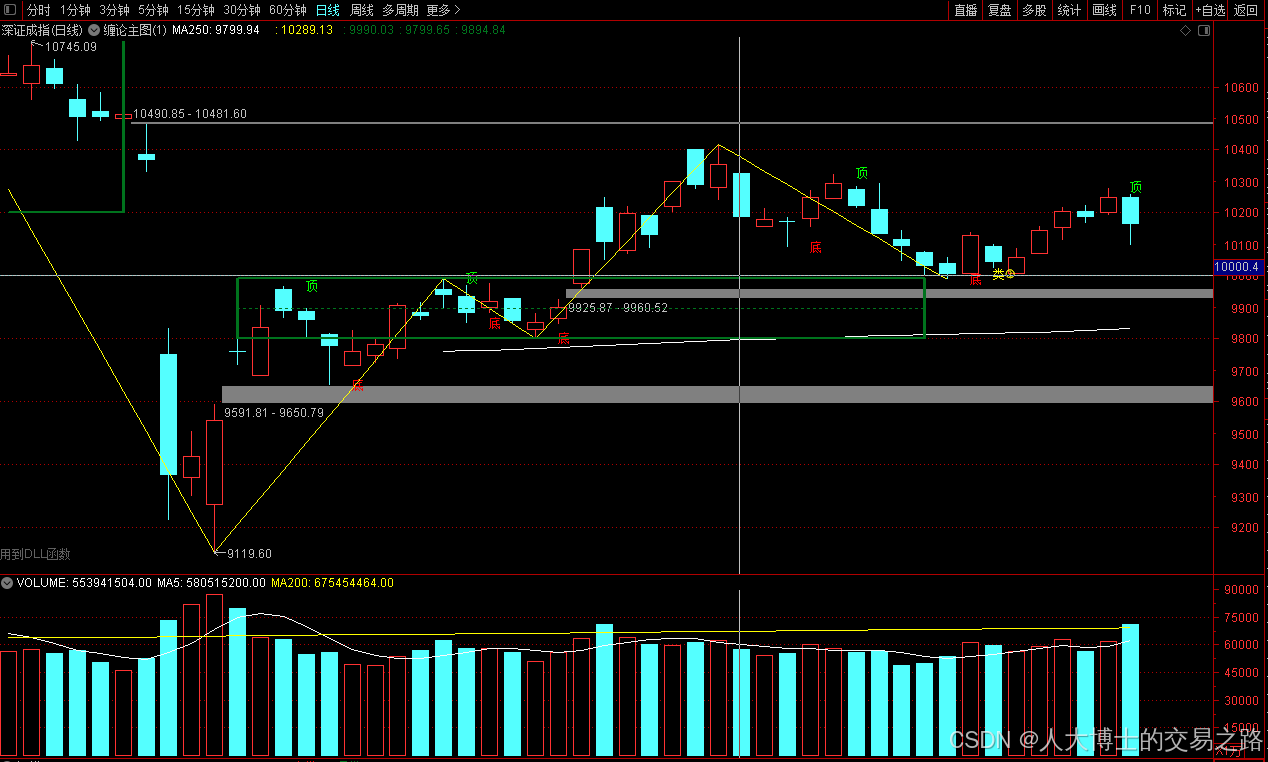
上证指数放量收阴线,个股多数下跌,盘中受消息影响大幅波动。 深证指数放量收阴线形成顶分型,指数短线有调整的需求,大概需要一两天。 2025年6月10日龙虎榜行业方向分析 1. 金融科技
代表标的:御银股份、雄帝科技
驱动…
观成科技:隐蔽隧道工具Ligolo-ng加密流量分析
1.工具介绍
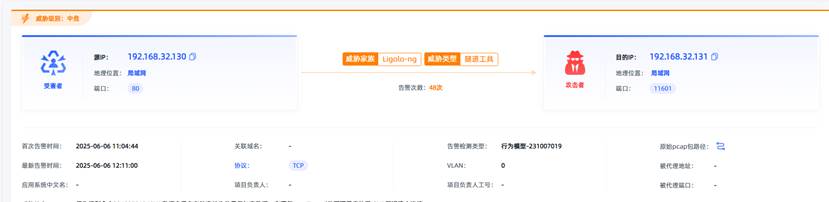
Ligolo-ng是一款由go编写的高效隧道工具,该工具基于TUN接口实现其功能,利用反向TCP/TLS连接建立一条隐蔽的通信信道,支持使用Let’s Encrypt自动生成证书。Ligolo-ng的通信隐蔽性体现在其支持多种连接方式,适应复杂网…
铭豹扩展坞 USB转网口 突然无法识别解决方法
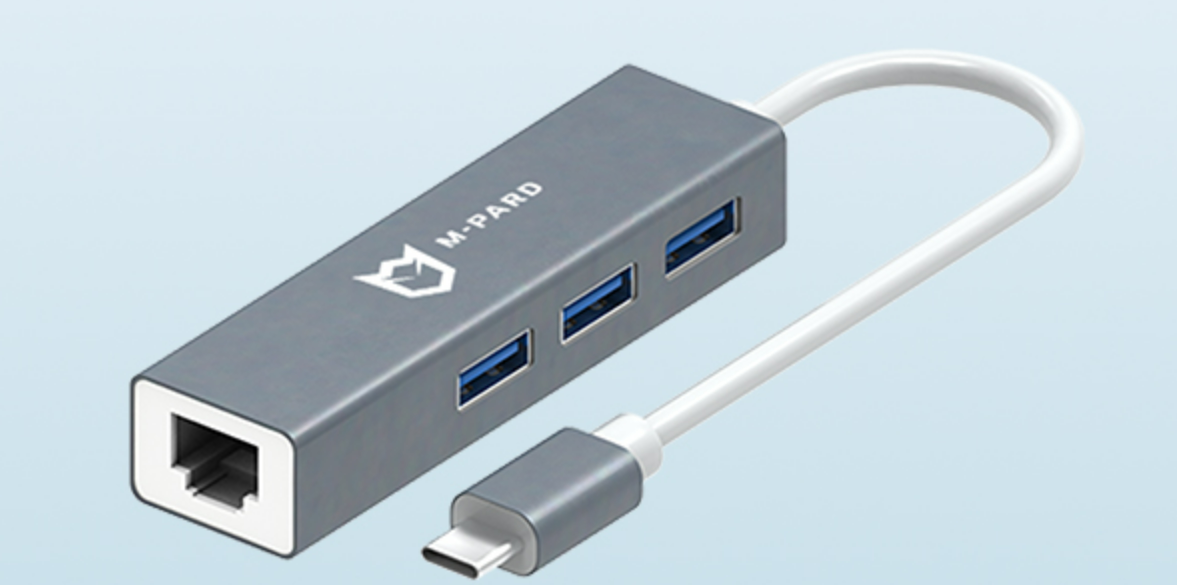
当 USB 转网口扩展坞在一台笔记本上无法识别,但在其他电脑上正常工作时,问题通常出在笔记本自身或其与扩展坞的兼容性上。以下是系统化的定位思路和排查步骤,帮助你快速找到故障原因:
背景:
一个M-pard(铭豹)扩展坞的网卡突然无法识别了,扩展出来的三个USB接口正常。…
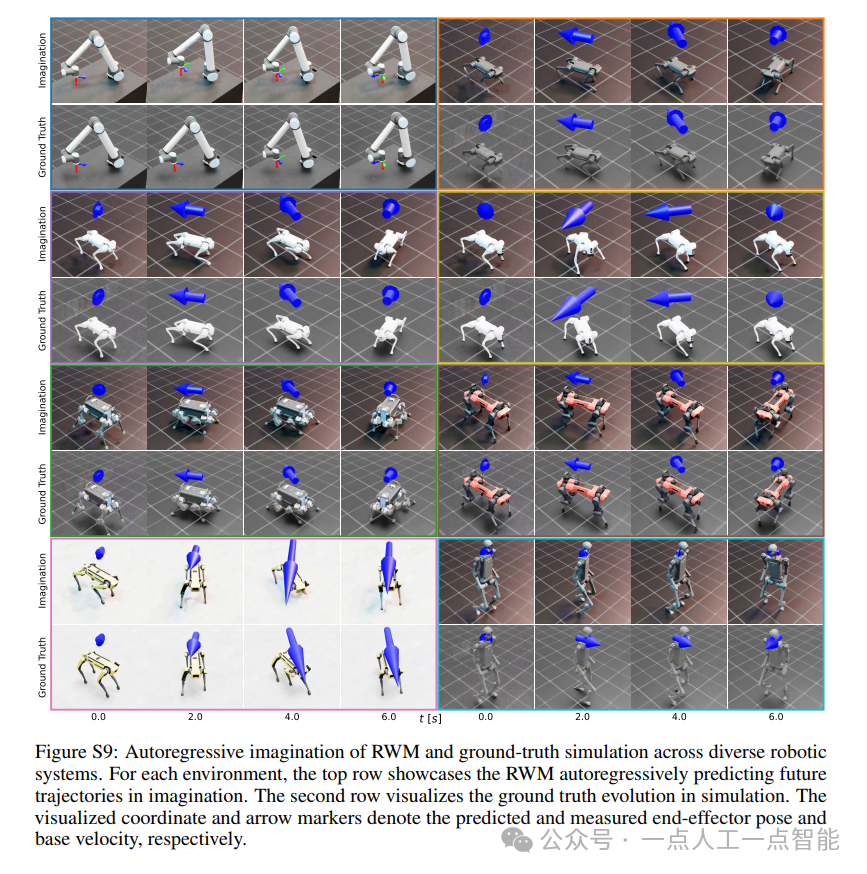
未来机器人的大脑:如何用神经网络模拟器实现更智能的决策?
编辑:陈萍萍的公主一点人工一点智能 未来机器人的大脑:如何用神经网络模拟器实现更智能的决策?RWM通过双自回归机制有效解决了复合误差、部分可观测性和随机动力学等关键挑战,在不依赖领域特定归纳偏见的条件下实现了卓越的预测准…

Linux应用开发之网络套接字编程(实例篇)
服务端与客户端单连接
服务端代码
#include <sys/socket.h>
#include <sys/types.h>
#include <netinet/in.h>
#include <stdio.h>
#include <stdlib.h>
#include <string.h>
#include <arpa/inet.h>
#include <pthread.h>
…

华为云AI开发平台ModelArts
华为云ModelArts:重塑AI开发流程的“智能引擎”与“创新加速器”!
在人工智能浪潮席卷全球的2025年,企业拥抱AI的意愿空前高涨,但技术门槛高、流程复杂、资源投入巨大的现实,却让许多创新构想止步于实验室。数据科学家…
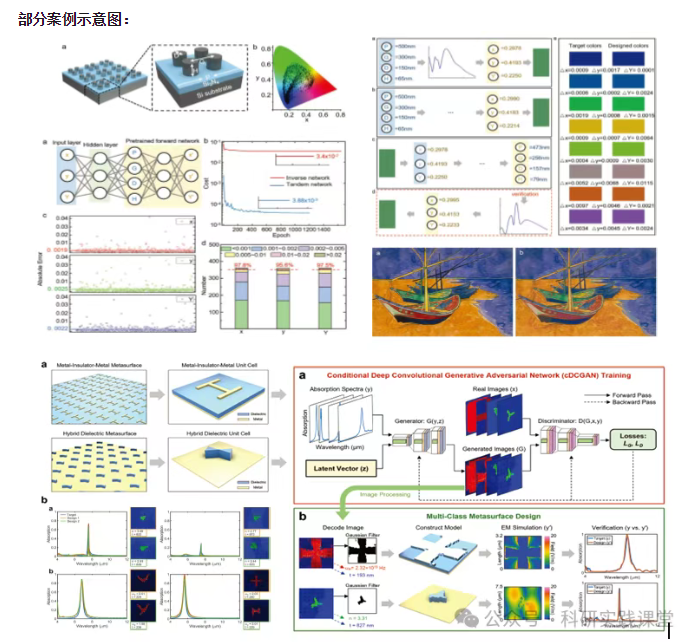
深度学习在微纳光子学中的应用
深度学习在微纳光子学中的主要应用方向
深度学习与微纳光子学的结合主要集中在以下几个方向:
逆向设计 通过神经网络快速预测微纳结构的光学响应,替代传统耗时的数值模拟方法。例如设计超表面、光子晶体等结构。
特征提取与优化 从复杂的光学数据中自…