Qt开发浦语灵笔2.5-7B图形界面应用实战
news2026/3/24 8:03:30
Qt开发浦语灵笔2.5-7B图形界面应用实战1. 引言想象一下你有一个强大的多模态AI模型能够理解图像、视频、音频还能进行智能对话但每次使用都要在命令行里敲代码是不是有点不太方便这就是我们今天要解决的问题。浦语灵笔2.5-7B作为一款强大的多模态模型在实际应用中往往需要一个更友好的交互界面。Qt框架正好能帮我们解决这个问题——它不仅能创建美观的图形界面还能让AI能力真正飞入寻常百姓家。在这篇文章中我将带你一步步用Qt为浦语灵笔2.5-7B打造一个实用的图形界面应用。无论你是刚接触Qt的新手还是有一定经验的开发者都能从中获得实用的开发技巧。2. 环境准备与项目搭建2.1 基础环境配置首先确保你的开发环境已经就绪。我们需要安装Qt开发环境和Python相关依赖# 创建虚拟环境 python -m venv venv source venv/bin/activate # Linux/Mac # 或者 venv\Scripts\activate # Windows # 安装核心依赖 pip install torch torchvision torchaudio pip install transformers4.30.0 pip install opencv-python pillow2.2 Qt环境安装对于Qt开发推荐使用PySide6Qt for Pythonpip install PySide6如果你更喜欢使用C进行开发需要从Qt官网下载并安装Qt Creator和相应的开发套件。2.3 项目结构规划一个好的项目结构能让开发事半功倍。建议采用如下组织方式project/ ├── main.py # 应用入口 ├── main_window.py # 主窗口类 ├── model_handler.py # 模型处理类 ├── threads.py # 多线程工作类 ├── utils/ # 工具函数 │ ├── image_utils.py │ └── audio_utils.py ├── resources/ # 资源文件 │ ├── icons/ │ └── styles/ └── requirements.txt # 依赖列表3. 界面设计与布局实现3.1 主窗口设计Qt提供了两种界面设计方式代码编写和Qt Designer可视化设计。这里我们采用代码方式更便于版本控制和自定义。# main_window.py from PySide6.QtWidgets import (QMainWindow, QWidget, QVBoxLayout, QHBoxLayout, QTextEdit, QPushButton, QLabel, QFileDialog, QTabWidget) from PySide6.QtCore import Qt from PySide6.QtGui import QPixmap class MainWindow(QMainWindow): def __init__(self): super().__init__() self.setWindowTitle(浦语灵笔2.5-7B图形界面) self.setGeometry(100, 100, 1200, 800) self.init_ui() def init_ui(self): # 创建中心部件和主布局 central_widget QWidget() self.setCentralWidget(central_widget) main_layout QVBoxLayout(central_widget) # 创建标签页 self.tab_widget QTabWidget() main_layout.addWidget(self.tab_widget) # 添加不同功能的标签页 self.setup_chat_tab() self.setup_image_tab() self.setup_audio_tab() def setup_chat_tab(self): # 文本对话标签页实现 chat_widget QWidget() layout QVBoxLayout(chat_widget) self.chat_display QTextEdit() self.chat_display.setReadOnly(True) layout.addWidget(self.chat_display) input_layout QHBoxLayout() self.input_edit QTextEdit() self.input_edit.setMaximumHeight(100) input_layout.addWidget(self.input_edit) self.send_button QPushButton(发送) input_layout.addWidget(self.send_button) layout.addLayout(input_layout) self.tab_widget.addTab(chat_widget, 文本对话)3.2 多模态输入控件为了支持浦语灵笔的多模态能力我们需要设计相应的输入控件def setup_image_tab(self): image_widget QWidget() layout QVBoxLayout(image_widget) # 图像显示区域 self.image_label QLabel() self.image_label.setAlignment(Qt.AlignCenter) self.image_label.setMinimumSize(400, 300) self.image_label.setText(请选择或拖拽图片到此区域) self.image_label.setStyleSheet(border: 2px dashed #ccc;) layout.addWidget(self.image_label) # 按钮区域 button_layout QHBoxLayout() self.load_image_btn QPushButton(选择图片) self.analyze_image_btn QPushButton(分析图片) button_layout.addWidget(self.load_image_btn) button_layout.addWidget(self.analyze_image_btn) layout.addLayout(button_layout) # 结果显示 self.image_result QTextEdit() self.image_result.setReadOnly(True) layout.addWidget(self.image_result) self.tab_widget.addTab(image_widget, 图像分析)4. 模型集成与信号槽机制4.1 模型处理类封装为了保持界面的响应性我们需要将模型推理放在单独的类中# model_handler.py import torch from transformers import AutoModel, AutoTokenizer from PIL import Image import numpy as np class ModelHandler: def __init__(self): self.model None self.tokenizer None self.device cuda if torch.cuda.is_available() else cpu def load_model(self): 加载浦语灵笔2.5-7B模型 try: model_name internlm/internlm-xcomposer2d5-7b self.tokenizer AutoTokenizer.from_pretrained( model_name, trust_remote_codeTrue ) self.model AutoModel.from_pretrained( model_name, torch_dtypetorch.float16, trust_remote_codeTrue ).to(self.device).eval() return True except Exception as e: print(f模型加载失败: {e}) return False def process_text(self, text): 处理文本输入 if not self.model: return 模型未加载 try: with torch.no_grad(): inputs self.tokenizer(text, return_tensorspt).to(self.device) outputs self.model.generate(**inputs, max_length512) response self.tokenizer.decode(outputs[0], skip_special_tokensTrue) return response except Exception as e: return f处理失败: {str(e)}4.2 信号槽连接Qt的信号槽机制是实现界面与逻辑分离的关键# 在主窗口类中添加连接方法 def connect_signals(self): # 连接按钮信号 self.send_button.clicked.connect(self.on_send_message) self.load_image_btn.clicked.connect(self.on_load_image) self.analyze_image_btn.clicked.connect(self.on_analyze_image) # 连接模型处理信号 self.model_handler ModelHandler() self.model_thread ModelThread(self.model_handler) self.model_thread.result_ready.connect(self.on_model_result) self.model_thread.error_occurred.connect(self.on_model_error) def on_send_message(self): text self.input_edit.toPlainText().strip() if text: # 显示用户消息 self.chat_display.append(f你: {text}) self.input_edit.clear() # 启动模型处理线程 self.model_thread.set_task(text, text)5. 多线程处理与性能优化5.1 工作线程实现为了避免界面卡顿模型推理必须在工作线程中进行# threads.py from PySide6.QtCore import QThread, Signal class ModelThread(QThread): result_ready Signal(str, str) # (task_type, result) error_occurred Signal(str) def __init__(self, model_handler): super().__init__() self.model_handler model_handler self.task_type None self.task_data None def set_task(self, task_type, data): self.task_type task_type self.task_data data if not self.isRunning(): self.start() def run(self): try: if self.task_type text: result self.model_handler.process_text(self.task_data) self.result_ready.emit(text, result) elif self.task_type image: result self.model_handler.process_image(self.task_data) self.result_ready.emit(image, result) except Exception as e: self.error_occurred.emit(str(e))5.2 性能优化技巧大型模型推理需要特别注意性能优化# 在ModelHandler中添加优化方法 def optimize_model(self): 模型优化配置 if self.model and hasattr(self.model, config): # 启用推理模式优化 self.model.config.use_cache True # 半精度推理 if self.device cuda: self.model.half() # 编译模型PyTorch 2.0 if hasattr(torch, compile): self.model torch.compile(self.model)6. 完整应用示例6.1 应用入口点# main.py import sys from PySide6.QtWidgets import QApplication from main_window import MainWindow def main(): # 创建应用实例 app QApplication(sys.argv) # 设置应用样式 app.setStyle(Fusion) # 创建主窗口 window MainWindow() window.show() # 进入事件循环 sys.exit(app.exec()) if __name__ __main__: main()6.2 功能演示示例让我们实现一个完整的图像分析功能def on_load_image(self): 加载图片文件 file_path, _ QFileDialog.getOpenFileName( self, 选择图片, , 图片文件 (*.png *.jpg *.jpeg) ) if file_path: pixmap QPixmap(file_path) scaled_pixmap pixmap.scaled( 400, 300, Qt.KeepAspectRatio, Qt.SmoothTransformation ) self.image_label.setPixmap(scaled_pixmap) self.current_image_path file_path def on_analyze_image(self): 分析图片内容 if hasattr(self, current_image_path) and self.current_image_path: self.image_result.append(正在分析图片...) self.model_thread.set_task(image, self.current_image_path) else: self.image_result.append(请先选择图片) def on_model_result(self, task_type, result): 处理模型返回结果 if task_type text: self.chat_display.append(fAI: {result}) elif task_type image: self.image_result.append(f分析结果:\n{result})7. 调试与问题解决7.1 常见问题处理在开发过程中可能会遇到的一些典型问题def on_model_error(self, error_msg): 处理模型错误 # 在主线程中显示错误信息 error_dialog QMessageBox(self) error_dialog.setIcon(QMessageBox.Critical) error_dialog.setText(模型处理错误) error_dialog.setInformativeText(error_msg) error_dialog.exec()7.2 内存管理建议大型语言模型容易占用大量内存需要特别注意def cleanup_resources(self): 清理资源 if hasattr(self, model_thread): self.model_thread.quit() self.model_thread.wait() if hasattr(self, model_handler): # 释放模型资源 if self.model_handler.model: del self.model_handler.model torch.cuda.empty_cache()8. 总结通过这个实战项目我们完成了一个功能完整的浦语灵笔2.5-7B图形界面应用。从界面设计到模型集成从多线程处理到性能优化每个环节都体现了Qt框架的强大和灵活性。实际开发中这种图形界面应用确实能大大提升用户体验。我记得第一次看到命令行输出的AI响应变成流畅的界面交互时那种成就感真的很特别。虽然过程中会遇到各种挑战比如线程同步、内存管理等问题但解决问题的过程也是技术成长的过程。如果你打算进一步扩展这个应用可以考虑添加对话历史保存、多模型支持、或者更复杂的多模态交互功能。Qt提供的丰富组件和强大信号槽机制为这些扩展提供了很好的基础。获取更多AI镜像想探索更多AI镜像和应用场景访问 CSDN星图镜像广场提供丰富的预置镜像覆盖大模型推理、图像生成、视频生成、模型微调等多个领域支持一键部署。
本文来自互联网用户投稿,该文观点仅代表作者本人,不代表本站立场。本站仅提供信息存储空间服务,不拥有所有权,不承担相关法律责任。如若转载,请注明出处:http://www.coloradmin.cn/o/2443239.html
如若内容造成侵权/违法违规/事实不符,请联系多彩编程网进行投诉反馈,一经查实,立即删除!相关文章
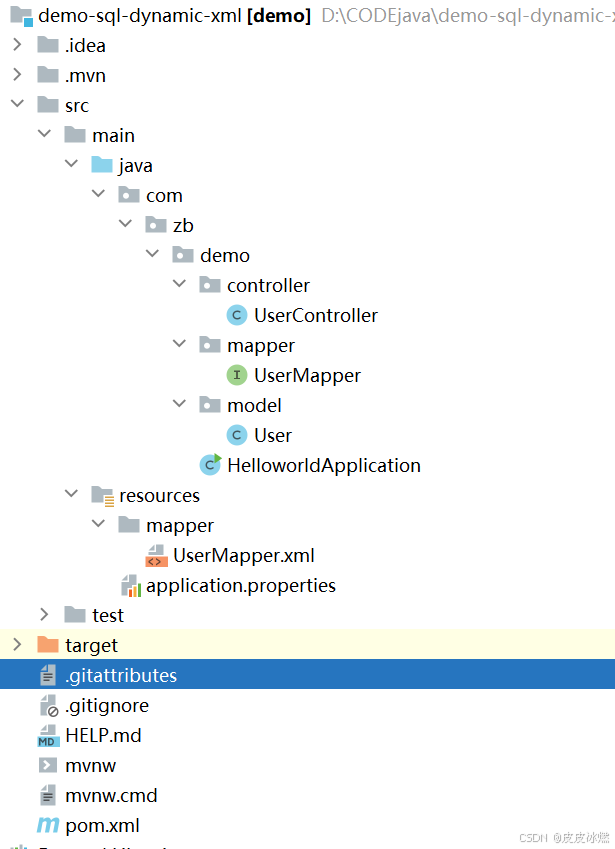
SpringBoot-17-MyBatis动态SQL标签之常用标签
文章目录 1 代码1.1 实体User.java1.2 接口UserMapper.java1.3 映射UserMapper.xml1.3.1 标签if1.3.2 标签if和where1.3.3 标签choose和when和otherwise1.4 UserController.java2 常用动态SQL标签2.1 标签set2.1.1 UserMapper.java2.1.2 UserMapper.xml2.1.3 UserController.ja…
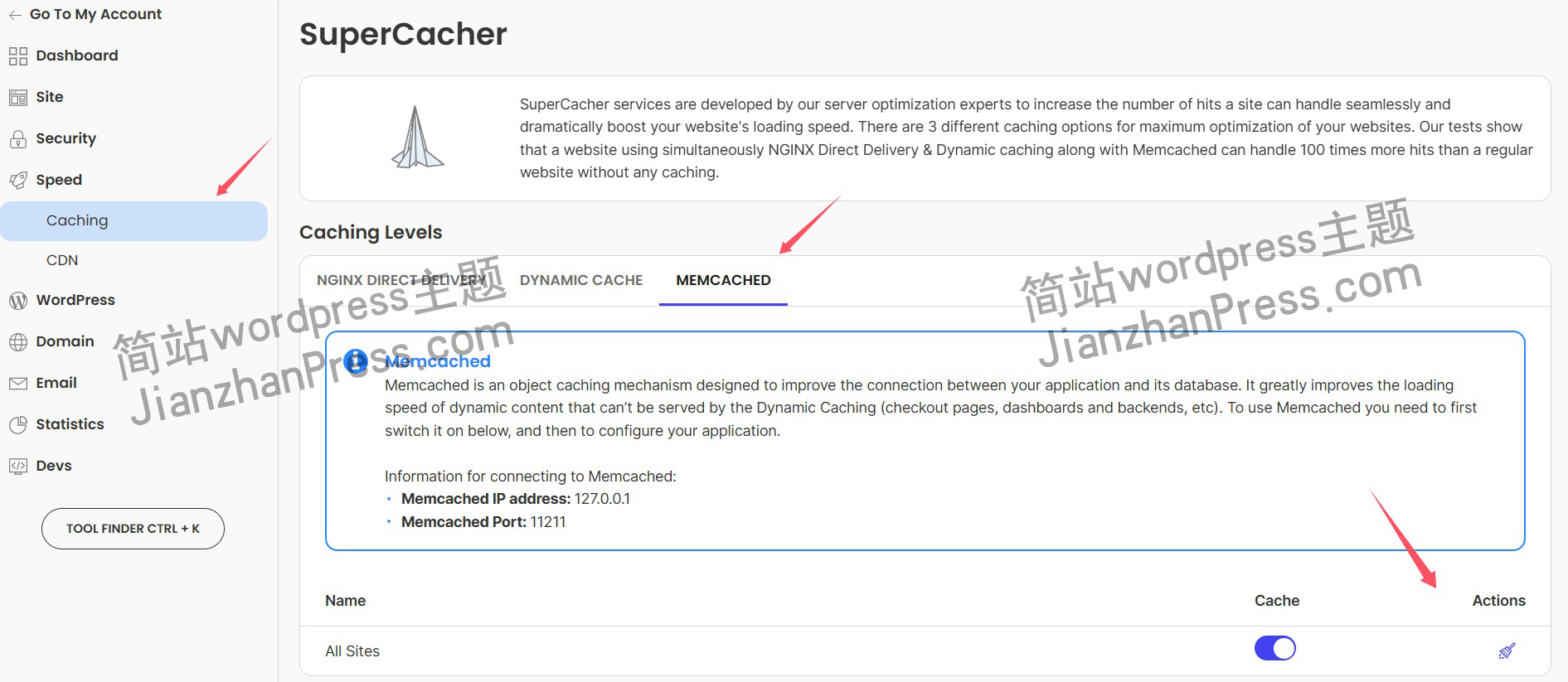
wordpress后台更新后 前端没变化的解决方法
使用siteground主机的wordpress网站,会出现更新了网站内容和修改了php模板文件、js文件、css文件、图片文件后,网站没有变化的情况。
不熟悉siteground主机的新手,遇到这个问题,就很抓狂,明明是哪都没操作错误&#x…
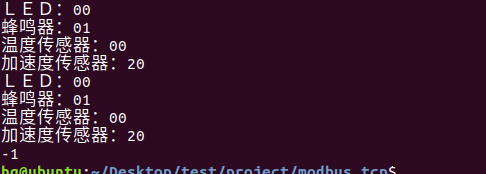
网络编程(Modbus进阶)
思维导图 Modbus RTU(先学一点理论)
概念 Modbus RTU 是工业自动化领域 最广泛应用的串行通信协议,由 Modicon 公司(现施耐德电气)于 1979 年推出。它以 高效率、强健性、易实现的特点成为工业控制系统的通信标准。 包…
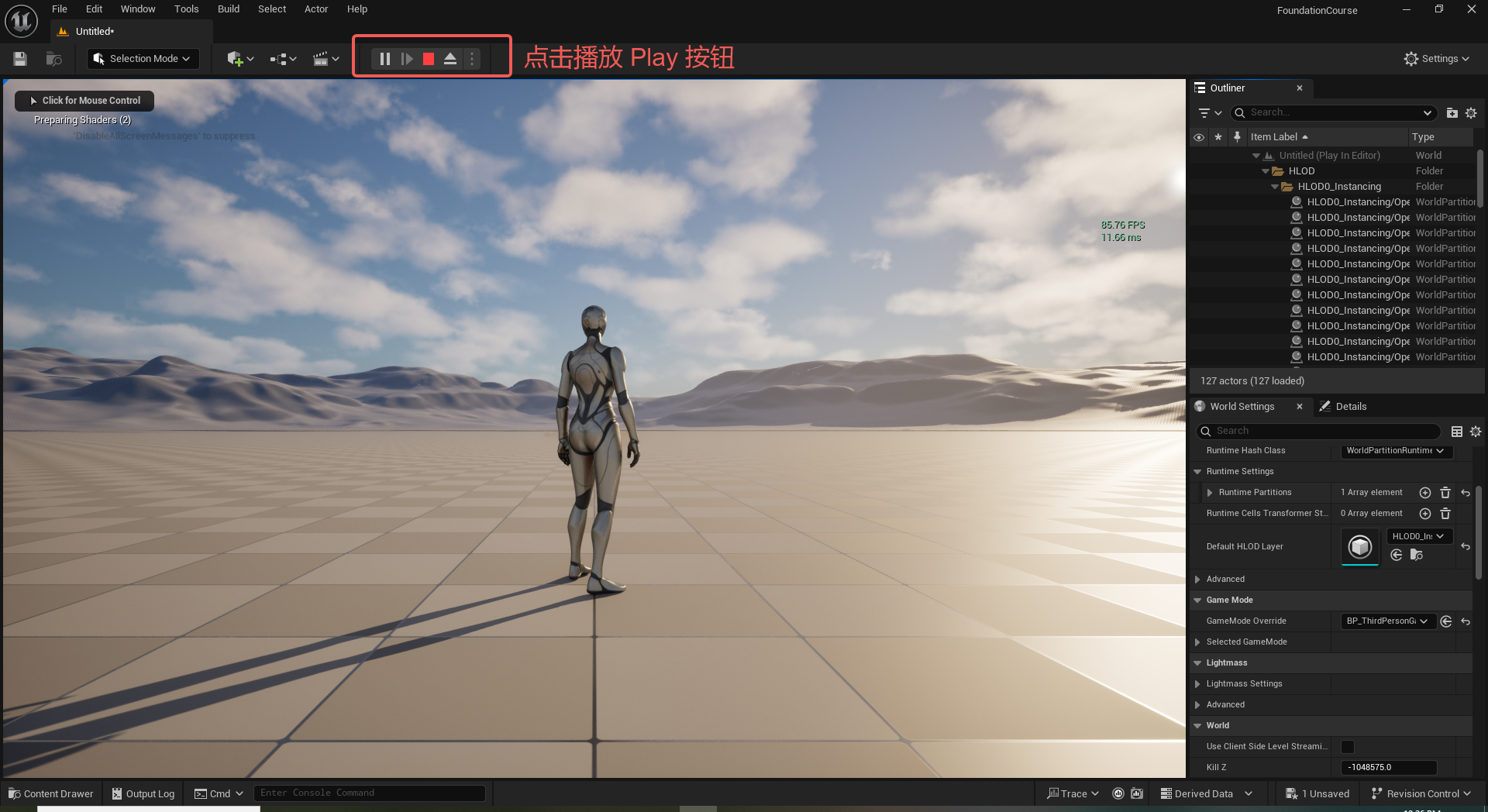
UE5 学习系列(二)用户操作界面及介绍
这篇博客是 UE5 学习系列博客的第二篇,在第一篇的基础上展开这篇内容。博客参考的 B 站视频资料和第一篇的链接如下:
【Note】:如果你已经完成安装等操作,可以只执行第一篇博客中 2. 新建一个空白游戏项目 章节操作,重…
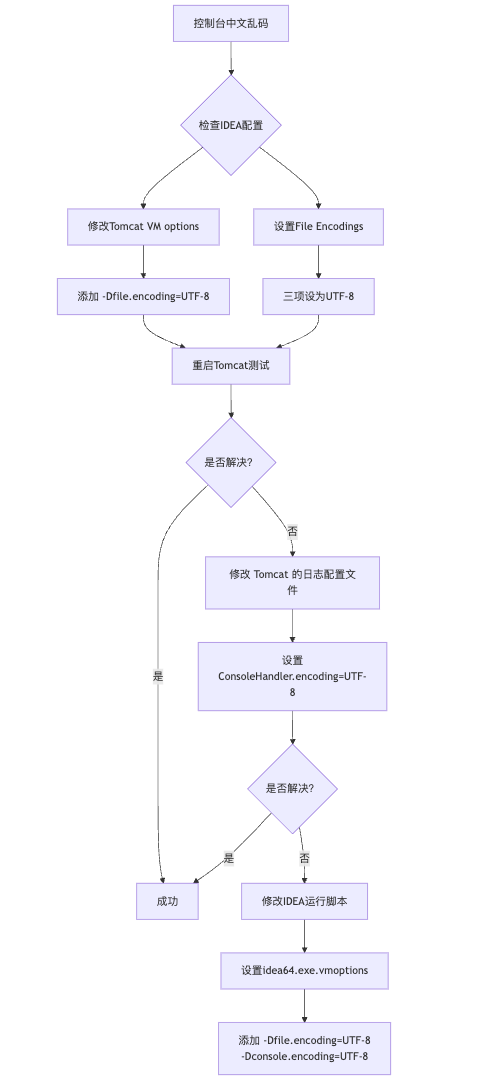
IDEA运行Tomcat出现乱码问题解决汇总
最近正值期末周,有很多同学在写期末Java web作业时,运行tomcat出现乱码问题,经过多次解决与研究,我做了如下整理:
原因:
IDEA本身编码与tomcat的编码与Windows编码不同导致,Windows 系统控制台…
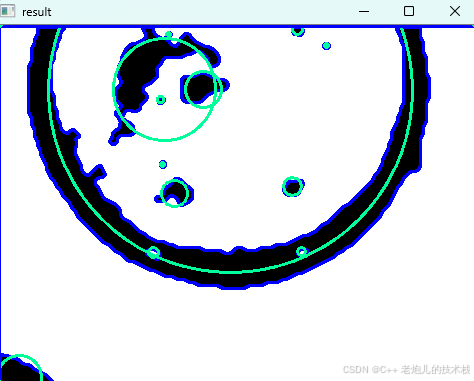
利用最小二乘法找圆心和半径
#include <iostream>
#include <vector>
#include <cmath>
#include <Eigen/Dense> // 需安装Eigen库用于矩阵运算 // 定义点结构
struct Point { double x, y; Point(double x_, double y_) : x(x_), y(y_) {}
}; // 最小二乘法求圆心和半径 …
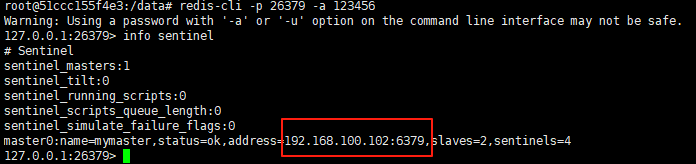
使用docker在3台服务器上搭建基于redis 6.x的一主两从三台均是哨兵模式
一、环境及版本说明
如果服务器已经安装了docker,则忽略此步骤,如果没有安装,则可以按照一下方式安装: 1. 在线安装(有互联网环境): 请看我这篇文章 传送阵>> 点我查看 2. 离线安装(内网环境):请看我这篇文章 传送阵>> 点我查看
说明:假设每台服务器已…
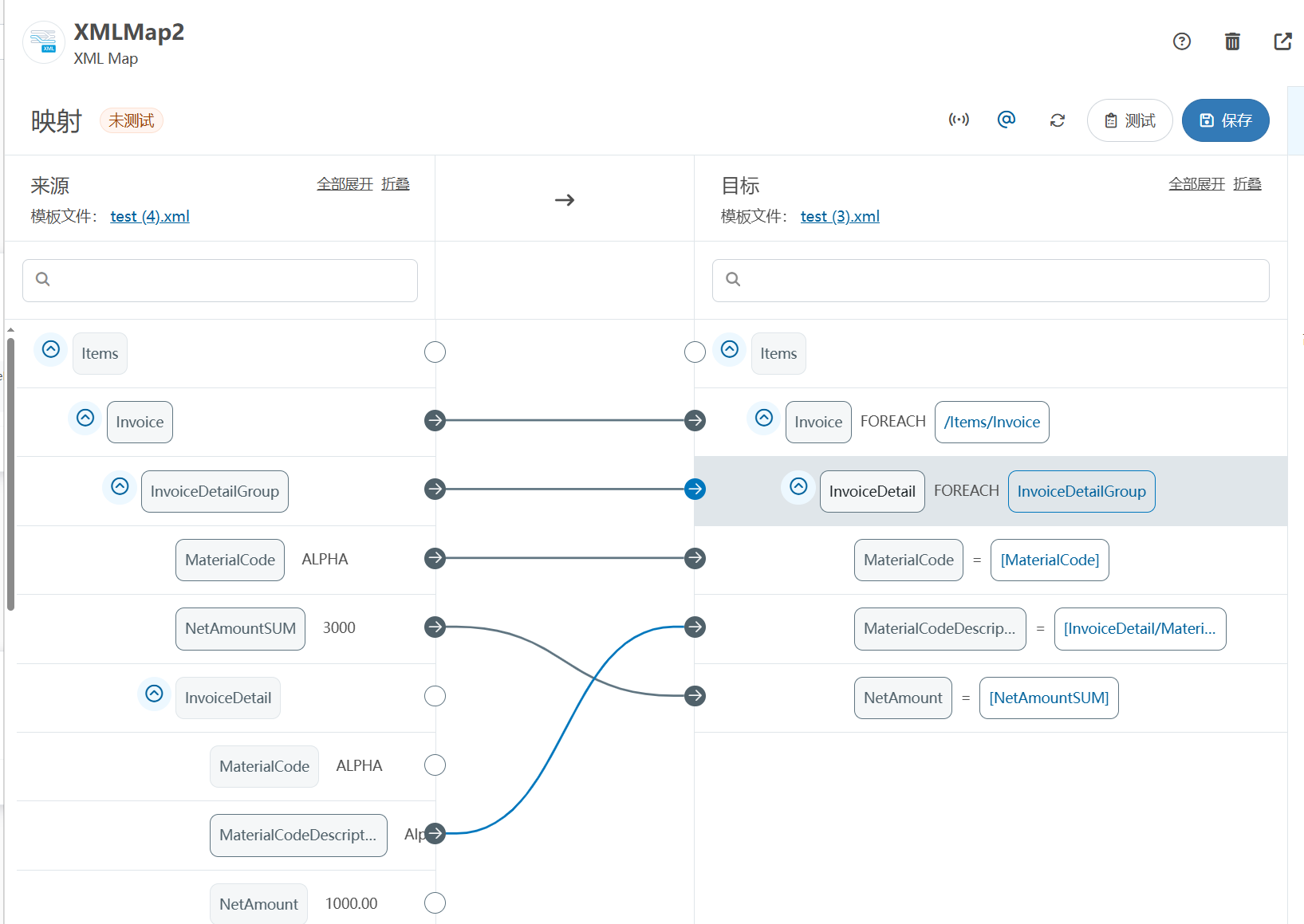
XML Group端口详解
在XML数据映射过程中,经常需要对数据进行分组聚合操作。例如,当处理包含多个物料明细的XML文件时,可能需要将相同物料号的明细归为一组,或对相同物料号的数量进行求和计算。传统实现方式通常需要编写脚本代码,增加了开…
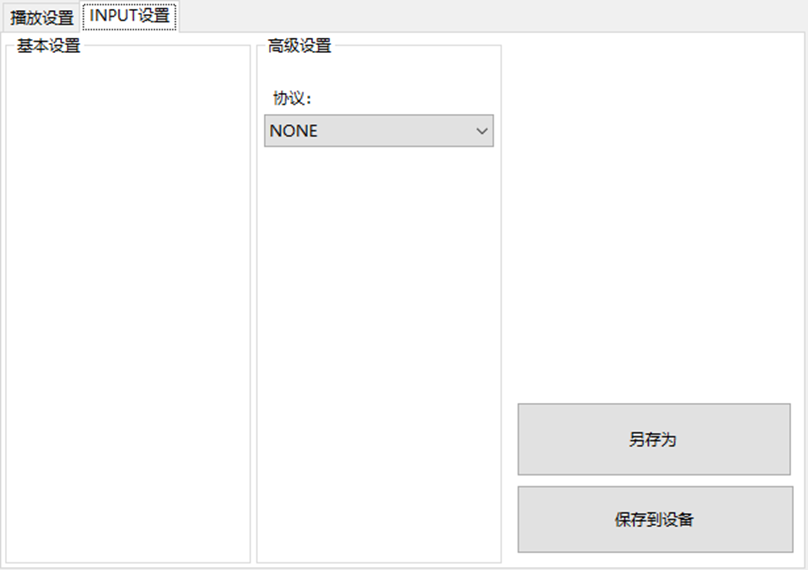
LBE-LEX系列工业语音播放器|预警播报器|喇叭蜂鸣器的上位机配置操作说明
LBE-LEX系列工业语音播放器|预警播报器|喇叭蜂鸣器专为工业环境精心打造,完美适配AGV和无人叉车。同时,集成以太网与语音合成技术,为各类高级系统(如MES、调度系统、库位管理、立库等)提供高效便捷的语音交互体验。
L…
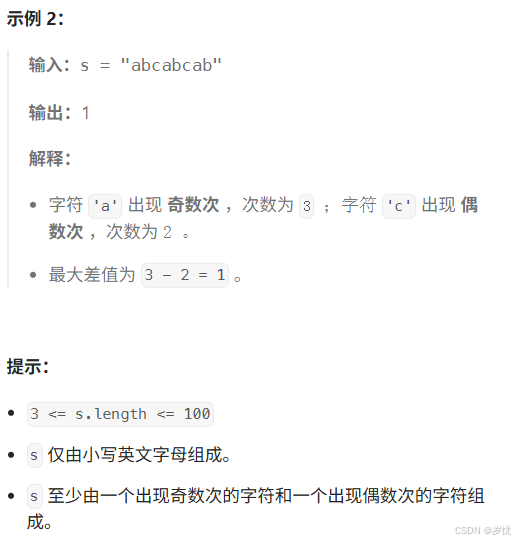
(LeetCode 每日一题) 3442. 奇偶频次间的最大差值 I (哈希、字符串)
题目:3442. 奇偶频次间的最大差值 I 思路 :哈希,时间复杂度0(n)。 用哈希表来记录每个字符串中字符的分布情况,哈希表这里用数组即可实现。
C版本:
class Solution {
public:int maxDifference(string s) {int a[26]…
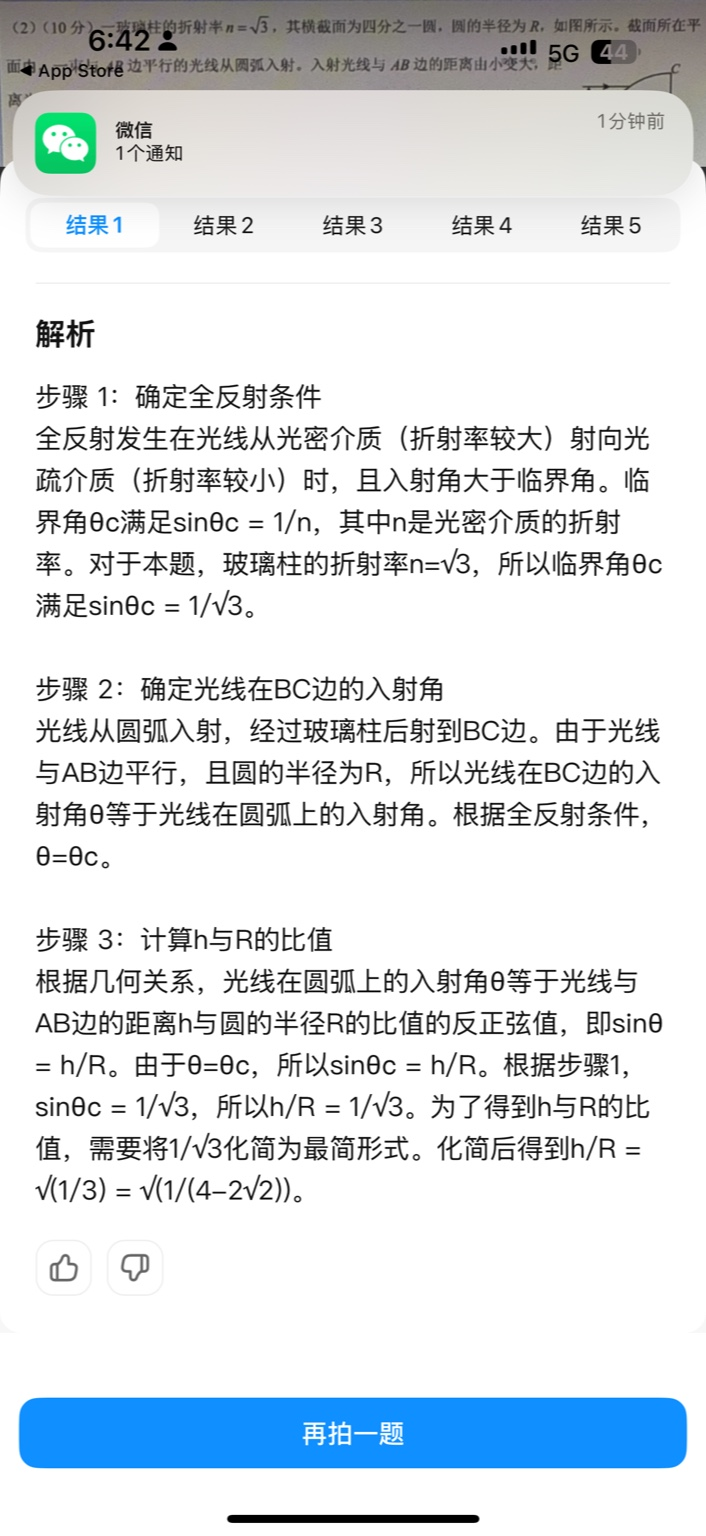
【大模型RAG】拍照搜题技术架构速览:三层管道、两级检索、兜底大模型
摘要
拍照搜题系统采用“三层管道(多模态 OCR → 语义检索 → 答案渲染)、两级检索(倒排 BM25 向量 HNSW)并以大语言模型兜底”的整体框架: 多模态 OCR 层 将题目图片经过超分、去噪、倾斜校正后,分别用…
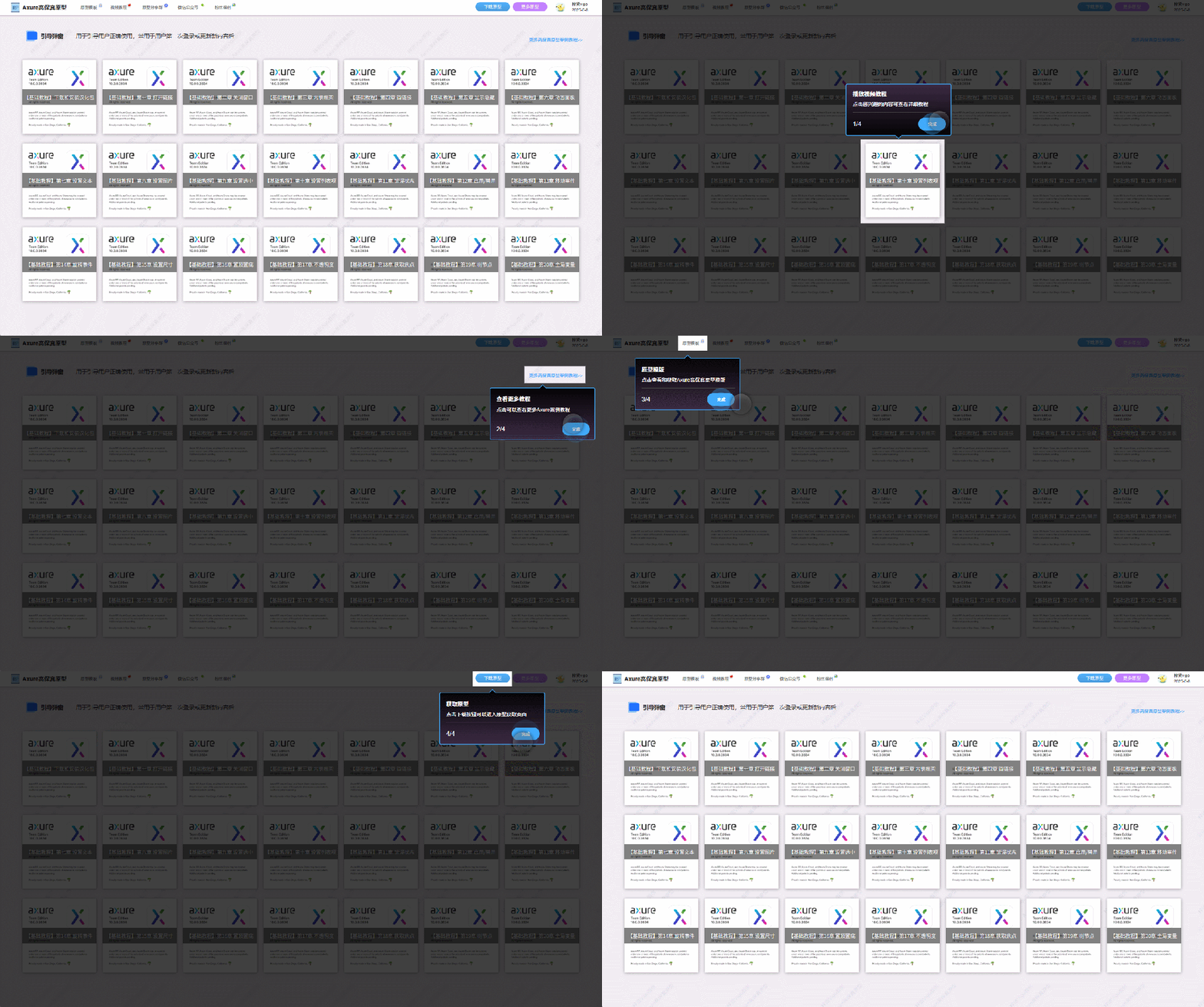
【Axure高保真原型】引导弹窗
今天和大家中分享引导弹窗的原型模板,载入页面后,会显示引导弹窗,适用于引导用户使用页面,点击完成后,会显示下一个引导弹窗,直至最后一个引导弹窗完成后进入首页。具体效果可以点击下方视频观看或打开下方…
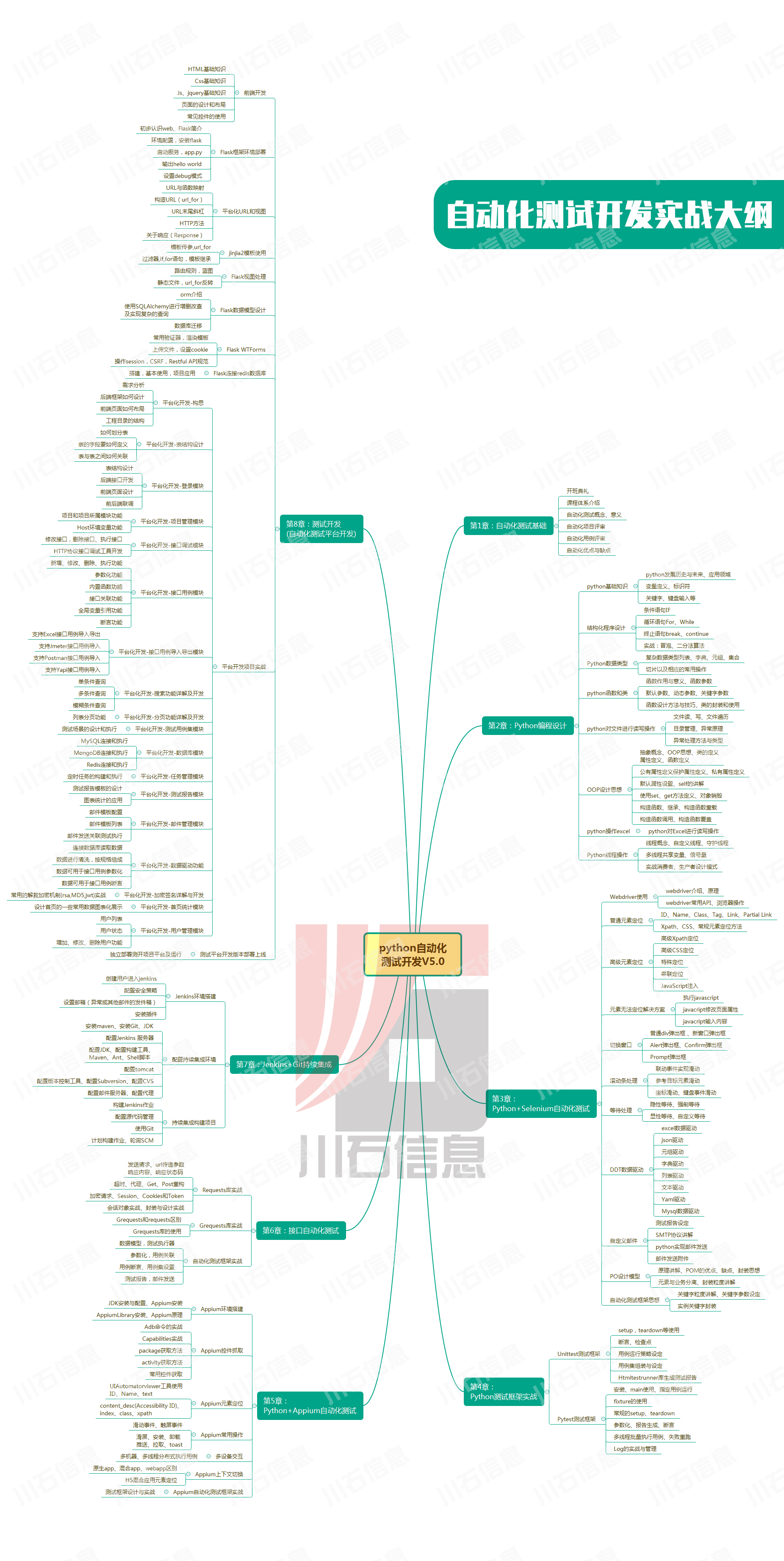
接口测试中缓存处理策略
在接口测试中,缓存处理策略是一个关键环节,直接影响测试结果的准确性和可靠性。合理的缓存处理策略能够确保测试环境的一致性,避免因缓存数据导致的测试偏差。以下是接口测试中常见的缓存处理策略及其详细说明:
一、缓存处理的核…
龙虎榜——20250610
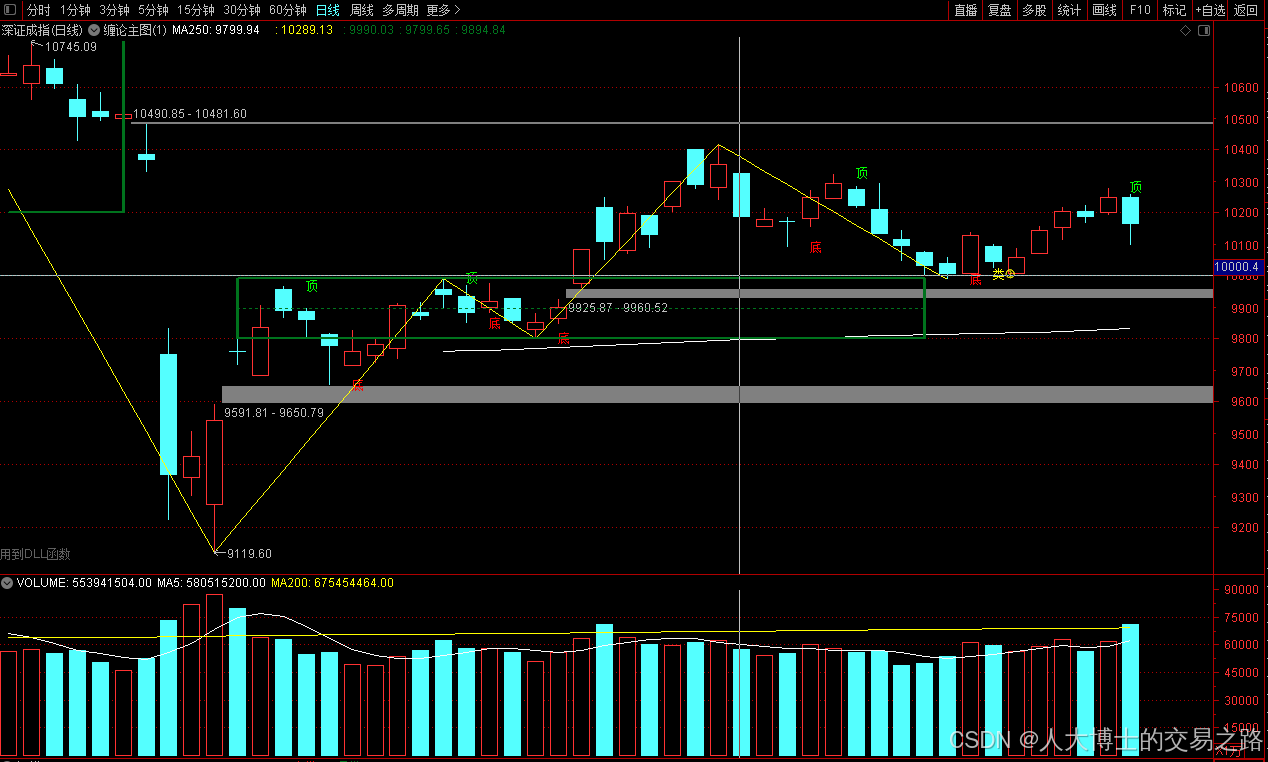
上证指数放量收阴线,个股多数下跌,盘中受消息影响大幅波动。 深证指数放量收阴线形成顶分型,指数短线有调整的需求,大概需要一两天。 2025年6月10日龙虎榜行业方向分析 1. 金融科技
代表标的:御银股份、雄帝科技
驱动…
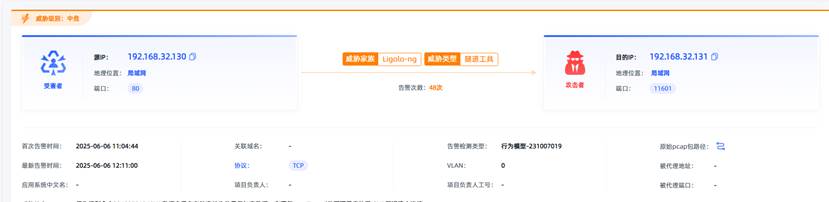
观成科技:隐蔽隧道工具Ligolo-ng加密流量分析
1.工具介绍
Ligolo-ng是一款由go编写的高效隧道工具,该工具基于TUN接口实现其功能,利用反向TCP/TLS连接建立一条隐蔽的通信信道,支持使用Let’s Encrypt自动生成证书。Ligolo-ng的通信隐蔽性体现在其支持多种连接方式,适应复杂网…
铭豹扩展坞 USB转网口 突然无法识别解决方法
当 USB 转网口扩展坞在一台笔记本上无法识别,但在其他电脑上正常工作时,问题通常出在笔记本自身或其与扩展坞的兼容性上。以下是系统化的定位思路和排查步骤,帮助你快速找到故障原因:
背景:
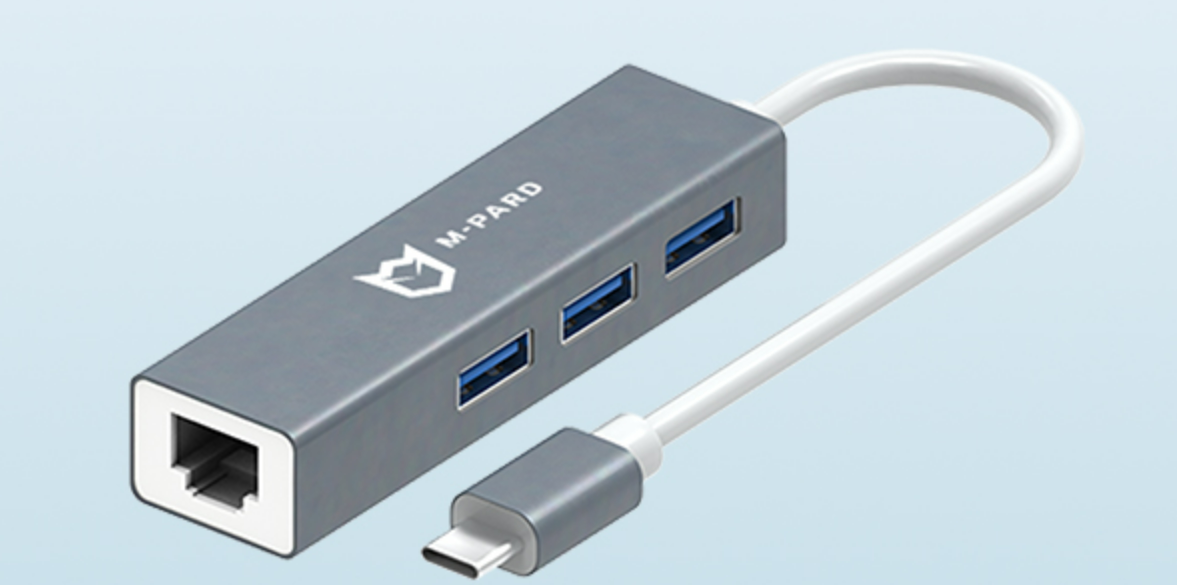
一个M-pard(铭豹)扩展坞的网卡突然无法识别了,扩展出来的三个USB接口正常。…
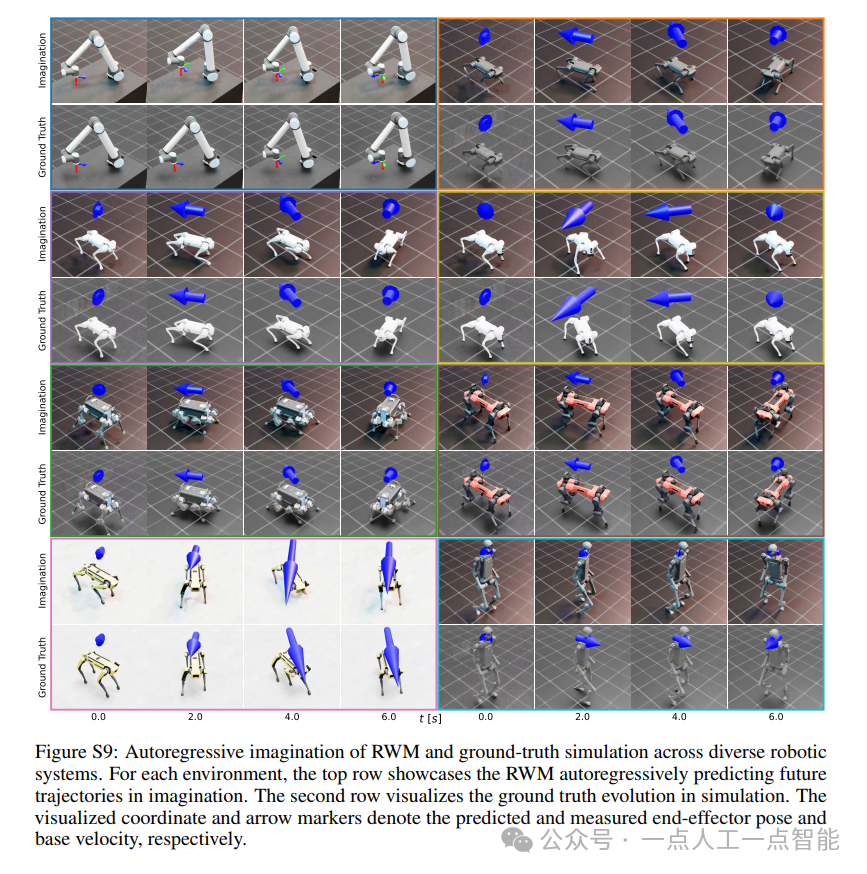
未来机器人的大脑:如何用神经网络模拟器实现更智能的决策?
编辑:陈萍萍的公主一点人工一点智能 未来机器人的大脑:如何用神经网络模拟器实现更智能的决策?RWM通过双自回归机制有效解决了复合误差、部分可观测性和随机动力学等关键挑战,在不依赖领域特定归纳偏见的条件下实现了卓越的预测准…

Linux应用开发之网络套接字编程(实例篇)
服务端与客户端单连接
服务端代码
#include <sys/socket.h>
#include <sys/types.h>
#include <netinet/in.h>
#include <stdio.h>
#include <stdlib.h>
#include <string.h>
#include <arpa/inet.h>
#include <pthread.h>
…

华为云AI开发平台ModelArts
华为云ModelArts:重塑AI开发流程的“智能引擎”与“创新加速器”!
在人工智能浪潮席卷全球的2025年,企业拥抱AI的意愿空前高涨,但技术门槛高、流程复杂、资源投入巨大的现实,却让许多创新构想止步于实验室。数据科学家…
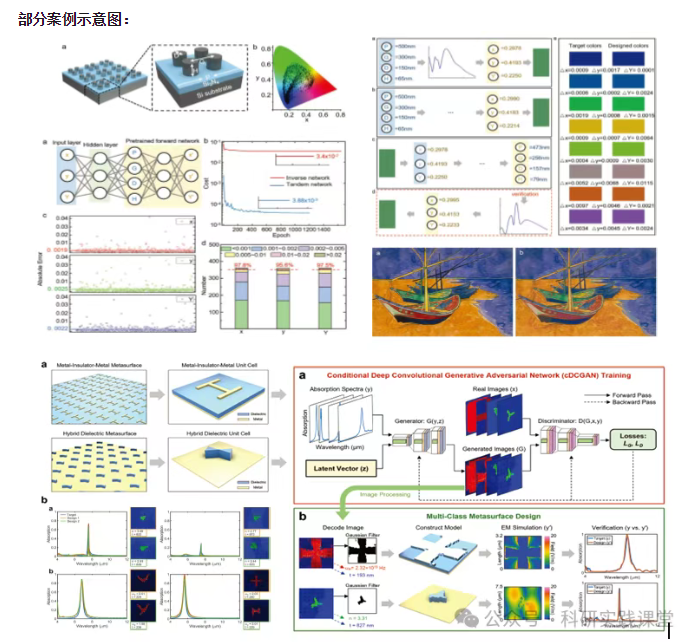
深度学习在微纳光子学中的应用
深度学习在微纳光子学中的主要应用方向
深度学习与微纳光子学的结合主要集中在以下几个方向:
逆向设计 通过神经网络快速预测微纳结构的光学响应,替代传统耗时的数值模拟方法。例如设计超表面、光子晶体等结构。
特征提取与优化 从复杂的光学数据中自…