.NET开发者集成丹青识画系统实战:C#调用REST API与结果反序列化
news2026/3/16 23:19:01
.NET开发者集成丹青识画系统实战C#调用REST API与结果反序列化你是不是也遇到过这样的场景手头有一堆图片需要快速识别和分类或者想在自己的.NET应用里加入智能识图的功能。自己从头训练模型太费劲用现成的服务又担心集成复杂。最近我接触到了丹青识画系统发现它提供的REST API接口挺方便正好用C#来调用整个过程比想象中简单。这篇文章就是给咱们.NET开发者写的实战指南。我会带你一步步走完整个流程从发送第一个HTTP请求到处理返回的复杂JSON数据再到把整个功能集成到你的ASP.NET Core Web API或者WPF桌面应用里。你不用是AI专家只要会写C#代码跟着做就能搞定。1. 准备工作与环境搭建在开始写代码之前咱们得先把环境准备好。这个过程很简单主要是拿到访问API的凭证然后在项目里添加必要的NuGet包。1.1 获取API访问凭证首先你需要去丹青识画系统的官方平台注册一个账号。注册成功后一般会在控制台或者个人中心找到API密钥API Key和访问端点Endpoint URL。这两个东西很重要相当于你调用服务的“用户名”和“地址”待会儿写代码的时候要用到。通常API密钥是一串长得像乱码的字符串而访问端点则是一个网址比如https://api.example.com/v1/recognize。把它们记下来或者保存在一个安全的地方。1.2 创建.NET项目并添加依赖接下来打开你熟悉的IDE比如Visual Studio或者Rider创建一个新的项目。根据你的需求可以选择ASP.NET Core Web API项目如果你要做后端服务给前端或者移动端提供识图接口。控制台应用用来快速测试和验证API调用逻辑。WPF桌面应用如果你想做一个带界面的本地图片识别工具。项目创建好后打开NuGet包管理器搜索并安装下面这两个包。它们是我们处理HTTP请求和JSON数据的得力助手。!-- 如果你的项目是 .NET Core 3.1官方推荐使用 System.Text.Json -- PackageReference IncludeSystem.Text.Json Version8.0.0 / !-- 如果你更习惯用 Newtonsoft.JsonJson.NET也可以安装这个 -- PackageReference IncludeNewtonsoft.Json Version13.0.3 / !-- 用于发送HTTP请求这是.NET内置的但确保版本合适 -- !-- HttpClient 通常已包含在框架中无需单独安装 --我个人的建议是如果是新项目优先用System.Text.Json它是.NET官方自带的性能不错而且没有额外的依赖。如果你现有的项目已经在大量使用Newtonsoft.Json或者需要它的一些高级特性继续用它也完全没问题。本文的代码示例会主要以System.Text.Json为主但关键地方我也会提一下Newtonsoft.Json的写法。2. 构建请求发送图片给识图API万事俱备现在可以开始写第一个核心功能了把一张本地图片发送到丹青识画的识别接口。这里的关键是学会如何用HttpClient构造一个携带图片文件的POST请求。2.1 使用HttpClient发送Multipart请求识图API通常接收的是图片文件本身而不是图片的URL或Base64编码具体要看API文档要求。在HTTP协议中上传文件最常用的格式就是multipart/form-data。在C#里用MultipartFormDataContent类可以很方便地构建这种请求。下面是一个完整的异步方法示例它完成了从读取图片到发送请求的全过程using System; using System.IO; using System.Net.Http; using System.Threading.Tasks; namespace DanQingImageRecognition.Services { public class ImageRecognitionService { private readonly HttpClient _httpClient; private readonly string _apiKey; private readonly string _apiEndpoint; // 通过构造函数注入HttpClient和配置 public ImageRecognitionService(HttpClient httpClient, string apiKey, string apiEndpoint) { _httpClient httpClient; _apiKey apiKey; _apiEndpoint apiEndpoint; // 设置通用的请求头比如认证信息 _httpClient.DefaultRequestHeaders.Add(Authorization, $Bearer {_apiKey}); } /// summary /// 上传本地图片文件进行识别 /// /summary /// param nameimageFilePath本地图片文件的完整路径/param /// returnsAPI返回的原始JSON字符串/returns public async Taskstring RecognizeImageAsync(string imageFilePath) { // 1. 检查文件是否存在 if (!File.Exists(imageFilePath)) { throw new FileNotFoundException($图片文件未找到: {imageFilePath}); } // 2. 创建 multipart/form-data 内容 using var formData new MultipartFormDataContent(); // 读取图片文件流 using var fileStream File.OpenRead(imageFilePath); var fileContent new StreamContent(fileStream); // 通常需要设置文件部分的Content-Type例如 image/jpeg // 可以根据文件扩展名动态设置 string contentType GetContentType(imageFilePath); fileContent.Headers.ContentType new System.Net.Http.Headers.MediaTypeHeaderValue(contentType); // 3. 将文件流添加到formData中 // 第一个参数是文件流内容第二个参数是表单字段名根据API文档确定常见是“image”或“file” // 第三个参数是文件名 formData.Add(fileContent, image, Path.GetFileName(imageFilePath)); // 4. 可选添加其他文本参数如果API需要 // formData.Add(new StringContent(some_value), param_name); // 5. 发送POST请求 HttpResponseMessage response; try { response await _httpClient.PostAsync(_apiEndpoint, formData); response.EnsureSuccessStatusCode(); // 如果状态码不是2xx会抛出异常 // 6. 读取并返回响应内容 string responseBody await response.Content.ReadAsStringAsync(); return responseBody; } catch (HttpRequestException ex) { // 处理网络或HTTP错误 throw new Exception($调用识图API失败: {ex.Message}, ex); } } /// summary /// 根据文件扩展名获取对应的MIME类型 /// /summary private string GetContentType(string filePath) { string extension Path.GetExtension(filePath).ToLowerInvariant(); return extension switch { .jpg or .jpeg image/jpeg, .png image/png, .bmp image/bmp, .gif image/gif, .webp image/webp, _ application/octet-stream // 未知类型的默认值 }; } } }这段代码做了几件重要的事封装服务把HTTP操作封装到一个服务类里代码更整洁也方便复用和测试。处理文件安全地打开图片文件流并根据文件类型设置正确的Content-Type。构建请求体使用MultipartFormDataContent来组装包含图片的请求。发送与接收用PostAsync发送请求并用EnsureSuccessStatusCode确保请求成功最后读取返回的JSON字符串。2.2 在ASP.NET Core中注册和使用服务如果你是在ASP.NET Core项目里使用最佳实践是通过依赖注入来管理HttpClient和我们的服务。这样能更好地管理生命周期和配置。首先在Program.cs或Startup.cs中注册服务// Program.cs using DanQingImageRecognition.Services; var builder WebApplication.CreateBuilder(args); // 1. 从配置中读取API密钥和地址建议放在appsettings.json中 var apiKey builder.Configuration[DanQing:ApiKey]; var apiEndpoint builder.Configuration[DanQing:ApiEndpoint]; // 2. 注册一个命名的HttpClient并配置基础地址和默认请求头 builder.Services.AddHttpClient(DanQingClient, client { client.BaseAddress new Uri(apiEndpoint); client.DefaultRequestHeaders.Add(Authorization, $Bearer {apiKey}); // 可以设置其他公共请求头如超时时间 client.Timeout TimeSpan.FromSeconds(30); }); // 3. 注册我们自己的识图服务 builder.Services.AddScopedImageRecognitionService(serviceProvider { var httpClientFactory serviceProvider.GetRequiredServiceIHttpClientFactory(); // 使用上面注册的“DanQingClient”来创建HttpClient实例 var httpClient httpClientFactory.CreateClient(DanQingClient); return new ImageRecognitionService(httpClient, apiKey, apiEndpoint); }); // ... 其他服务注册 var app builder.Build(); // ... 中间件和端点配置 app.Run();然后在你的控制器Controller里就可以直接注入并使用这个服务了using DanQingImageRecognition.Services; using Microsoft.AspNetCore.Mvc; namespace YourWebApi.Controllers { [ApiController] [Route(api/[controller])] public class RecognitionController : ControllerBase { private readonly ImageRecognitionService _recognitionService; public RecognitionController(ImageRecognitionService recognitionService) { _recognitionService recognitionService; } [HttpPost(upload)] public async TaskIActionResult UploadImage(IFormFile file) { if (file null || file.Length 0) { return BadRequest(请上传有效的图片文件。); } // 将上传的文件保存到临时路径或者直接处理流 var tempFilePath Path.GetTempFileName(); using (var stream new FileStream(tempFilePath, FileMode.Create)) { await file.CopyToAsync(stream); } try { // 调用我们的服务 string rawJsonResult await _recognitionService.RecognizeImageAsync(tempFilePath); // 这里先返回原始JSON下一步我们会处理它 return Ok(rawJsonResult); } finally { // 清理临时文件 System.IO.File.Delete(tempFilePath); } } } }这样一个接收图片上传并调用识图API的后端接口就完成了。不过现在返回的还是原始的JSON字符串对客户端不太友好。接下来我们就要解决如何把这些JSON变成C#里容易操作的强类型对象。3. 处理响应反序列化复杂的JSON鉴定结果识图API返回的JSON结构可能会比较复杂包含多层嵌套的对象和数组。手动去解析字符串既麻烦又容易出错。我们的目标是把这串JSON自动转换成一组C#的类模型这样就能用result.Objects[0].Name这样的方式来访问数据了。3.1 定义强类型的模型类C# Classes第一步也是最重要的一步是根据API的响应格式定义对应的C#类。你需要仔细阅读丹青识画系统的API文档看看返回的JSON具体长什么样。假设一个简化版的识别结果JSON如下{ request_id: req_123456, timestamp: 1685952000, success: true, result: { scene: 户外公园, tags: [蓝天, 绿树, 草坪, 人物], objects: [ { name: 狗, confidence: 0.95, bounding_box: { x_min: 100, y_min: 200, x_max: 300, y_max: 400 } }, { name: 飞盘, confidence: 0.87, bounding_box: { x_min: 250, y_min: 150, x_max: 320, y_max: 220 } } ], texts: [ { content: 欢迎光临, confidence: 0.92 } ] } }那么我们可以定义出下面这样一组类来映射这个结构using System; using System.Collections.Generic; namespace DanQingImageRecognition.Models { // 最外层的响应根节点 public class RecognitionResponse { public string RequestId { get; set; } public long Timestamp { get; set; } public bool Success { get; set; } public RecognitionResult Result { get; set; } } // 识别结果主体 public class RecognitionResult { public string Scene { get; set; } public Liststring Tags { get; set; } new Liststring(); public ListDetectedObject Objects { get; set; } new ListDetectedObject(); public ListDetectedText Texts { get; set; } new ListDetectedText(); } // 检测到的物体 public class DetectedObject { public string Name { get; set; } public double Confidence { get; set; } public BoundingBox BoundingBox { get; set; } } // 检测到的文字 public class DetectedText { public string Content { get; set; } public double Confidence { get; set; } } // 物体所在的矩形框 public class BoundingBox { public int XMin { get; set; } public int YMin { get; set; } public int XMax { get; set; } public int YMax { get; set; } // 可以添加一些有用的计算属性 public int Width XMax - XMin; public int Height YMax - YMin; } }注意属性名默认要和JSON的key完全一致区分大小写。如果JSON的key是蛇形命名如request_id而你想在C#里用驼峰命名如RequestId就需要用到特性Attribute来指定映射关系这个我们稍后会讲。3.2 使用System.Text.Json进行反序列化模型定义好了反序列化就一行代码的事。我们修改之前的服务方法让它返回强类型对象而不是字符串。首先在服务类里添加一个专门用于反序列化的方法using System.Text.Json; using DanQingImageRecognition.Models; namespace DanQingImageRecognition.Services { public partial class ImageRecognitionService { /// summary /// 识别图片并返回解析后的强类型结果 /// /summary public async TaskRecognitionResponse RecognizeImageAndParseAsync(string imageFilePath) { // 1. 获取原始JSON string rawJson await RecognizeImageAsync(imageFilePath); // 2. 配置JsonSerializerOptions可选但推荐 var options new JsonSerializerOptions { PropertyNameCaseInsensitive true, // 忽略属性名大小写 // 如果JSON中有日期等特殊格式可以在这里添加转换器 // Converters { new DateTimeConverterUsingDateTimeParse() } }; // 3. 反序列化 try { var result JsonSerializer.DeserializeRecognitionResponse(rawJson, options); if (result null) { throw new Exception(反序列化失败返回结果为null。); } return result; } catch (JsonException ex) { // 处理JSON格式错误 throw new Exception($解析API响应JSON时出错: {ex.Message}, ex); } } } }处理命名差异如果JSON键名是request_id而C#属性是RequestId有两种方法解决使用[JsonPropertyName]特性推荐public class RecognitionResponse { [JsonPropertyName(request_id)] public string RequestId { get; set; } // ... 其他属性 }在JsonSerializerOptions中配置命名策略将驼峰属性名自动转换为蛇形var options new JsonSerializerOptions { PropertyNamingPolicy JsonNamingPolicy.SnakeCaseLower, // .NET 8 内置 // 对于更早版本可能需要自定义或使用第三方库 };3.3 使用Newtonsoft.Json进行反序列化如果你的项目用的是 Newtonsoft.JsonJson.NET方法也非常类似using Newtonsoft.Json; using DanQingImageRecognition.Models; namespace DanQingImageRecognition.Services { public partial class ImageRecognitionService { /// summary /// 使用Newtonsoft.Json识别图片并返回解析后的强类型结果 /// /summary public async TaskRecognitionResponse RecognizeImageAndParseNewtonsoftAsync(string imageFilePath) { string rawJson await RecognizeImageAsync(imageFilePath); try { // 直接反序列化可以传入设置 var settings new JsonSerializerSettings { MissingMemberHandling MissingMemberHandling.Ignore, // 忽略JSON中多出的字段 NullValueHandling NullValueHandling.Ignore // 忽略空值 }; var result JsonConvert.DeserializeObjectRecognitionResponse(rawJson, settings); if (result null) { throw new Exception(反序列化失败返回结果为null。); } return result; } catch (JsonException ex) { throw new Exception($解析API响应JSON时出错: {ex.Message}, ex); } } } }在 Newtonsoft.Json 中处理属性名映射使用[JsonProperty]特性using Newtonsoft.Json; public class RecognitionResponse { [JsonProperty(request_id)] public string RequestId { get; set; } // ... 其他属性 }现在你的控制器方法就可以返回一个整洁的、强类型的对象了[HttpPost(upload-parsed)] public async TaskIActionResult UploadImageParsed(IFormFile file) { // ... 文件保存逻辑同上 try { // 调用返回强类型结果的方法 var recognitionResult await _recognitionService.RecognizeImageAndParseAsync(tempFilePath); if (!recognitionResult.Success) { // 处理API业务逻辑上的失败 return BadRequest($识别请求失败请求ID: {recognitionResult.RequestId}); } // 现在可以方便地使用结果了 var detectedDog recognitionResult.Result.Objects.FirstOrDefault(obj obj.Name 狗); if (detectedDog ! null) { Console.WriteLine($识别到一只狗置信度: {detectedDog.Confidence:P0}); } // 将结果返回给前端 return Ok(recognitionResult); } finally { System.IO.File.Delete(tempFilePath); } }4. 进阶集成与错误处理基本的调用和解析跑通后我们来看看如何把它集成得更稳健、更实用并处理可能出现的各种问题。4.1 集成到WPF桌面应用中在WPF应用里集成原理和Web API类似主要区别在于如何选择图片和显示结果。我们可以做一个简单的界面包含一个按钮选择图片一个图片控件显示原图一个文本框或列表显示识别结果。首先在WPF项目中同样通过依赖注入或静态类来使用我们的ImageRecognitionService。然后在按钮的事件处理程序中调用它。// 假设在 MainWindow.xaml.cs 中 using DanQingImageRecognition.Services; using Microsoft.Win32; using System.Windows; using System.Windows.Media.Imaging; public partial class MainWindow : Window { private readonly ImageRecognitionService _recognitionService; public MainWindow() { InitializeComponent(); // 初始化服务实际项目中应从容器获取 var httpClient new HttpClient(); _recognitionService new ImageRecognitionService( httpClient, your_api_key_here, https://api.example.com/v1/recognize ); } private async void SelectImageButton_Click(object sender, RoutedEventArgs e) { var openFileDialog new OpenFileDialog { Filter Image files (*.jpg; *.jpeg; *.png; *.bmp)|*.jpg;*.jpeg;*.png;*.bmp, Title 选择一张图片 }; if (openFileDialog.ShowDialog() true) { string filePath openFileDialog.FileName; // 在界面上显示加载状态 ResultTextBox.Text 识别中请稍候...; SelectImageButton.IsEnabled false; try { // 显示选中的图片 var bitmap new BitmapImage(new Uri(filePath)); SelectedImage.Source bitmap; // 调用识别服务 var result await _recognitionService.RecognizeImageAndParseAsync(filePath); // 处理并显示结果 DisplayRecognitionResult(result); } catch (Exception ex) { ResultTextBox.Text $识别出错: {ex.Message}; } finally { SelectImageButton.IsEnabled true; } } } private void DisplayRecognitionResult(RecognitionResponse response) { if (response?.Success ! true) { ResultTextBox.Text 识别失败。; return; } var result response.Result; var sb new System.Text.StringBuilder(); sb.AppendLine($场景: {result.Scene}); sb.AppendLine($标签: {string.Join(, , result.Tags)}); sb.AppendLine(); sb.AppendLine(检测到的物体:); foreach (var obj in result.Objects) { sb.AppendLine($ - {obj.Name} (置信度: {obj.Confidence:P0})); } sb.AppendLine(); sb.AppendLine(检测到的文字:); foreach (var text in result.Texts) { sb.AppendLine($ - \{text.Content}\ (置信度: {text.Confidence:P0})); } ResultTextBox.Text sb.ToString(); } }对应的XAML界面可以很简单Window x:ClassYourWpfApp.MainWindow xmlnshttp://schemas.microsoft.com/winfx/2006/xaml/presentation xmlns:xhttp://schemas.microsoft.com/winfx/2006/xaml Title丹青识图工具 Height600 Width800 Grid Grid.RowDefinitions RowDefinition HeightAuto/ RowDefinition Height*/ RowDefinition Height2*/ /Grid.RowDefinitions Button x:NameSelectImageButton Grid.Row0 Content选择图片并识别 ClickSelectImageButton_Click Margin10 Padding10/ Image x:NameSelectedImage Grid.Row1 Margin10 StretchUniform/ TextBox x:NameResultTextBox Grid.Row2 Margin10 IsReadOnlyTrue VerticalScrollBarVisibilityAuto TextWrappingWrap FontFamilyConsolas/ /Grid /Window4.2 异常处理与重试机制网络请求总是不稳定的API也可能偶尔出错。一个健壮的程序必须能妥善处理这些情况。基础异常处理我们已经用try-catch包裹了核心调用捕获了HttpRequestException和JsonException。还可以根据HTTP状态码进行更精细的处理。try { var result await _recognitionService.RecognizeImageAndParseAsync(filePath); // 处理成功结果 } catch (HttpRequestException ex) when (ex.StatusCode System.Net.HttpStatusCode.Unauthorized) { // 处理401未授权错误可能是API密钥失效 MessageBox.Show(API认证失败请检查API密钥。); } catch (HttpRequestException ex) when (ex.StatusCode System.Net.HttpStatusCode.TooManyRequests) { // 处理429请求过多错误触发限流 MessageBox.Show(请求过于频繁请稍后再试。); } catch (HttpRequestException ex) { // 处理其他HTTP错误 MessageBox.Show($网络请求错误: {ex.Message}); } catch (TaskCanceledException) { // 处理请求超时 MessageBox.Show(请求超时请检查网络或稍后重试。); } catch (Exception ex) { // 处理其他所有未知错误 MessageBox.Show($发生未知错误: {ex.Message}); }实现重试机制对于网络波动等临时性错误重试往往能解决问题。可以使用Polly这样的弹性库也可以自己简单实现。using System; using System.Net.Http; using System.Threading.Tasks; public async TaskRecognitionResponse RecognizeWithRetryAsync(string filePath, int maxRetries 3) { int retryCount 0; while (true) { try { return await _recognitionService.RecognizeImageAndParseAsync(filePath); } catch (HttpRequestException ex) when (retryCount maxRetries) { // 只对特定的、可能通过重试解决的异常进行重试 // 例如网络错误、超时、5xx服务器错误 bool isTransientError ex.StatusCode null || (int)ex.StatusCode 500 || ex.StatusCode System.Net.HttpStatusCode.RequestTimeout; if (isTransientError) { retryCount; // 等待一段时间再重试指数退避 var delay TimeSpan.FromSeconds(Math.Pow(2, retryCount)); // 2, 4, 8秒... await Task.Delay(delay); continue; } // 如果是客户端错误4xx重试通常没用直接抛出 throw; } } }4.3 性能优化与最佳实践当你的应用开始处理大量图片时下面这些优化点会很有帮助复用HttpClient这是最重要的建议。不要为每个请求都new HttpClient()而应该复用同一个实例或者使用IHttpClientFactory。这能避免端口耗尽和DNS刷新问题。使用Stream直接处理如果API支持可以直接将文件流发送出去避免先保存到临时文件再读取。public async TaskRecognitionResponse RecognizeImageStreamAsync(Stream imageStream, string fileName) { using var formData new MultipartFormDataContent(); var fileContent new StreamContent(imageStream); fileContent.Headers.ContentType new MediaTypeHeaderValue(GetContentType(fileName)); formData.Add(fileContent, image, fileName); // ... 后续发送逻辑相同 }异步编程确保整个调用链都是异步的async/await避免阻塞UI线程或服务器线程。配置超时根据图片大小和网络状况合理设置HttpClient.Timeout避免长时间等待。结果缓存如果同一张图片可能被多次识别可以考虑在本地缓存识别结果用文件路径的哈希值做键在一定时间内直接返回缓存结果。5. 总结走完这一趟你会发现用C#集成一个像丹青识画这样的外部AI服务其实并没有多神秘。核心就是三板斧用HttpClient正确地发送请求根据API文档定义好对应的数据模型然后用System.Text.Json或Newtonsoft.Json把返回的JSON字符串变成我们熟悉的C#对象。整个过程里把HTTP操作和JSON解析封装成独立的服务类会让你的代码干净很多无论是在Web API里调用还是在WPF桌面程序里使用都只需要关注业务逻辑。对于可能出现的网络问题加上适当的异常处理和重试机制应用的健壮性就能提升一大截。最后想说的是这个模式具有很强的通用性。你今天学会了集成识图API明天如果遇到语音识别、文本审核或者其他任何提供RESTful接口的服务方法都是大同小异的。关键就是理解HTTP通信和JSON数据交换这套标准流程剩下的就是根据具体的API文档调整细节了。希望这篇实战指南能帮你快速上手把智能识图的能力轻松带到你的下一个.NET项目里。获取更多AI镜像想探索更多AI镜像和应用场景访问 CSDN星图镜像广场提供丰富的预置镜像覆盖大模型推理、图像生成、视频生成、模型微调等多个领域支持一键部署。
本文来自互联网用户投稿,该文观点仅代表作者本人,不代表本站立场。本站仅提供信息存储空间服务,不拥有所有权,不承担相关法律责任。如若转载,请注明出处:http://www.coloradmin.cn/o/2417477.html
如若内容造成侵权/违法违规/事实不符,请联系多彩编程网进行投诉反馈,一经查实,立即删除!相关文章
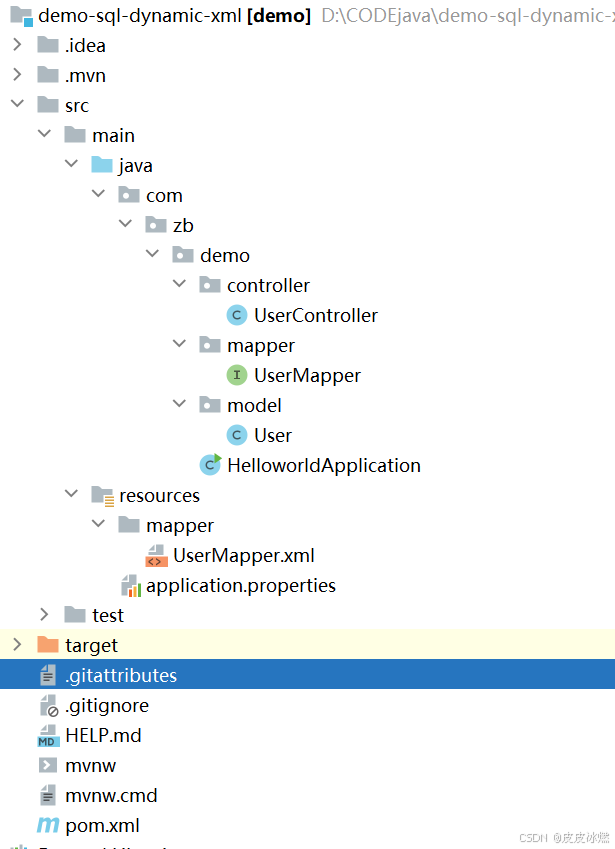
SpringBoot-17-MyBatis动态SQL标签之常用标签
文章目录 1 代码1.1 实体User.java1.2 接口UserMapper.java1.3 映射UserMapper.xml1.3.1 标签if1.3.2 标签if和where1.3.3 标签choose和when和otherwise1.4 UserController.java2 常用动态SQL标签2.1 标签set2.1.1 UserMapper.java2.1.2 UserMapper.xml2.1.3 UserController.ja…
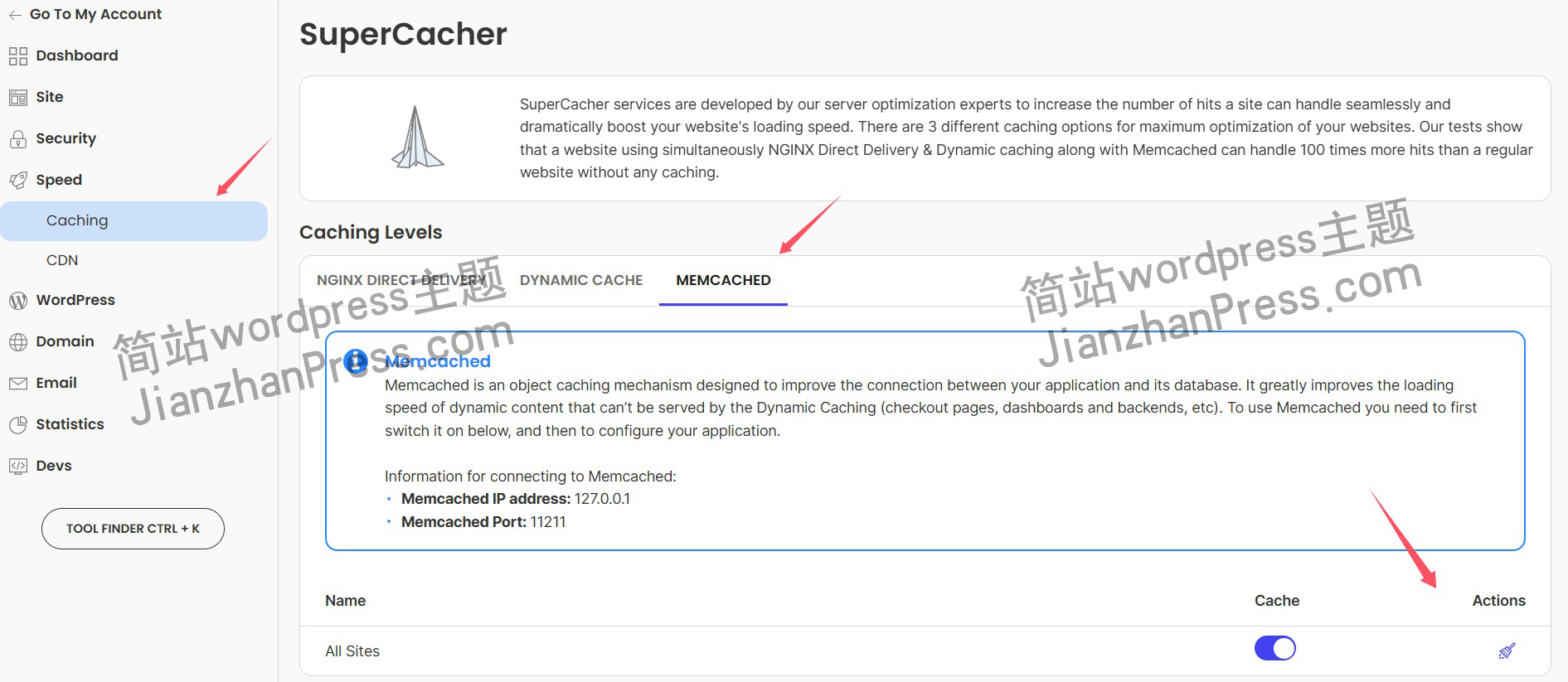
wordpress后台更新后 前端没变化的解决方法
使用siteground主机的wordpress网站,会出现更新了网站内容和修改了php模板文件、js文件、css文件、图片文件后,网站没有变化的情况。
不熟悉siteground主机的新手,遇到这个问题,就很抓狂,明明是哪都没操作错误&#x…
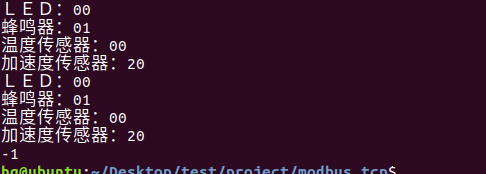
网络编程(Modbus进阶)
思维导图 Modbus RTU(先学一点理论)
概念 Modbus RTU 是工业自动化领域 最广泛应用的串行通信协议,由 Modicon 公司(现施耐德电气)于 1979 年推出。它以 高效率、强健性、易实现的特点成为工业控制系统的通信标准。 包…
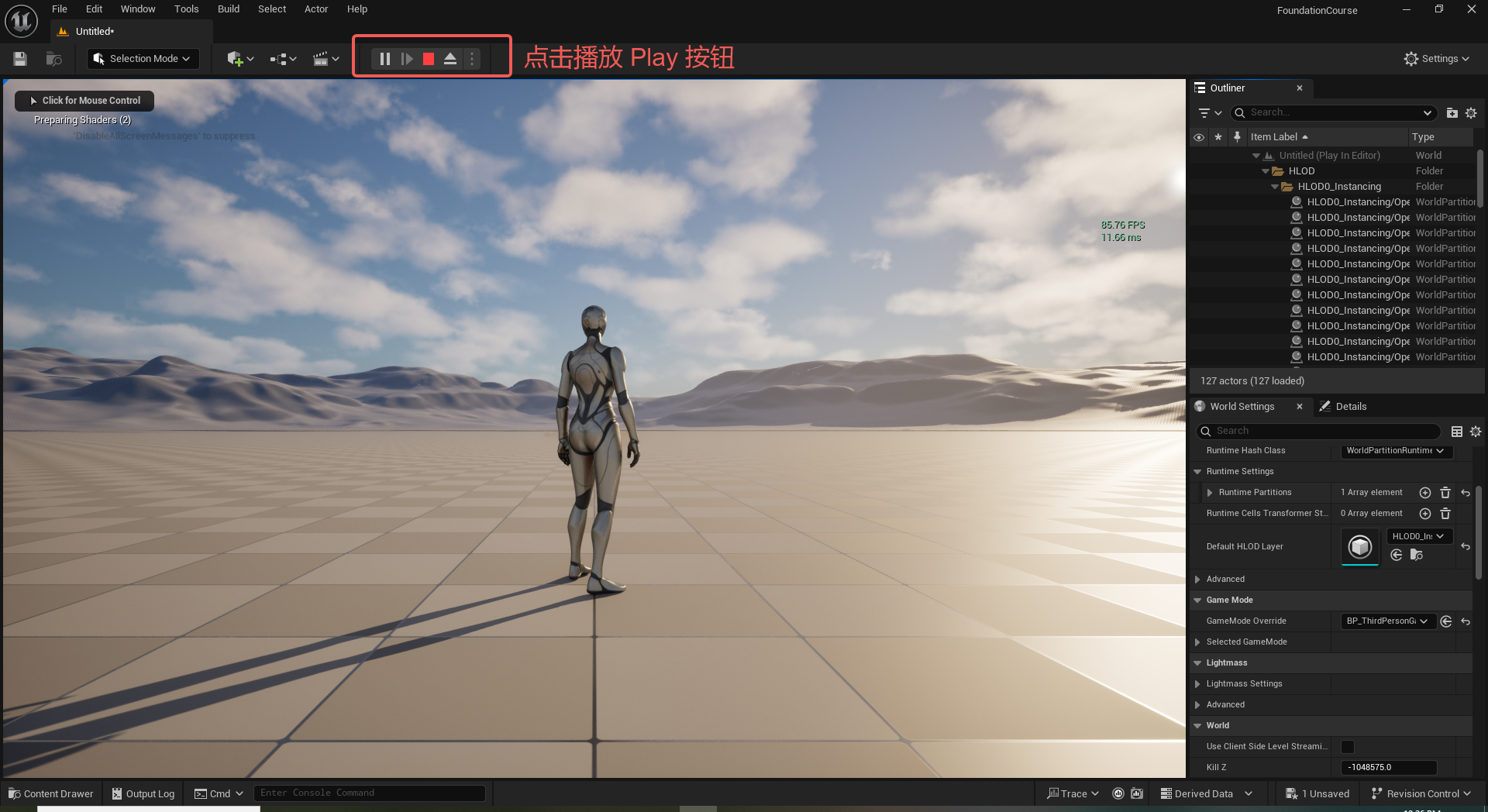
UE5 学习系列(二)用户操作界面及介绍
这篇博客是 UE5 学习系列博客的第二篇,在第一篇的基础上展开这篇内容。博客参考的 B 站视频资料和第一篇的链接如下:
【Note】:如果你已经完成安装等操作,可以只执行第一篇博客中 2. 新建一个空白游戏项目 章节操作,重…
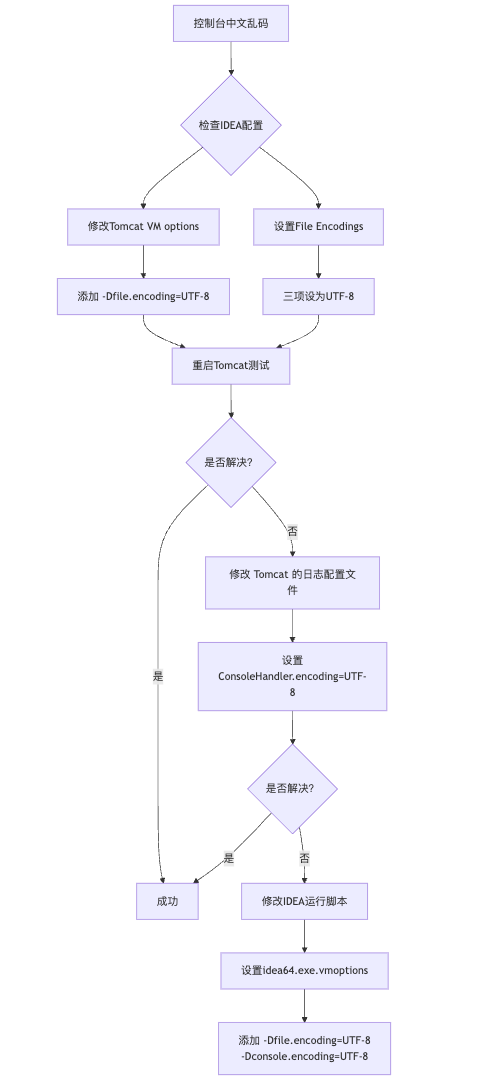
IDEA运行Tomcat出现乱码问题解决汇总
最近正值期末周,有很多同学在写期末Java web作业时,运行tomcat出现乱码问题,经过多次解决与研究,我做了如下整理:
原因:
IDEA本身编码与tomcat的编码与Windows编码不同导致,Windows 系统控制台…
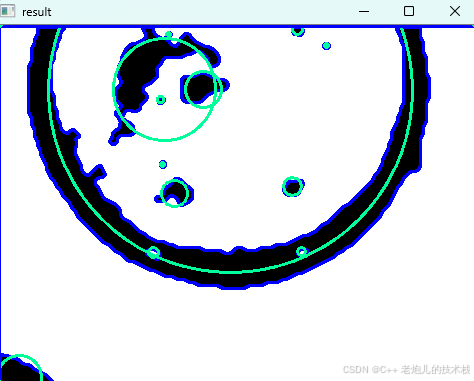
利用最小二乘法找圆心和半径
#include <iostream>
#include <vector>
#include <cmath>
#include <Eigen/Dense> // 需安装Eigen库用于矩阵运算 // 定义点结构
struct Point { double x, y; Point(double x_, double y_) : x(x_), y(y_) {}
}; // 最小二乘法求圆心和半径 …
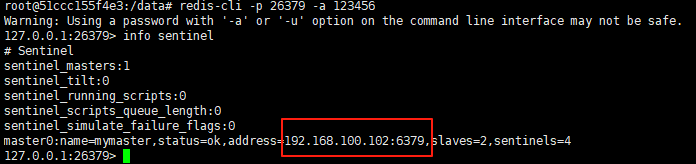
使用docker在3台服务器上搭建基于redis 6.x的一主两从三台均是哨兵模式
一、环境及版本说明
如果服务器已经安装了docker,则忽略此步骤,如果没有安装,则可以按照一下方式安装: 1. 在线安装(有互联网环境): 请看我这篇文章 传送阵>> 点我查看 2. 离线安装(内网环境):请看我这篇文章 传送阵>> 点我查看
说明:假设每台服务器已…
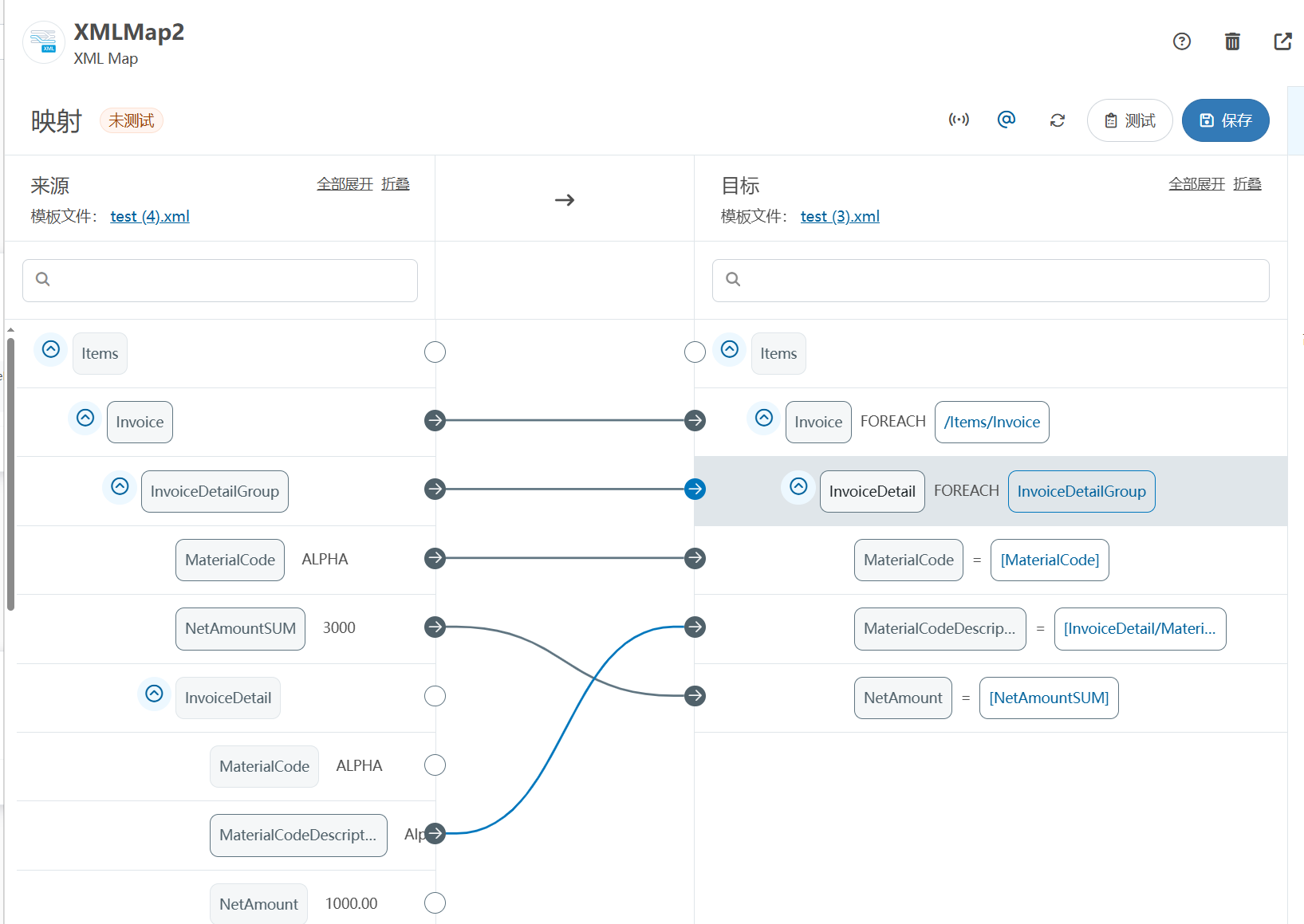
XML Group端口详解
在XML数据映射过程中,经常需要对数据进行分组聚合操作。例如,当处理包含多个物料明细的XML文件时,可能需要将相同物料号的明细归为一组,或对相同物料号的数量进行求和计算。传统实现方式通常需要编写脚本代码,增加了开…
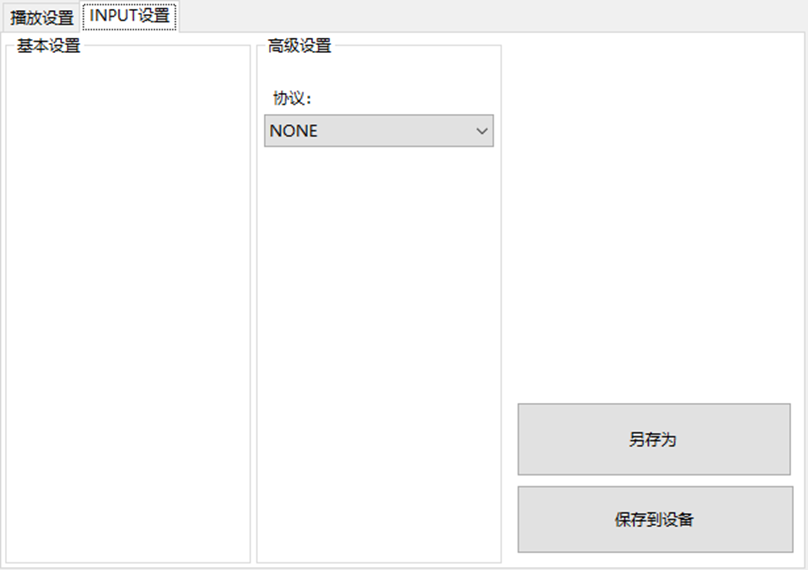
LBE-LEX系列工业语音播放器|预警播报器|喇叭蜂鸣器的上位机配置操作说明
LBE-LEX系列工业语音播放器|预警播报器|喇叭蜂鸣器专为工业环境精心打造,完美适配AGV和无人叉车。同时,集成以太网与语音合成技术,为各类高级系统(如MES、调度系统、库位管理、立库等)提供高效便捷的语音交互体验。
L…
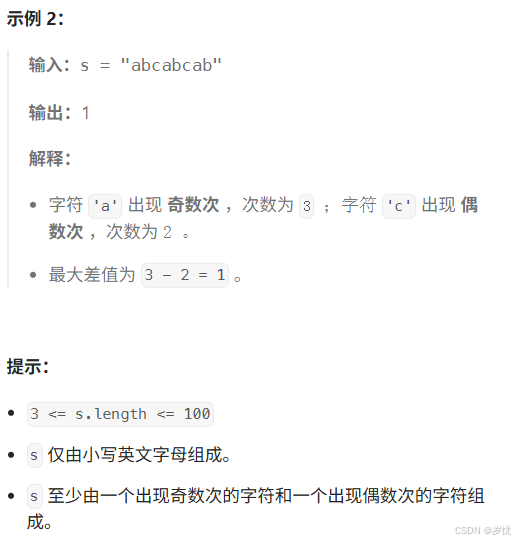
(LeetCode 每日一题) 3442. 奇偶频次间的最大差值 I (哈希、字符串)
题目:3442. 奇偶频次间的最大差值 I 思路 :哈希,时间复杂度0(n)。 用哈希表来记录每个字符串中字符的分布情况,哈希表这里用数组即可实现。
C版本:
class Solution {
public:int maxDifference(string s) {int a[26]…
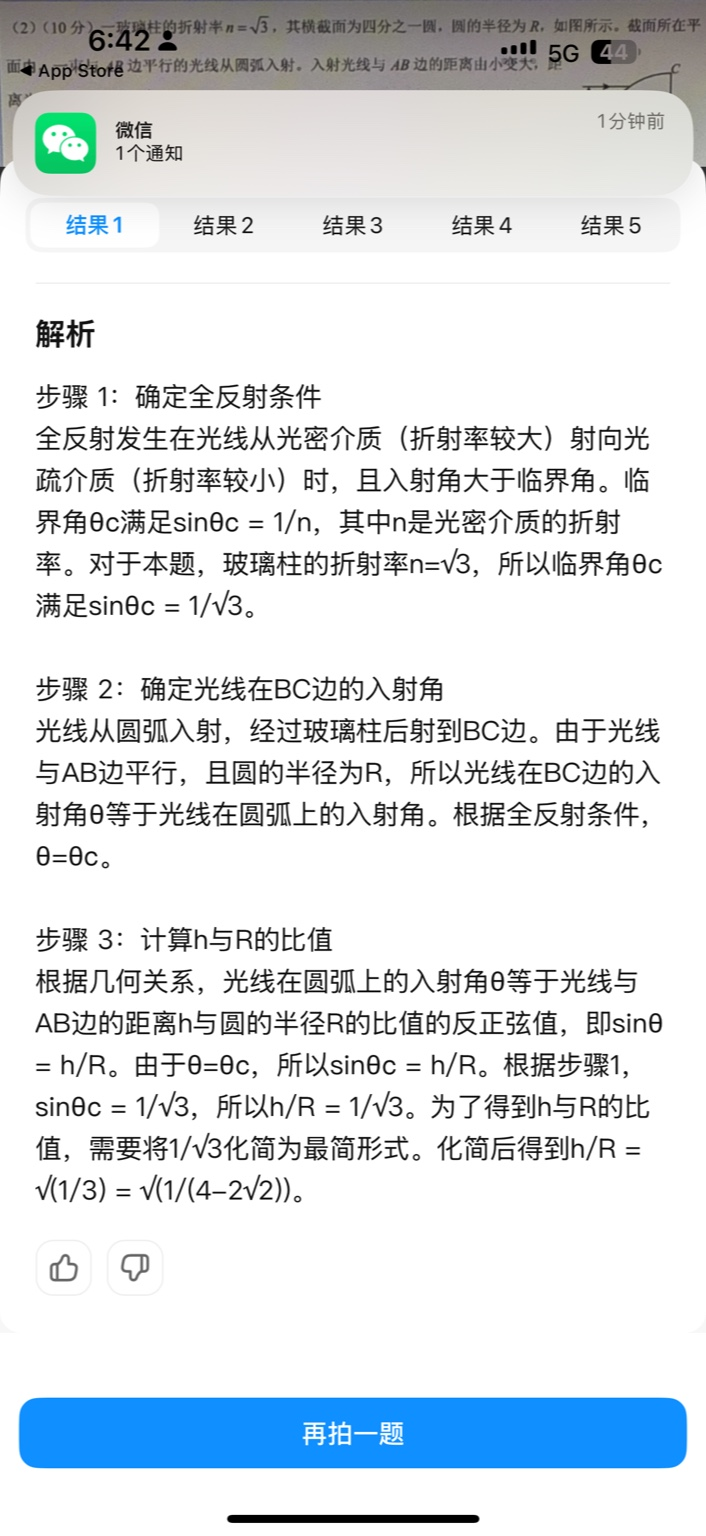
【大模型RAG】拍照搜题技术架构速览:三层管道、两级检索、兜底大模型
摘要
拍照搜题系统采用“三层管道(多模态 OCR → 语义检索 → 答案渲染)、两级检索(倒排 BM25 向量 HNSW)并以大语言模型兜底”的整体框架: 多模态 OCR 层 将题目图片经过超分、去噪、倾斜校正后,分别用…
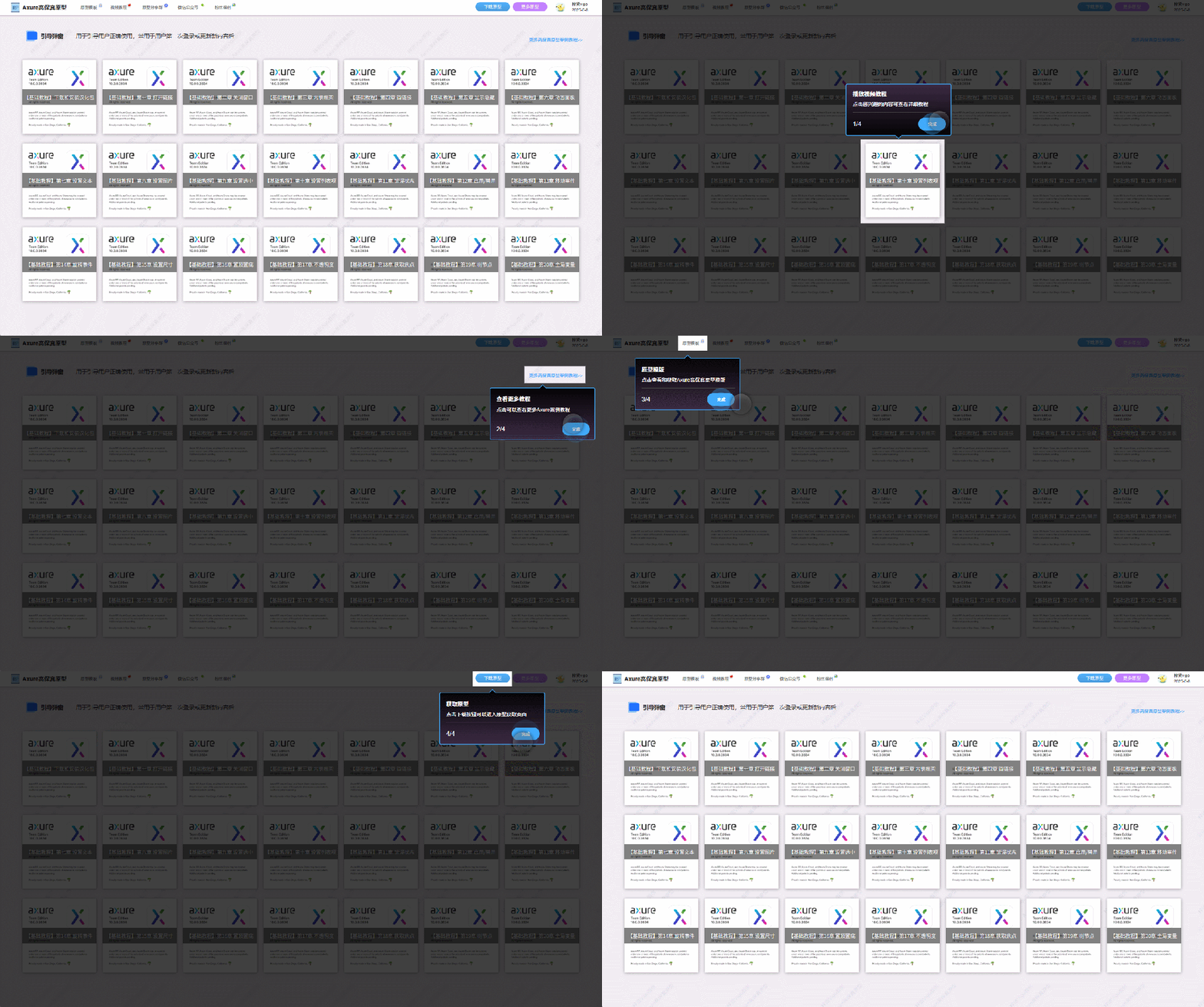
【Axure高保真原型】引导弹窗
今天和大家中分享引导弹窗的原型模板,载入页面后,会显示引导弹窗,适用于引导用户使用页面,点击完成后,会显示下一个引导弹窗,直至最后一个引导弹窗完成后进入首页。具体效果可以点击下方视频观看或打开下方…
接口测试中缓存处理策略
在接口测试中,缓存处理策略是一个关键环节,直接影响测试结果的准确性和可靠性。合理的缓存处理策略能够确保测试环境的一致性,避免因缓存数据导致的测试偏差。以下是接口测试中常见的缓存处理策略及其详细说明:
一、缓存处理的核…

龙虎榜——20250610
上证指数放量收阴线,个股多数下跌,盘中受消息影响大幅波动。 深证指数放量收阴线形成顶分型,指数短线有调整的需求,大概需要一两天。 2025年6月10日龙虎榜行业方向分析 1. 金融科技
代表标的:御银股份、雄帝科技
驱动…
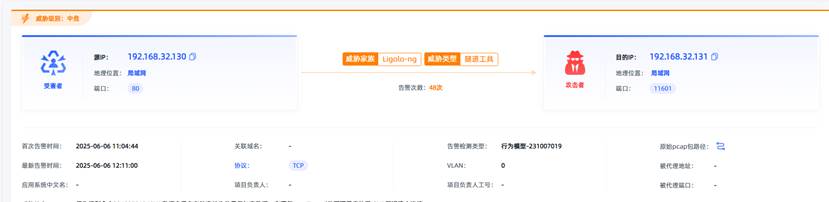
观成科技:隐蔽隧道工具Ligolo-ng加密流量分析
1.工具介绍
Ligolo-ng是一款由go编写的高效隧道工具,该工具基于TUN接口实现其功能,利用反向TCP/TLS连接建立一条隐蔽的通信信道,支持使用Let’s Encrypt自动生成证书。Ligolo-ng的通信隐蔽性体现在其支持多种连接方式,适应复杂网…
铭豹扩展坞 USB转网口 突然无法识别解决方法
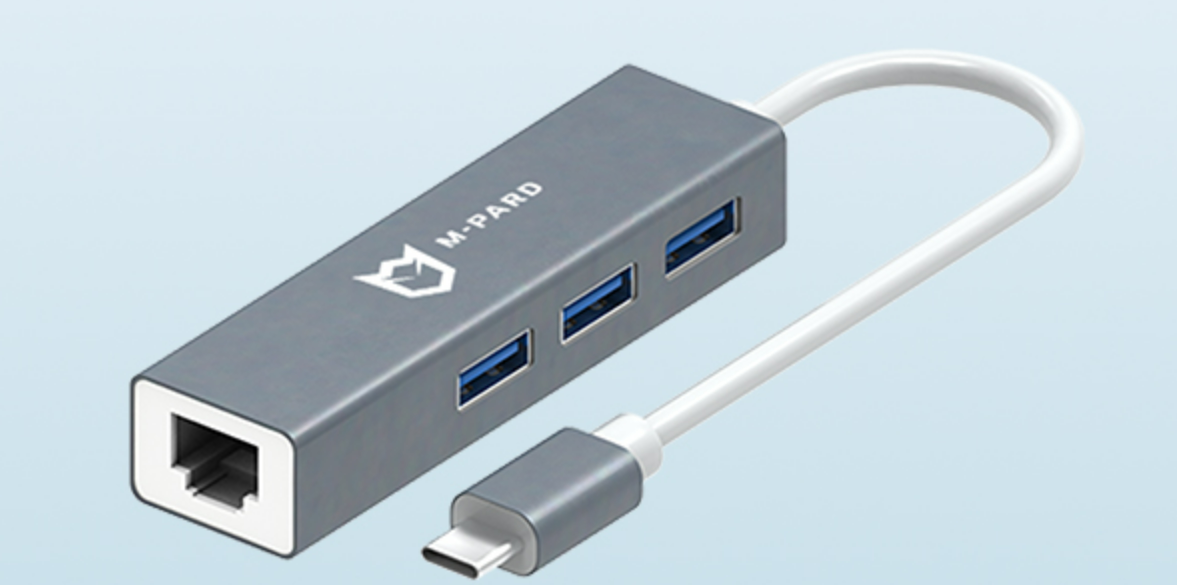
当 USB 转网口扩展坞在一台笔记本上无法识别,但在其他电脑上正常工作时,问题通常出在笔记本自身或其与扩展坞的兼容性上。以下是系统化的定位思路和排查步骤,帮助你快速找到故障原因:
背景:
一个M-pard(铭豹)扩展坞的网卡突然无法识别了,扩展出来的三个USB接口正常。…
未来机器人的大脑:如何用神经网络模拟器实现更智能的决策?
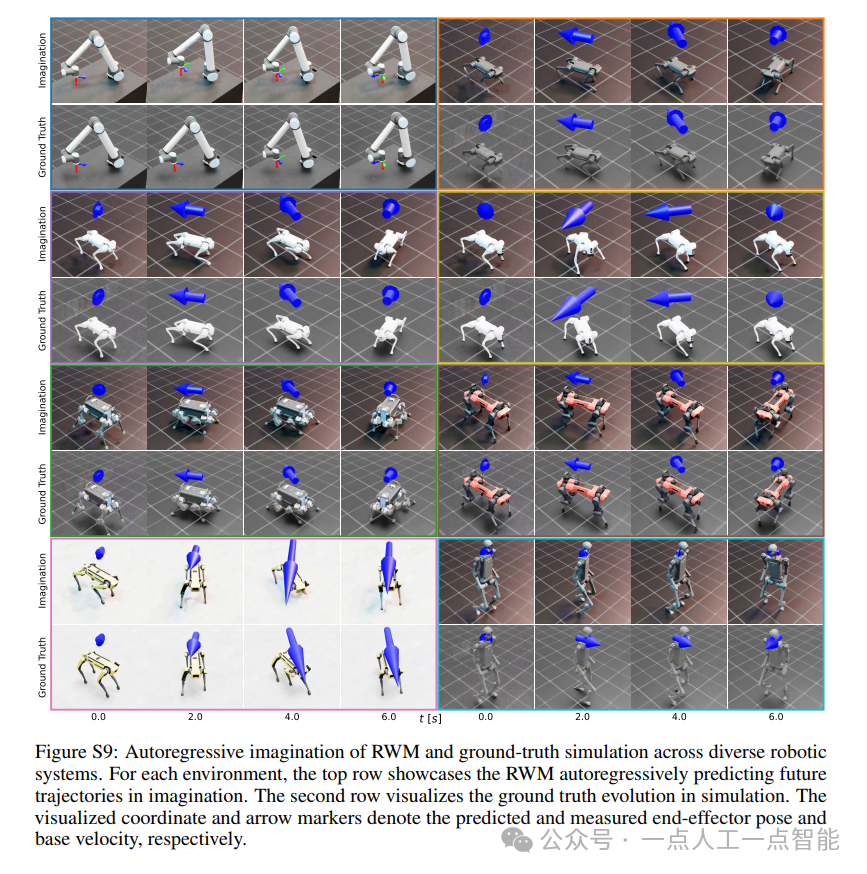
编辑:陈萍萍的公主一点人工一点智能 未来机器人的大脑:如何用神经网络模拟器实现更智能的决策?RWM通过双自回归机制有效解决了复合误差、部分可观测性和随机动力学等关键挑战,在不依赖领域特定归纳偏见的条件下实现了卓越的预测准…

Linux应用开发之网络套接字编程(实例篇)
服务端与客户端单连接
服务端代码
#include <sys/socket.h>
#include <sys/types.h>
#include <netinet/in.h>
#include <stdio.h>
#include <stdlib.h>
#include <string.h>
#include <arpa/inet.h>
#include <pthread.h>
…

华为云AI开发平台ModelArts
华为云ModelArts:重塑AI开发流程的“智能引擎”与“创新加速器”!
在人工智能浪潮席卷全球的2025年,企业拥抱AI的意愿空前高涨,但技术门槛高、流程复杂、资源投入巨大的现实,却让许多创新构想止步于实验室。数据科学家…
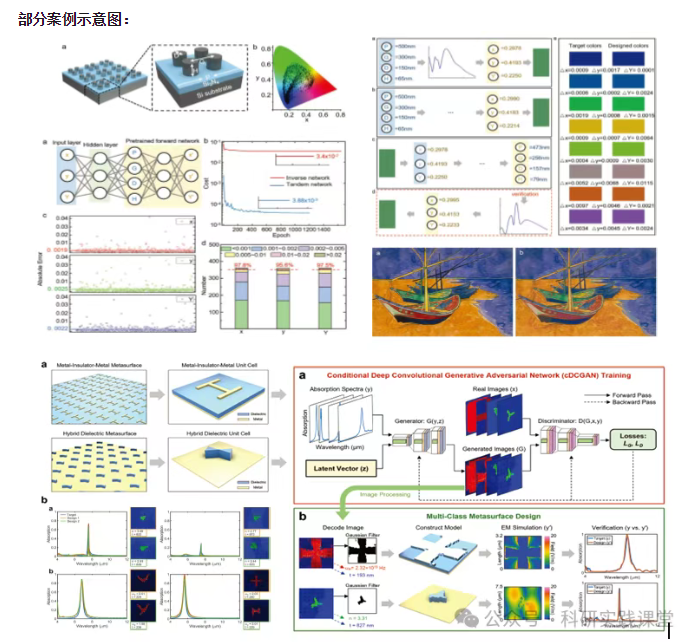
深度学习在微纳光子学中的应用
深度学习在微纳光子学中的主要应用方向
深度学习与微纳光子学的结合主要集中在以下几个方向:
逆向设计 通过神经网络快速预测微纳结构的光学响应,替代传统耗时的数值模拟方法。例如设计超表面、光子晶体等结构。
特征提取与优化 从复杂的光学数据中自…